7.3.13 Manage costs
This menu allows general cost parameters definition and attribution to each test/service. Navigate to Admin 🡪 Preferences 🡪 Costs.
|
|
|
Your LSM license must include the billing option to have access to this feature. |

You can edit currency, invoice prefix, tax rate, invoice template, invoice number start, tax default and payment mode.
|
|
|
Note that these values can be connected via the API for situations where you use an existing form or portal on your website. |
You need to click on edit, in order to change the settings for costs.
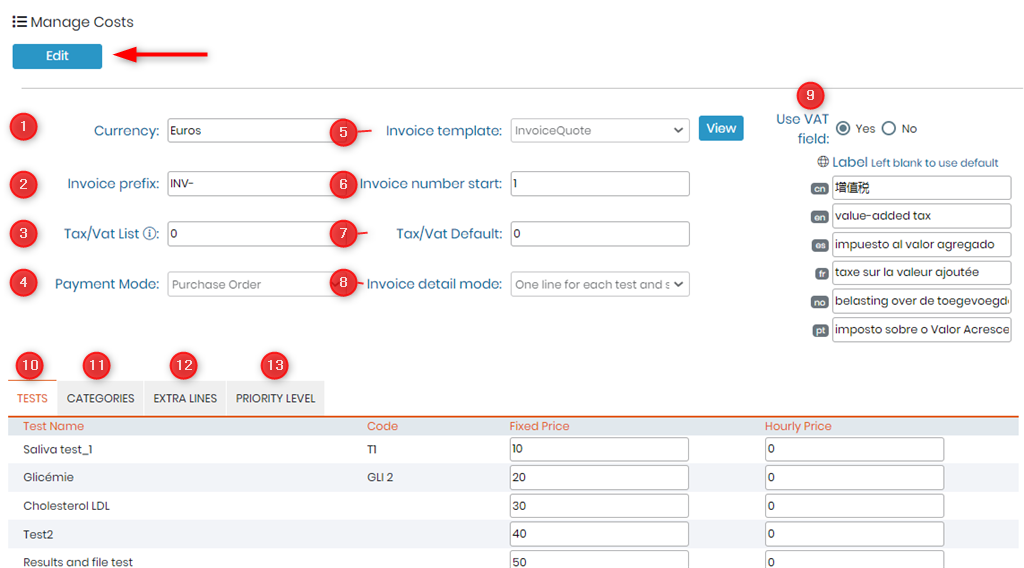

1) Currency: You can add currency of your country. You need to type the currency name. For example: Euros.
2) Invoice prefix: This will be the prefix before your each invoice number. For example: INV-
3) Tax/Vat List: Here you can add different values of tax or vat, separated by |. For example 10|20|15.
*Please do not add the percent sign. Just add the value.
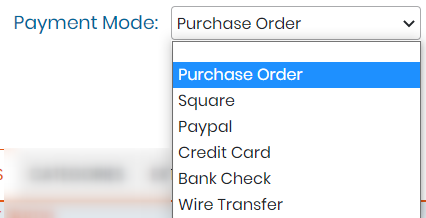
4) Payment mode: Here you can choose what kind of payment method the requester will make, to do the job (test).
|
|
|
The payment option is for requesters to pay the labs to do the analysis for their samples. |
5) Invoice template: you can add a template of how you invoice will look. Please read the knowledgebase  KB: how to create invoice template.
6) Invoice number start: This option will allow the invoice number to start by the number you enter here. For example you start with 101 so the first invoice number will be prefix-invoice number you entered that is INV-101.
7) Tax/Vat Default: Here you can add the default value for the tax for all invoices.
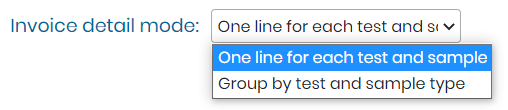
8) Invoice detail mode: Here you can choose which format you want for invoice.
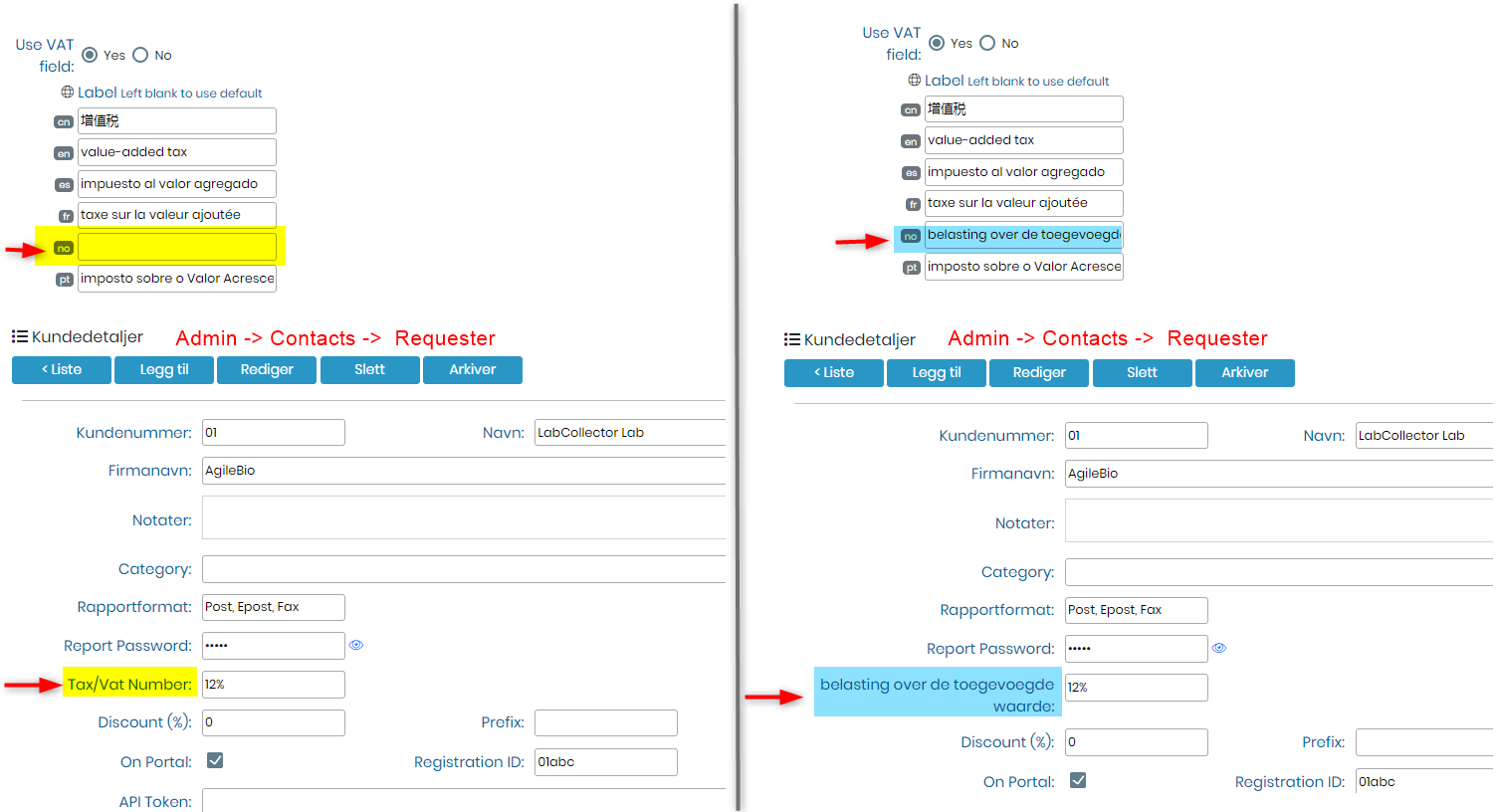
9) Use VAT field: If you don't want to use VAT field you can choose here. You can also choose the label for the VAT field, how it appears on your requester page when you change the language of the LabCollector.
10) Tests: Here you will see the tests, their code and you can also enter the test price depending on if it is fixed or hourly.
11) Categories: Here you will see test categories. (refer to  section 3.4.5)
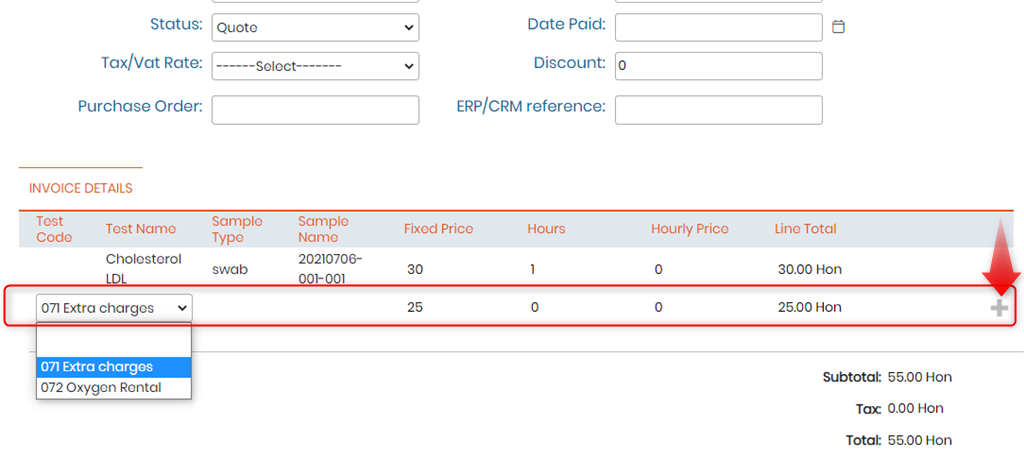
12) Extra lines: You can add more lines to your invoice.

You can go to invoices by either Admin 🡪 Invoices or by going to Admin 🡪 Contacts 🡪 Requesters 🡪 Invoices tab. Here you can select the invoice and EDIT to add the extra line. You can add more extra lines by clicking on the + sign. Once you are done SAVE the invoice to store the changes.
13) Priority level: This allows you to fix the rates/charges for different priority levels. You can add either the fixed price or the percentage increase in the rate of tests. You can also choose to skip the requesters discount (refer to section 3.1.1 ) if needed.

|
|
|
Hourly price can also be used as price per UNIT. For example, you have test on slides, and you set up the price for 1 slide (/hour). Instead of enter the samples 10 times, you can set up a cost per hour and when the staff do the test, they can indicate the number of slides they worked on. |
