9.1.2 Budgets follow up
This tool will help you to manage all your budget accounts at any moment and plan monthly budget according to the initial budget amount.
Go to: Tools 🡪 Purchase Orders Management 🡪 
Before using this Budgets Follow-up tool, you need to configure it:
- Add a new budget period by clicking on the corresponding icon.
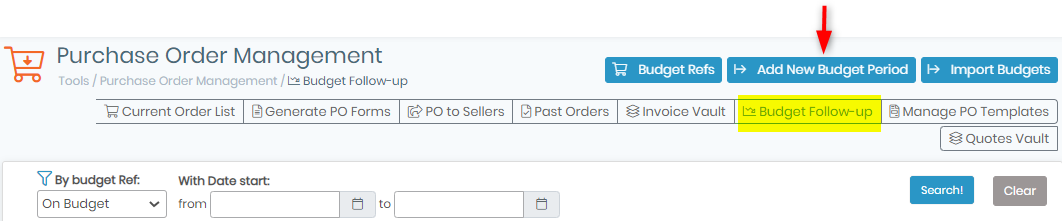
- A pop-up opens. You need to complete the form in order to configure the budget period: select a budget, start and end dates, amount allocated, budget manager, approval threshold and group permission access. Click Save to add the budget period.
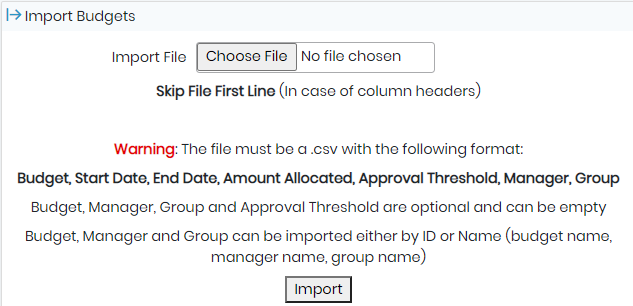
To import budgets click on the icon next to 
It’s also possible to import a list of budget periods via CSV file via the Import Budgets button.
- Your created budget period is now available on the main screen. You can retrieve information that you enter in the form.
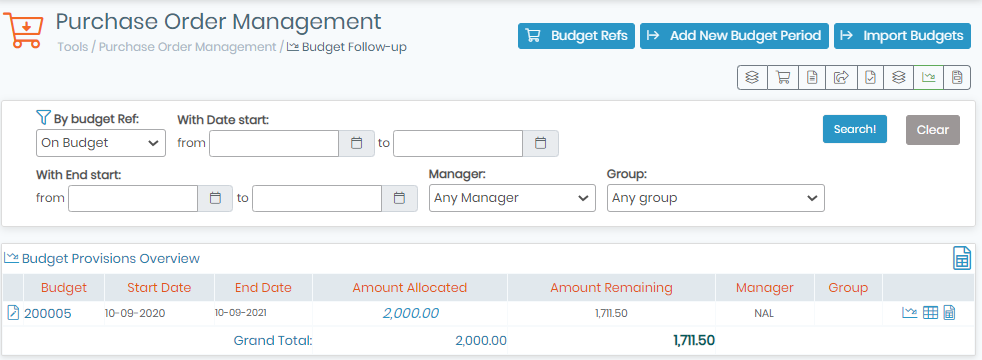
Once the budget period is defined, you can use follow-up tools: 
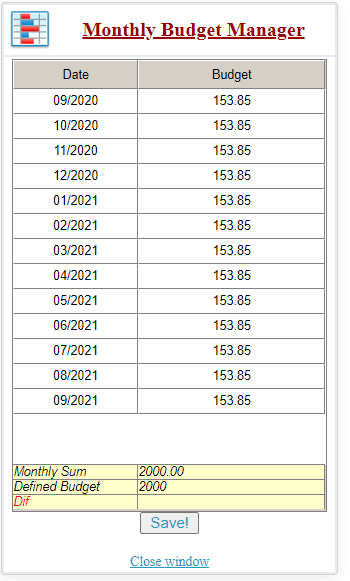
 This tool is the Monthly Budget Manager. You can use it to define a specific sub-budget for each month. Just replace the monthly amount by your customized data.
|
|
|
To enter a new value, double click on the existing value and save. |

 This tool displays the budget follow-up for this period with what was spent.
|
|
|
To see the spending on a budget, you need to process one or more orders in the Purchase Orders Management. |

 This icon allows you to export the Budget Follow-up as an Excel/CSV file.