3.2.1.1 Add/Create Users
Use the Create New User section to associate login, passwords, and permission levels to each contact.
- Go to Admin 🡪 Users & Staff 🡪 Manage Lab Members 🡪 Add new member
Enter basic contacts for lab staff members. Email is important.
To see your staff directory, go to Tools 🡪 Staff Contacts. See  section 10.9.
- Go to Admin 🡪 Users & Staff 🡪 Manage Users 🡪 New user
Create or edit a user’s login: change password, associate user names to staff contact. If you forget to create the contact, you can do it from here by using the “Create new person record" action.
Repeat this step for each person who needs to use LabCollector.

For each user you can choose one of 6 user-level permissions which are:
1. Super Administrator (only one user may have this permission)
This level can do everything in LabCollector: see all data, define and edit all user permissions and configurations, manage all data from all users, validate waiting for data, and manage settings.
|
|
|
You have the possibility to set up multiple "super administrators", but there could only be one "Master super administrator" who can change the rights for all other users including other super administrators, whereas the rest of "normal" super administrators can only change the rights of other users who have a lower level permission than them. |

2. Administrator
Just below the super administrator. They can see all data, manage all data from all users, and validate the waiting data. They have access to some “scientific” configurations mainly under the Preferences menu.
3. Staff +
Just below the administrator. They can see all data, process orders, follow budgets and invoices, use the memorize items function, create common boxes but only manage their data.
4. Staff
Just below the staff+. They can see all data, create common boxes but only manage their data.
5. User
This level allows the user to see data, manage their data but new and edited data will be added to the Waiting data and will require validation by administrators or the super administrator.
6. Visitor
No administration features. They can only search and view data. No modification is allowed with this profile.
You can also define the user as belonging to a group to restrict access to the data. For more information, please see  section 3.2.2.
On the bottom, you have indications of the number of users left.
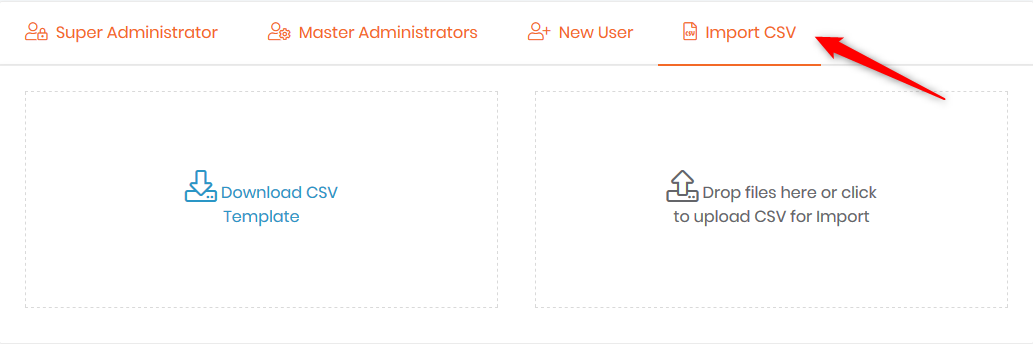
The user list can also be imported using a CSV file. You can download a template. The separator of the CSV file must be the comma. Values for groups and levels of permission must be the same ones as the values in LabCollector.
Filters are now available to search more easily on the user list. You can filter on username, real person, group, primary group, permission level or IP.
