3.2.2 Groups definitions
The super administrator can define groups to manage user’s general permissions (confidentiality).
You can read more about  KB: group policies in our Knowledge Base.
By default, there is only the “Full Access” group. To define the groups:
Go to: Admin 🡪 Users and Staff 🡪 Manage group policies
|
|
|
You can purchase additional groups if you need more. Please contact [email protected]. |

Each group’s rules can be defined to manage the user’s module access, based on 3 options:
- F: Full Access
- V: View only – User’s access to the module is limited to only show data.
- B: Block access – Users can’t enter into the respective module.
Add-on access can also be set up based on 2 options:
- F: Full Access
- B: Block access - Users can’t enter into the respective add-on.
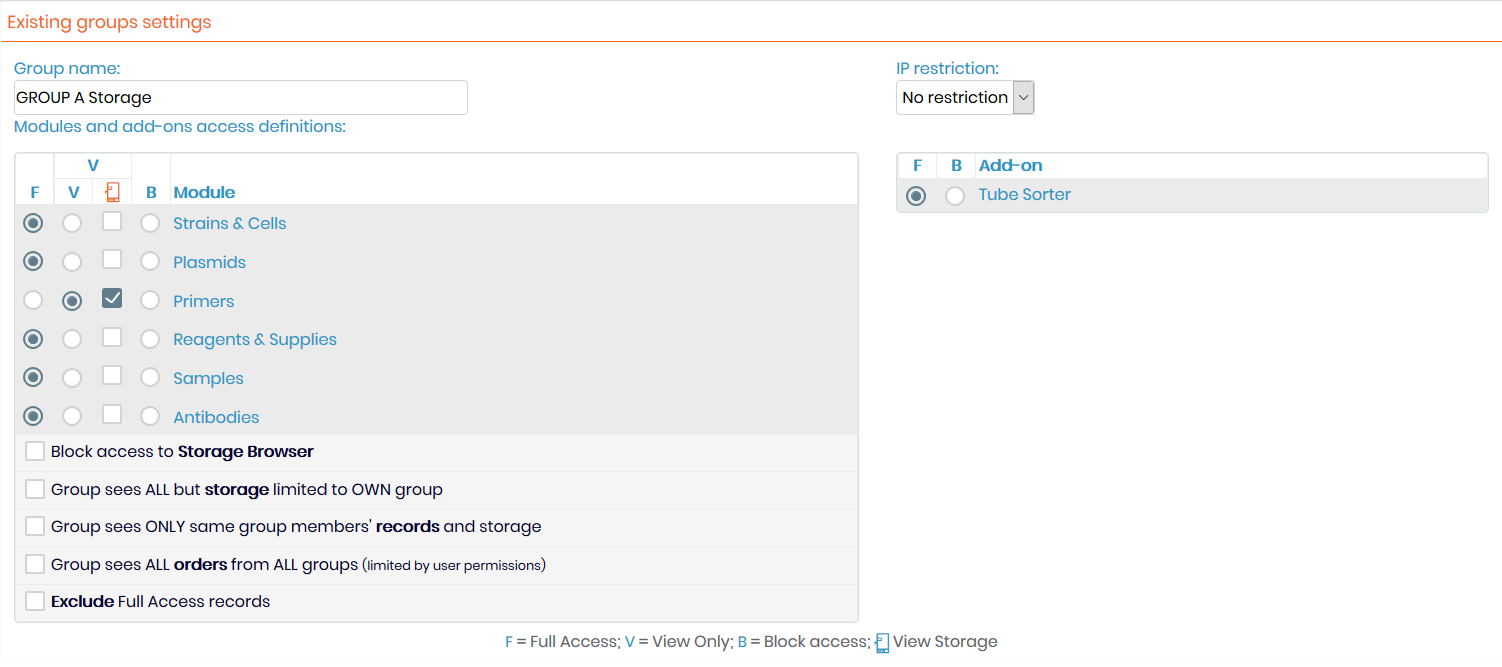
You can manage storage visualization (options View Only) and access to the storage browser. When you create a group with View Only access for some modules, you can also check the storage box to allow users to see the storage positions and locations.
If you want to restrict storage browser access, just check the “Block access to storage browser” box.
Groups can also be defined in such a way as to filter data access between groups:
- Group Sees ALL
No option checked
- Group Sees ALL except storage
By checking “Group sees all but storage limited to own group”, the group members will see all records in LabCollector. However, storage information will be limited to the group members.
- Group sees ONLY its data
By checking “Group sees ONLY the same group members’ records and storage”, the group members will only see records and storage information from their group. Data is therefore secured for the group. To take advantage of this you must have at least two groups.
- Group sees ALL orders
By checking “Group sees ALL orders from ALL groups”, all users can see all orders in the purchase order management. There is no limitation except by user permissions.
- Exclude Full Access records
If you check this option with one of the over, the group will not see the records belonging to the Full Access users.
|
|
|
Records made by users not affiliated to a group will not be restricted and will remain visible to ALL users in any group, except with the last option. |

Permissions can be changed at any time through this menu.
Search filters will also use these group definitions to help filter data by group.
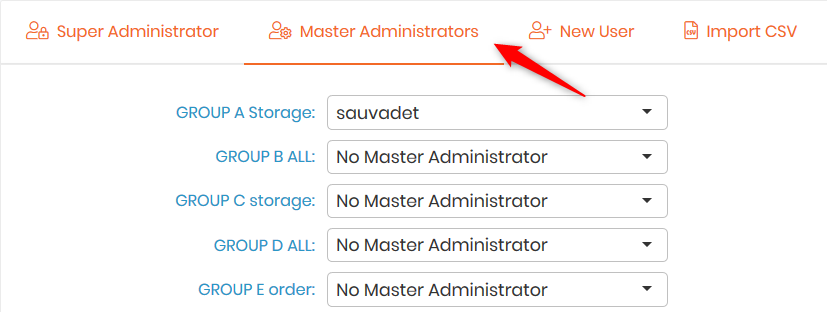
Super-administrator can assign master administrators to the groups under Admin 🡪 Users & Staff 🡪 Manage Users 🡪 Master Administrators. These master administrators can create and manage lab members and user accounts for their group.
Super-administrator can apply more than one group to a user. To come back to full access status, unchecked all the groups.
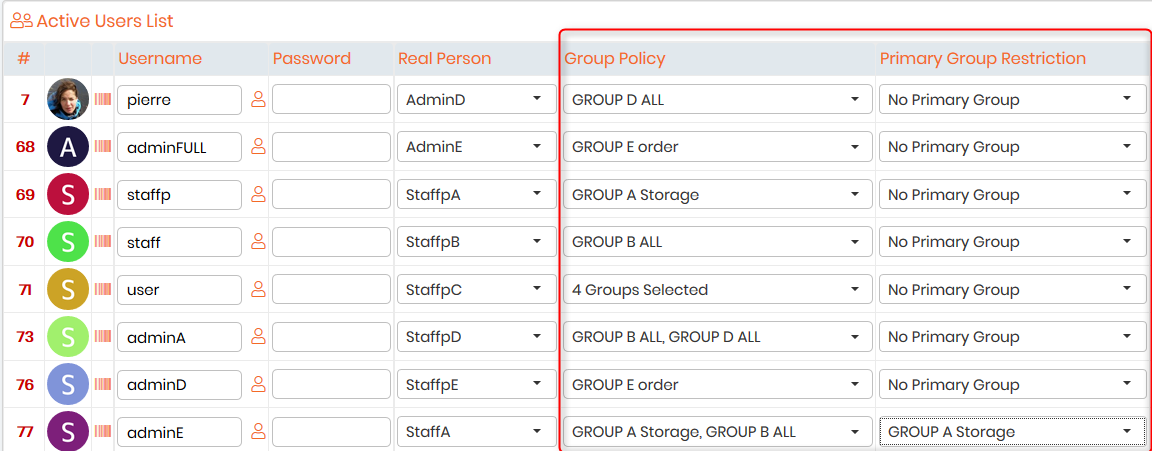
When a user is in multiple groups, the administrator can assign a Primary Group. This means that by default data are shared only with the Primary Group unless they explicitly choose to share individual records with their other group(s) as well.
If a user is in more than one group without the primary group then their data is shared with all these groups by default. The user can otherwise choose particular groups from the Share drop down while creating or editing a record.
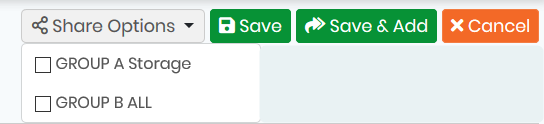
Refer to our blog article for more details.
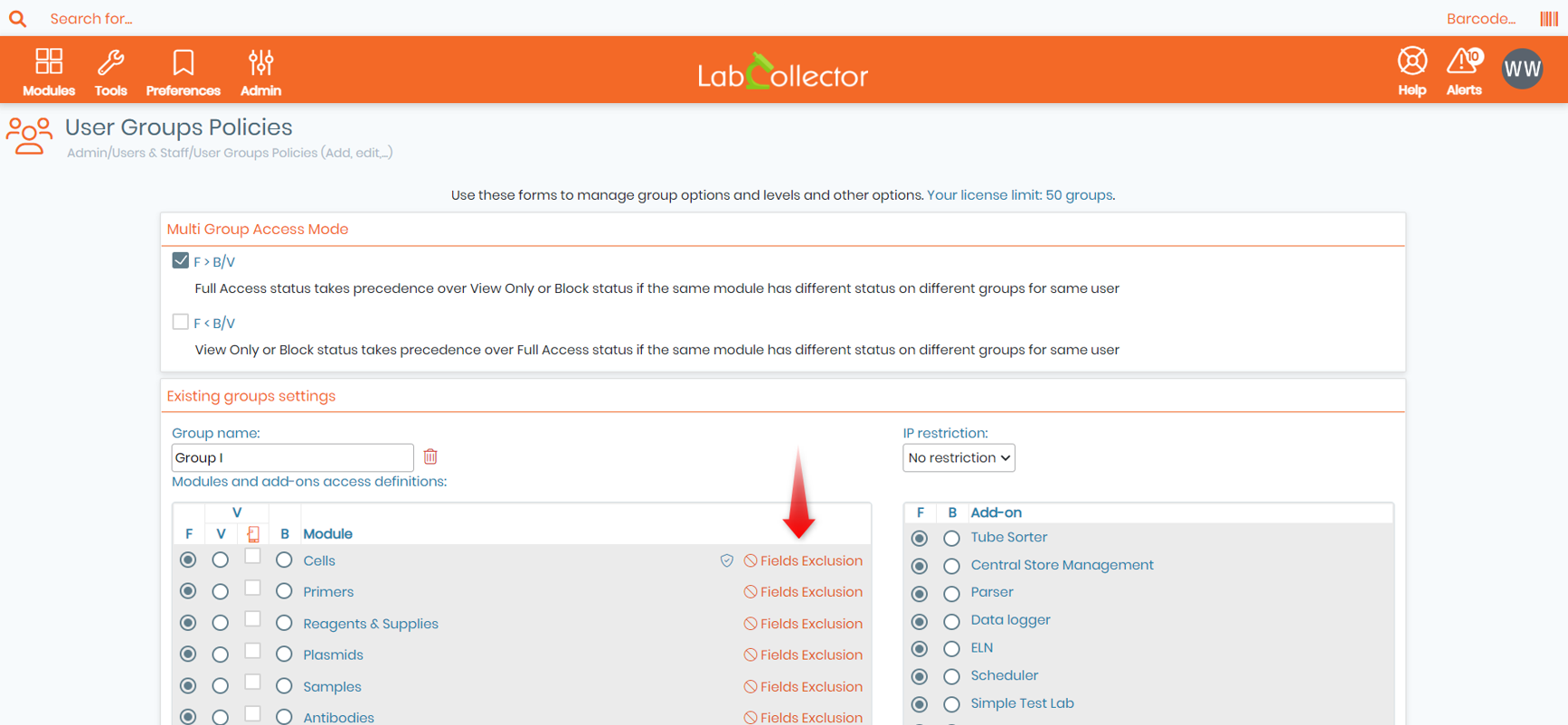
NEW! For a user belonging to multiple groups with conflicting permissions such as Full Access + view only or Full Access + blocked access, the super-administrator needs to choose between two options in the page of group definition.
- F > B/V means that the Full access status will take precedence over the View only or block status.
- F < B/V means that the View only or block status will take precedence over the Full access status.

For example, John Doe is in Group 1 and Group 2. In Group 1, he can access the Samples module whereas the Group 2 blocks this access.
- With the option F > B/V, John Doe can access the Samples module, whereas
- With the option F < B/V, John Doe is blocked and can’t enter in this module.
The option selected is for all modules, all groups, and all users.
|
|
|
Only the super-administrator cannot be assigned to a group. |

Tips/Hints
You can delete groups that are empty (do not contain any users).
|
|
|
When only a particular group has access to a custom module and all other existing groups were blocked from editing/viewing it, and when this particular group gets deleted by the super administrator, the custom module will also get irreversibly deleted. |

NEW! You can now select the fields that you don't want group members to view, by clicking on "Fields exclusion". You can do this for either the main record tab, the analysis tab, or even the registry tab. Disabled fields should not appear in records/exports of the corresponding module for users belonging to the selected group. See screenshot below.