3.1.1.2 Configuring SSO for LabCollector with Azure Active Directory
Step 1: Access Azure Active Directory
1. Navigate to (https://portal.azure.com) and log in to your Azure account.
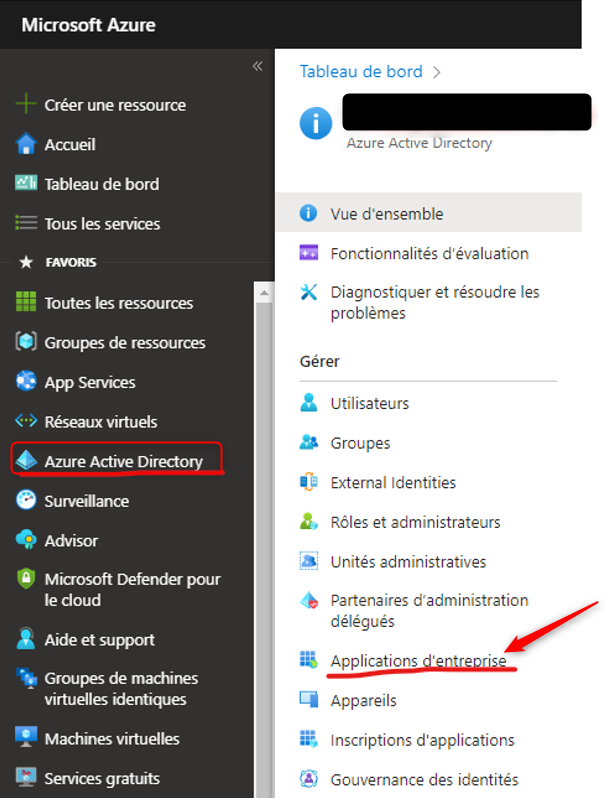
2. Go to the 'Azure Active Directory' section.
Step 2: Add a New Application
1. Click on 'Enterprise applications'.
2. Choose 'Create your own application'.
Step 3: Configure SAML Authentication
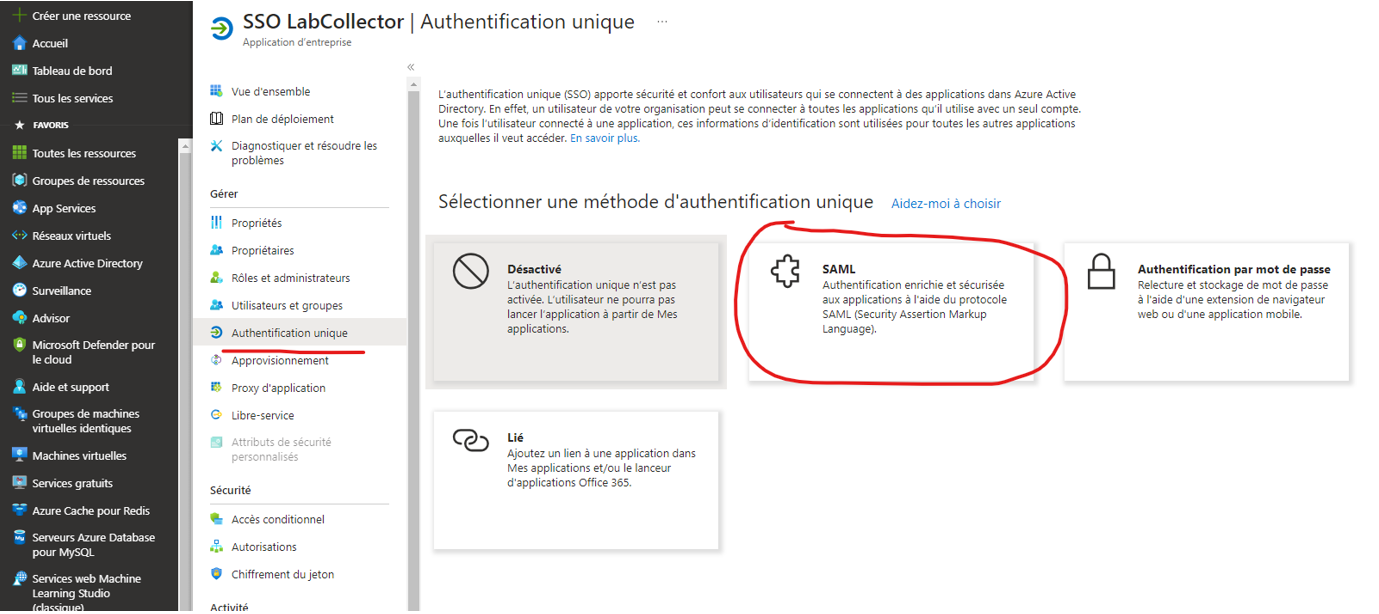
1. Select 'Integrate another application you don't find in the gallery (Azure Marketplace)'.
2. Click on 'Unique Authentication' and choose the 'SAML' method.
Step 4: Complete Azure Fields
You have two options for filling out the fields:
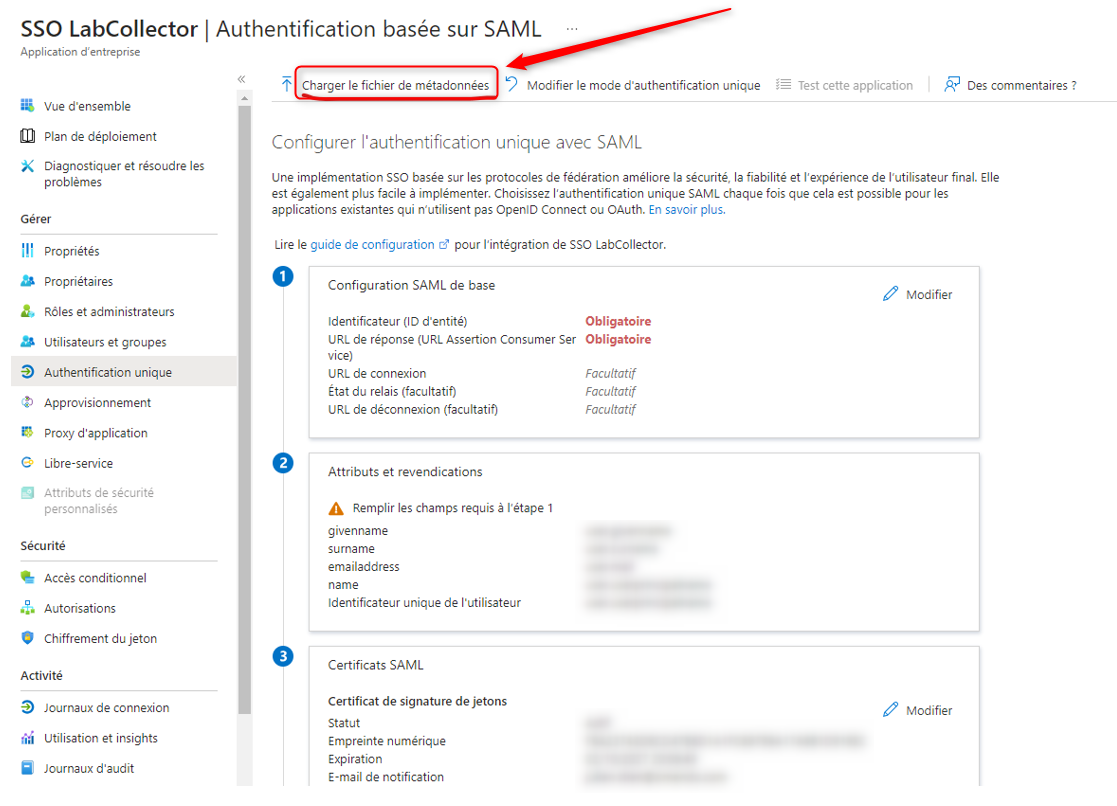
Option 1: Load Metadata File
- Download the 'metadata XML file' from the LabCollector SSO page.
- Upload the downloaded metadata XML file using the 'Load metadata file' button provided by Azure.
Option 2: Manual Configuration
- Fill in the following Azure fields manually:
- Entity ID: Copy the metadata URL (e.g., `https://YOURINSTANCE/login.php?metadata`) from the LabCollector SSO Setup page.
- URL Assertion Consumer Service: Use the ACS URL provided by LabCollector (e.g., `https://YOURINSTANCE/login.php?acs`).
- Connection URL: Enter the LabCollector login page URL (e.g., `https://YOURINSTANCE/login.php`).
- Disconnection Page URL: Provide the logout URL from LabCollector (e.g., `https://YOURINSTANCE/login.php.slo`).
Step 5: Exchange Information
- Copy and paste the following information from Azure to the  LabCollector SSO page.
- Azure AD Identifier (Entity ID) to LabCollector EntityID.
- Single Sign-On Service URL to LabCollector Single Sign-On Service.
- Single Logout Service URL to LabCollector Single Logout Service.
Step 6: Download Base 64 Certificate
- Save the configuration in Azure. Download the 'Base 64 certificate' from the 'Certificate SAML' section on the Azure screen.
- Copy the content of the certificate (.cer) and paste it into the 'Public key' input field on the LabCollector SSO Setup page.
Step 7: Test the Configuration
- Save the settings on the LabCollector SSO Setup page.
- Ensure that a user with a valid email address exists in LabCollector.
- Test logging into LabCollector using an Azure AD account email address.
Additional Considerations
- Ensure that a user account with an email address as the username exists in LabCollector to be processed by the SSO.
- Adjust LabCollector SSO setup parameters, such as 'Request Authentication Context', if authentication errors occur, like 'PasswordProtectedTransport', during login due to Azure AD group policies.