3.1.1.1 Configuring SSO for LabCollector with JumpCloud
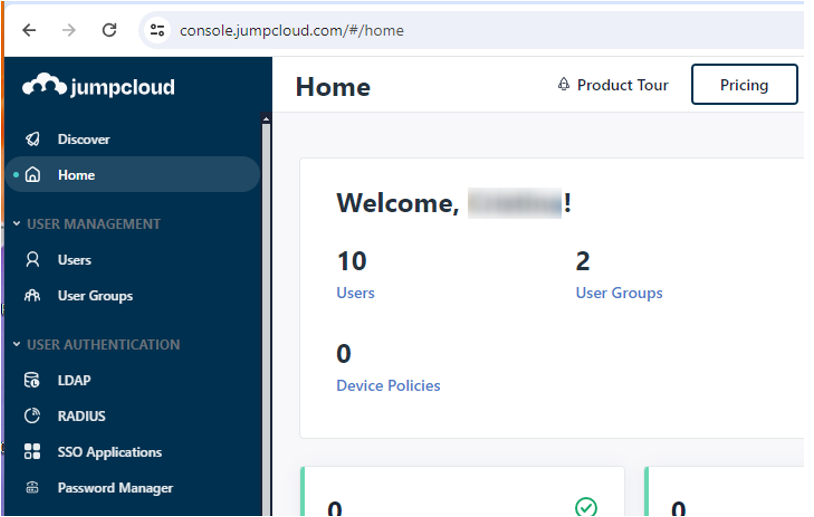
Step 1: Access JumpCloud
1. Navigate to [JumpCloud's website](https://jumpcloud.com/).
2. Log in using your administrator account credentials.
Step 2: Add New Application
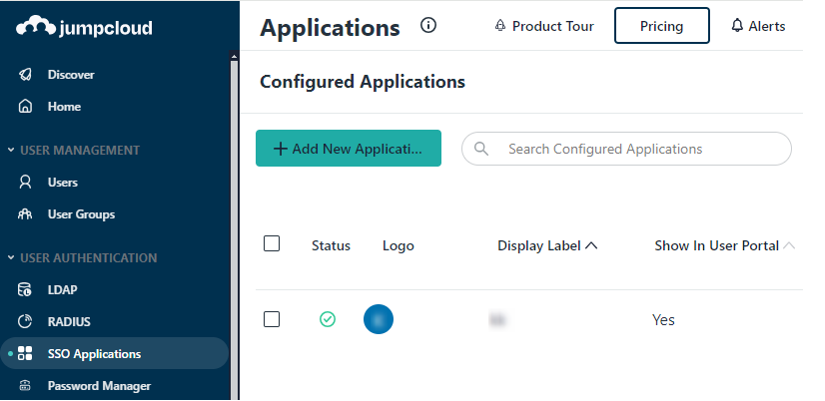
1. Go to “SSO Applications” from the left menu.
2. Click the "Add New Application" button.
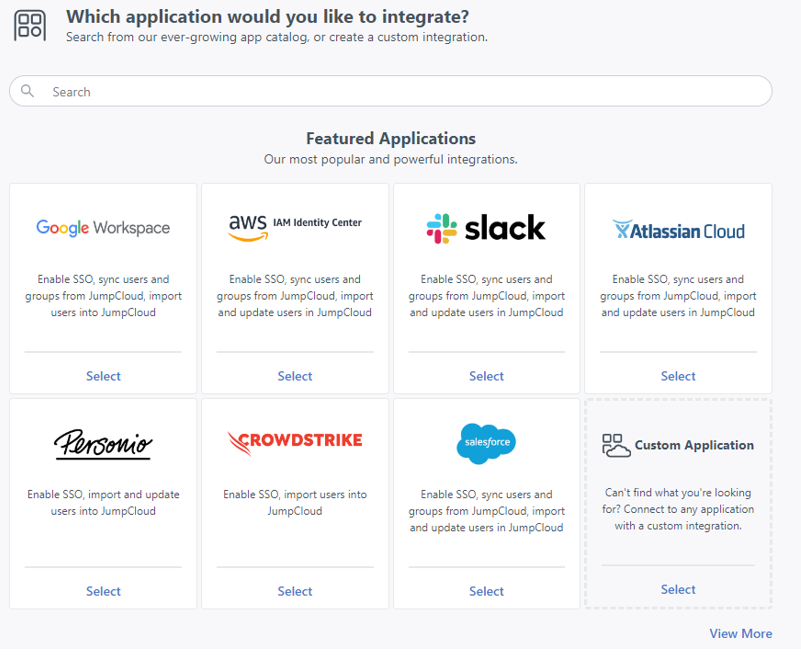
2.1. Select Custom Application
- Choose "Custom Application" and click "Next".
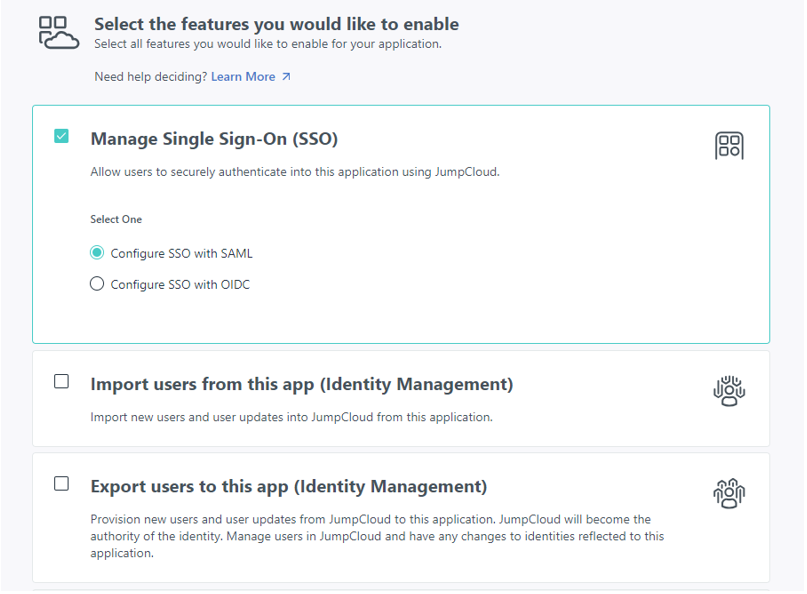
2.2. Check Manage Single-Sign-On (SSO)
- Select "Manage Single-Sign-On (SSO)" and choose SAML as the authentication method.
- Click "Next".
2.3. Write Display Label
- Enter a display label for the application.
- Click "Save Application".
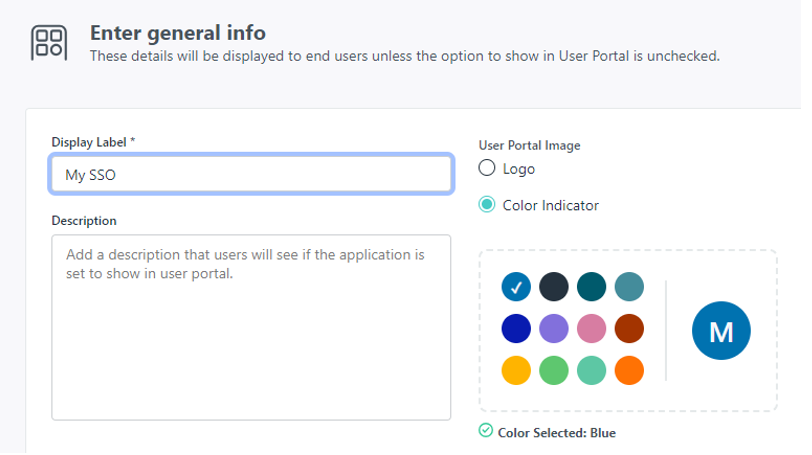
Step 3: Configure Application
3.1. Open Application
- Navigate to the SSO Applications section.
- Click on the name of the new SSO application from the list.
- Access the "SSO" tab.
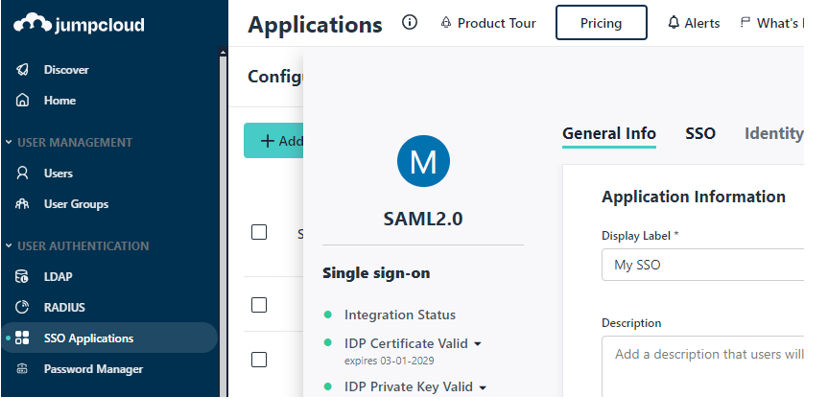
3.2. Fill SP Data
3.2.1. Option 1: Load Metadata File
- Download the metadata XML file from the LabCollector SSO page.
- Upload the downloaded metadata XML file using the "Load metadata" button on JumpCloud.
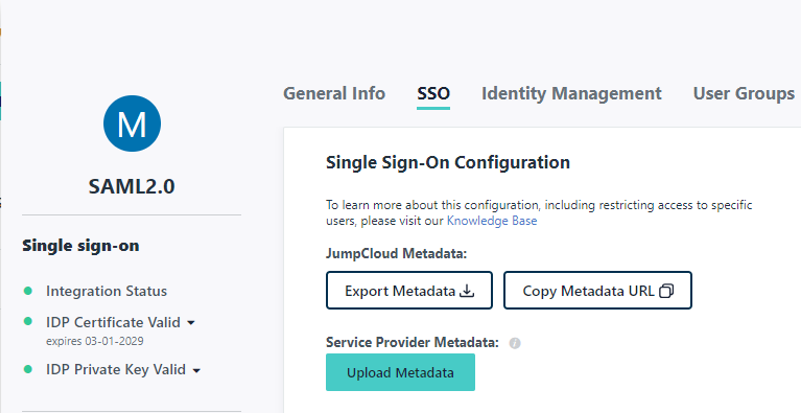
3.2.2. Option 2: Manual Configuration
- Manually fill in the following JumpCloud fields:
- SP Entity ID: Copy the metadata URL (e.g., https://YOURINSTANCE/login.php?metadata) from the LabCollector SSO Setup page.
- URL Assertion Consumer Service: Use the ACS URL provided by LabCollector (e.g., https://YOURINSTANCE/login.php?acs).
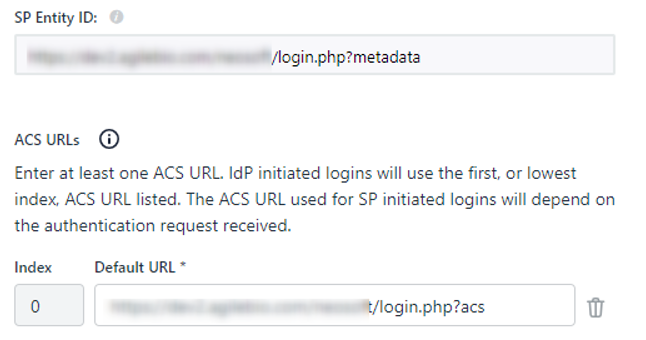
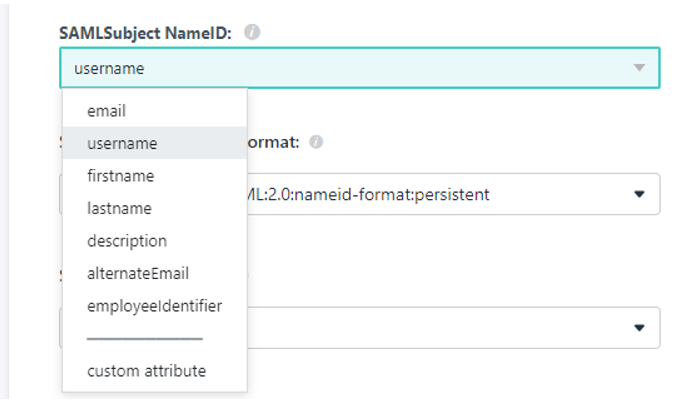
3.3. Choose Subject NameID
- Select the user identifier (SAMLSubject's NameID) to be sent. By default, it is email, but you can choose other fields such as username.
Step 4: Exchange Information
- Copy and paste the following information from JumpCloud to the LabCollector SSO page:
- SSO JumpCloud URL (e.g., `https://sso.jumpcloud.com`) to LabCollector EntityID.
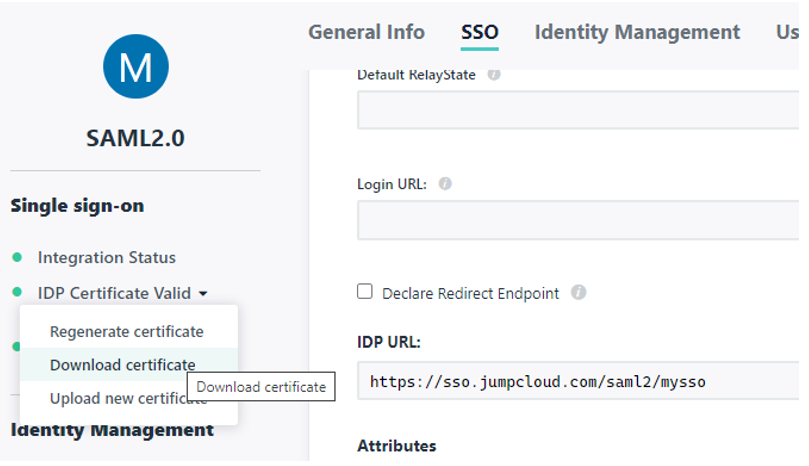
- IDP URL to LabCollector Single Sign-On Service.
- IDP URL to LabCollector Single Logout Service.
- Download IDP Certificate from JumpCloud and paste it into the Identity Provider Public Key section.
Step 5: Create Users in LabCollector
- Create or import user accounts in LabCollector ensuring that the same identifier is used in both systems (as defined in Step 3.3).
By following these steps, you can successfully configure SSO authentication for LabCollector with JumpCloud, enabling users to access LabCollector easily using their JumpCloud credentials.
Additional Considerations
- User Provisioning: Ensure that user accounts exist in both JumpCloud and LabCollector for seamless SSO authentication.
- Testing and Troubleshooting: Perform thorough testing of the SSO setup and address any issues or errors encountered during the configuration process.