3.1.1 Login and LDAP Options
Two access modes can be defined here:
- SEMI-OPEN: In this configuration, data browsing are open to anyone who knows the IP or URL address for LabCollector. However, administration tasks are always password protected.
- FULLY LOCKD: In this configuration, any access to LabCollector requires login authentication.
You can read about  KB: LabCollector general setup-1. Login.
Authentication and login can also be managed with different options:
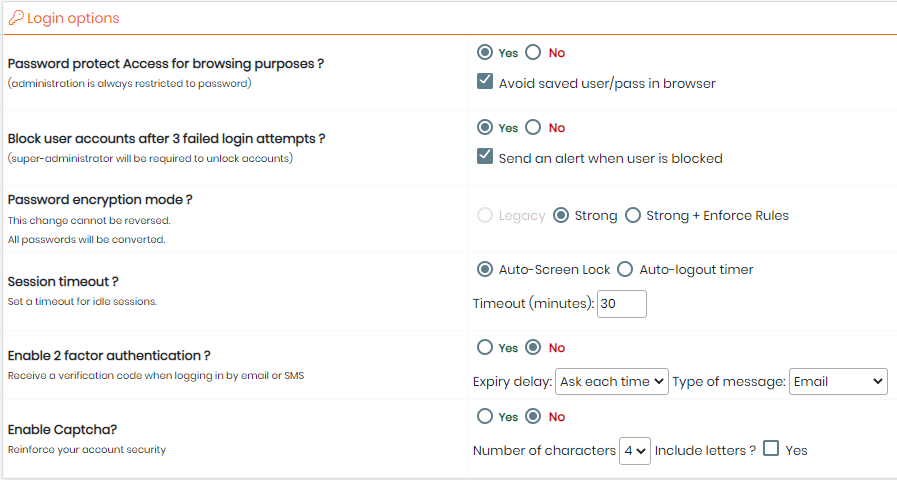
- “Password protect Access for browsing purposes” option:
- YES, you define total login protection
- NO you indicate a semi-open system in which data browsing and search are unrestricted.
The administration menu is always password protected.
You can also force internet browsers to not save login and password information.
- “Block user accounts after 3 failed login attempts” option:
- YES, if a user fails three times in his password, his account will be blocked and the super-administrator will be required to unlock it. You can also choose to have an alert sent to the super-administrator when a user is blocked.
- NO: you can enter the password as many time as you want
A user locked appears in red like below in the user list. The super-administrator needs to unlock using the icon on the right.

Below is a screenshot of when the user tries to login after his/her account got blocked.
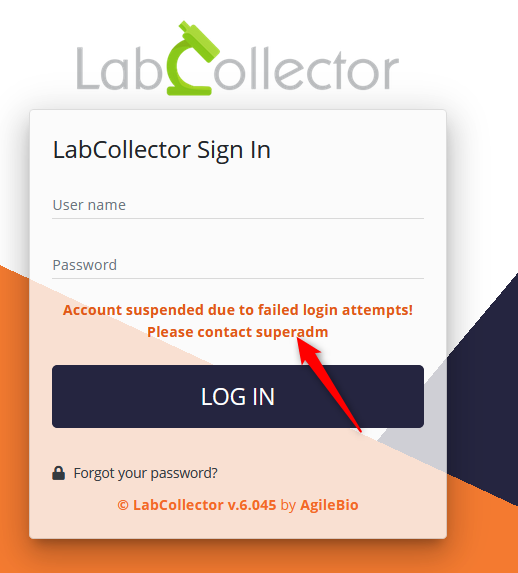
NEW! Once a user account is temporarily blocked after 3 login attempts, it will then get recorded in the audit trail.
- “Password encryption mode” option: You can choose between three password-encryption modes: legacy (old one), SHA-256, or SHA-256 + strong rules. With the last two, all characters are available and a double password confirmation on super-administrator and new users is requested.
Strong rules mean that the password must contain:
- at least 8 characters
- at least 1 lowercase
- at least 1 uppercase
- at least 1 digit
- at least 1 special character
Since version 5.42, in case of SHA-256 + strong rules, the super-administrator gives a temporary password to the user. During the first login, the new user has to change his password following the strong rules. The same password cannot be used between different user accounts.
The reset of the password is forced every 3 months.
|
|
|
This change cannot be reversed. ALL passwords will be converted. |

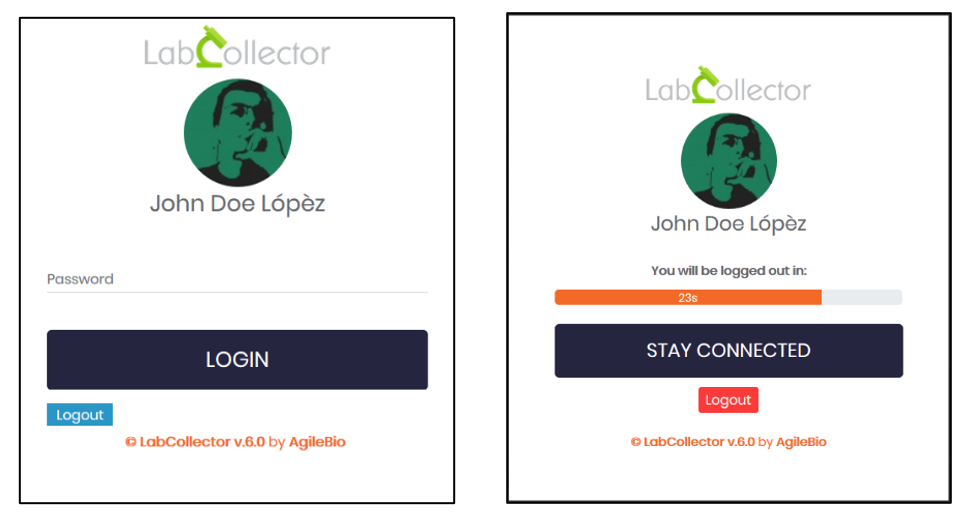
- “Session timeout” option : this option allows activating an automatic lock option or logout timer and set the number of minutes of idleness before locking occurs.
NEW! "Enable 2 factor authentication ?" option: 2FA is an extra layer of security used to make sure that people trying to gain access to an online account are who they say they are. First, a user will enter their username and a password. Then, instead of immediately gaining access, they will be required to provide a verification code.
– You can set the expiry delay so that it asks you for the verification code either each time you try to login, everyday, every week or every month.
– You can also set the message so that you receive it via email or via email + SMS.
Tips/Hints
Please refer to this section of the KB to see how you can configure your email. Also, if you opted for the SMS option, you will need to set-up your TWILIO account (please, check this section of the KB for more details).
NEW! "Enable Captcha ?" option: CAPTCHAs are tools you can use to differentiate between real users and automated users, such as bots. CAPTCHAs provide challenges that are difficult for computers to perform but relatively easy for humans.
- You can set the number of characters to either 4, 6 or 8 and you can also choose whether or not you want to include letters in the verification code.
If you already have a system of login in your institute, you can probably connect it to LabCollector. Two systems are available: LDAP/AD server or Single Sign-On Authentication.
You can read about  KB: how to use AD or LDAP for login authentication.
- “LDAP system”: If you have a network using LDAP or Active Directory (AD) for users profile management, you can use it in LabCollector. LabCollector login process will then check login/password validity on the LDAP or AD server.
It works with standard LDAP protocol and only uses the LDAP server and domain.
If you use the LDAP system, you will not have to enter passwords in users’ profiles as those are managed on the LDAP/AD server.
You can read more about  KB: how to use LDAP & OpenSSL on windows 64bits.
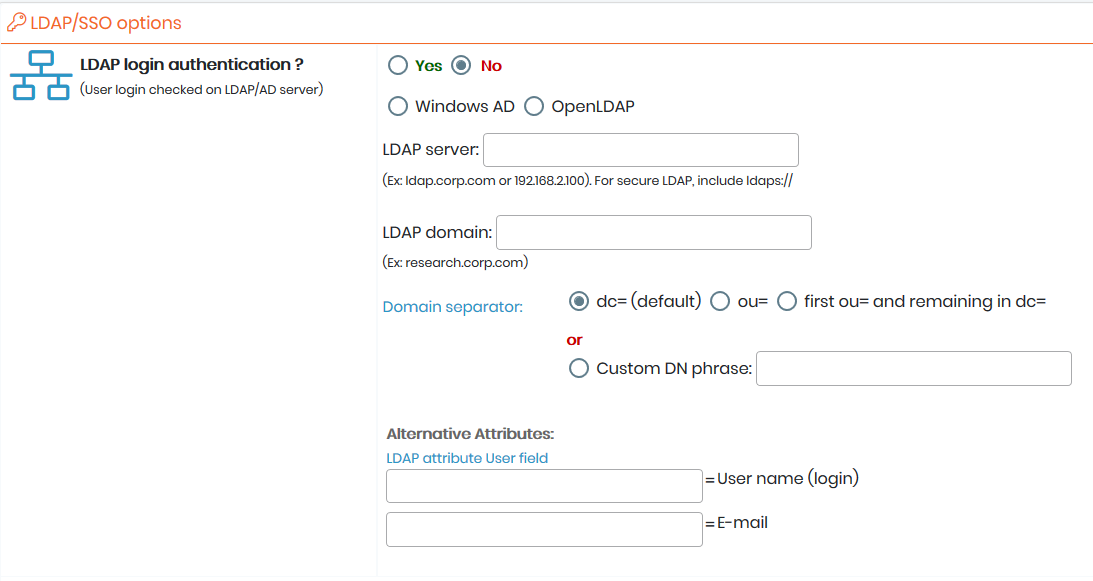
Users and Staff LDAP/AD can be directly imported automatically: Admin → Users & Staff → Import from LDAP/AD.
- “Single Sign-On Authentication”: This allows your lab to use SAML authentication for signing in. SAML provides a single point of authentication, which happens at a secure identity provider. SAML uses secure tokens which are digitally signed and encrypted messages with authentication and authorization data.
These tokens are passed from an identity provider to LabCollector with an established trust relationship.
As in the case of LDAP, passwords (except for that of the super administrator) are managed outside of LabCollector.
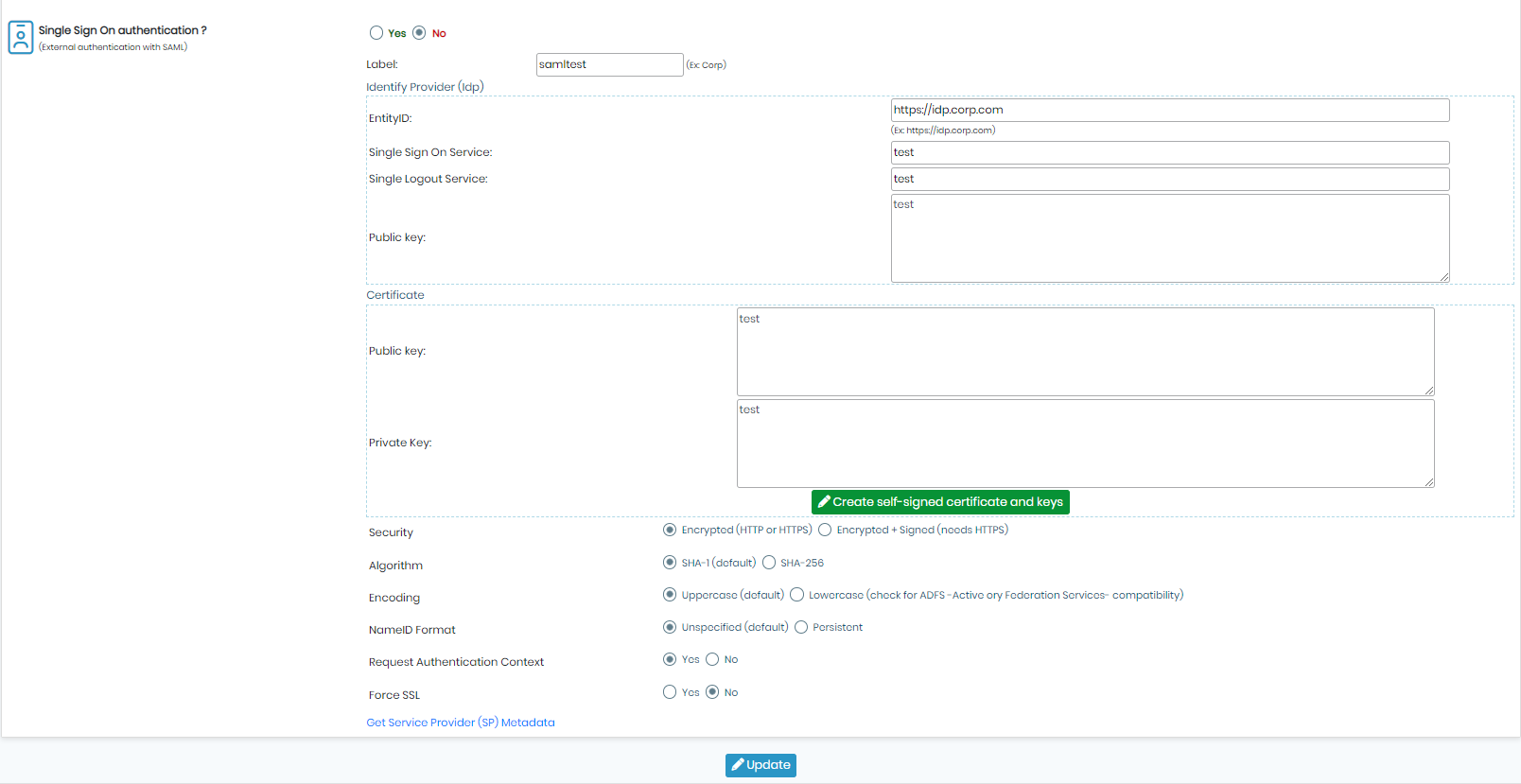
You can read more about all the options mentioned in the screenshot above, by visiting our  KB: LabCollector General setup v6.11, what's new?
NEW! You can set the algorithm to either SHA-1 (which is set by default) or SHA-256.
NEW! You can also choose whether or not you want to force the SSL.
|
|
|
When enabling SSO, you will have to fill out all mandatory fields to be able to save your changes. |

You can read more about  KB: PHP requirements for SSO in our Knowledge Base.
|
|
|
Don’t hesitate to contact |

