10.16.1 Creating SDS Templates
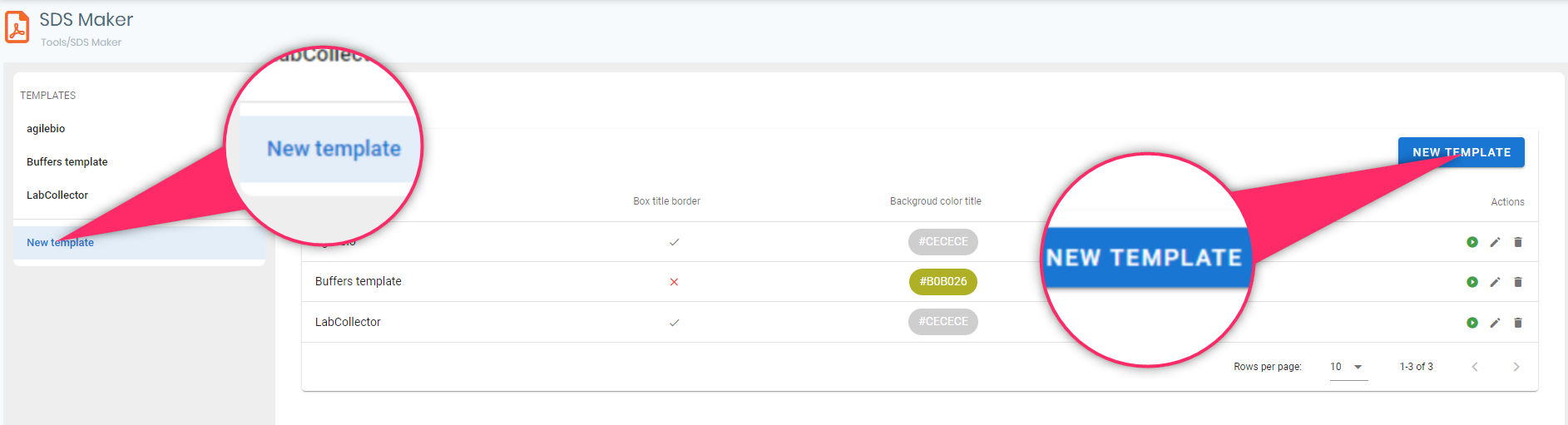
To Create a new SDS Template, simply click on one of the two buttons (as displayed on the screenshot below):
You will then get a pop-up with several options to configure:
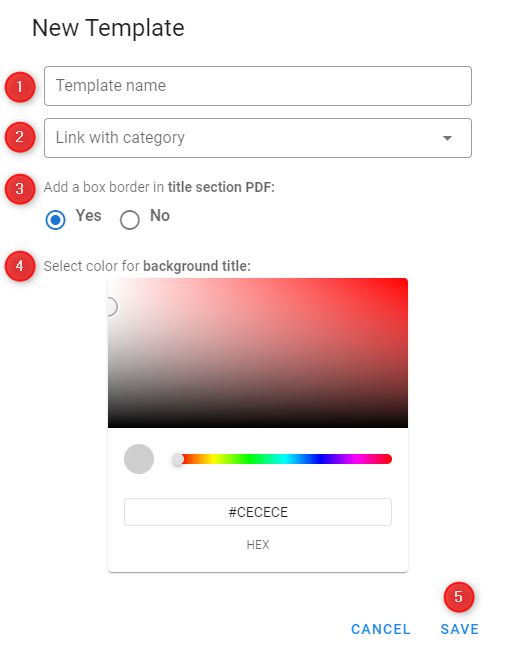
Please refer to the numbered sections above to understand each corresponding aspect of the pop-up:
1. Template name: Enter the name of your template in this field.
2. Category: Assign a category to your template for easy organization. These categories can be created and customized by simply navigating to LabCollector's main menu, then to Preferences -> Reagents & Supplies.
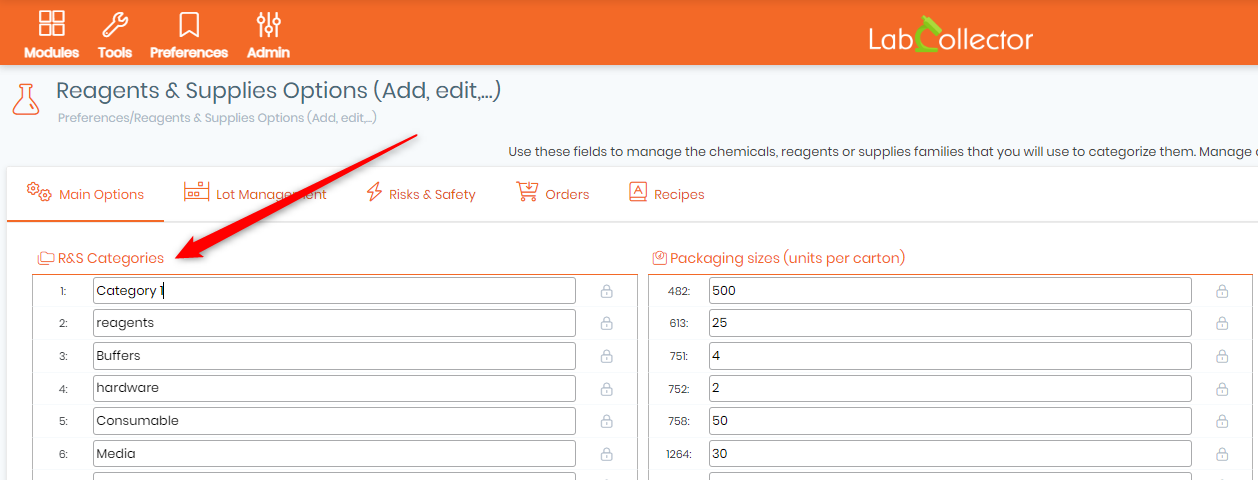
3. Choose whether to include a box border around the title section of the PDF generated from this template. Select "Yes" or "No" accordingly.
4. Select color for background title: Customize the background color of the title section by selecting a color from the palette or entering a hex code.
5. Save: Once you've configured the template settings to your preference, click "Save" to apply the changes and create the new template.
Once you've saved your new template, it will be automatically added to your list of templates. From there, simply click on the template to begin configuring its various fields.
Each template contains distinct categories, such as Identification, Hazard Identification, First-Aid Measures, Fire-Fighting Measures, and more.
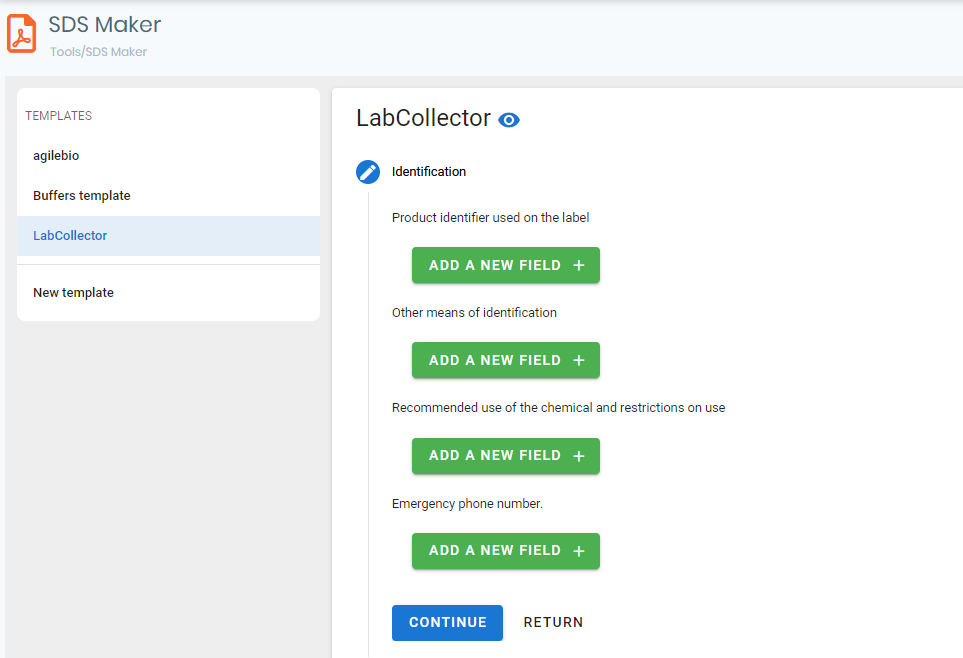
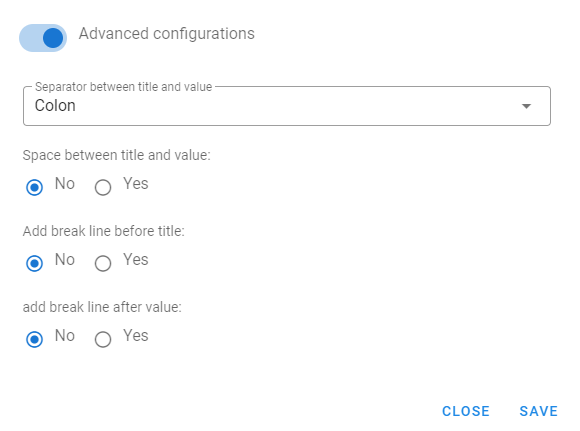
To add a new field to each section, click on the green button  . This action will prompt a pop-up window to appear, where you'll need to input the following details: Type of field, Title name and Value.
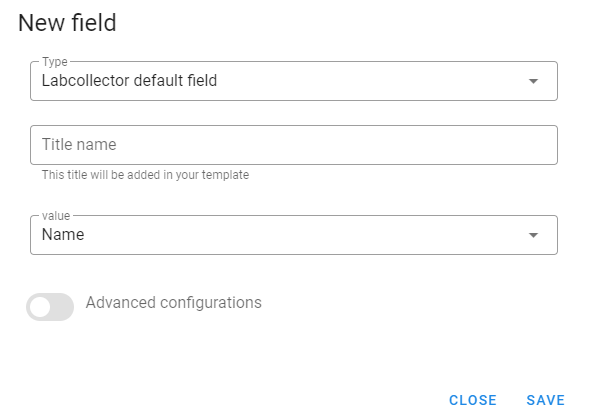
You also have the option to access advanced configuration settings, where you can:
- Select the type of separator between the title and value (colon, semicolon, period, comma, or break line).
- Choose whether to include a space between the title and the value.
- Add a break line before the title.
- Add a break line after the value.
You can complete the setup for the remaining template sections (see screenshot below). Remember to click on  to finalize the process.
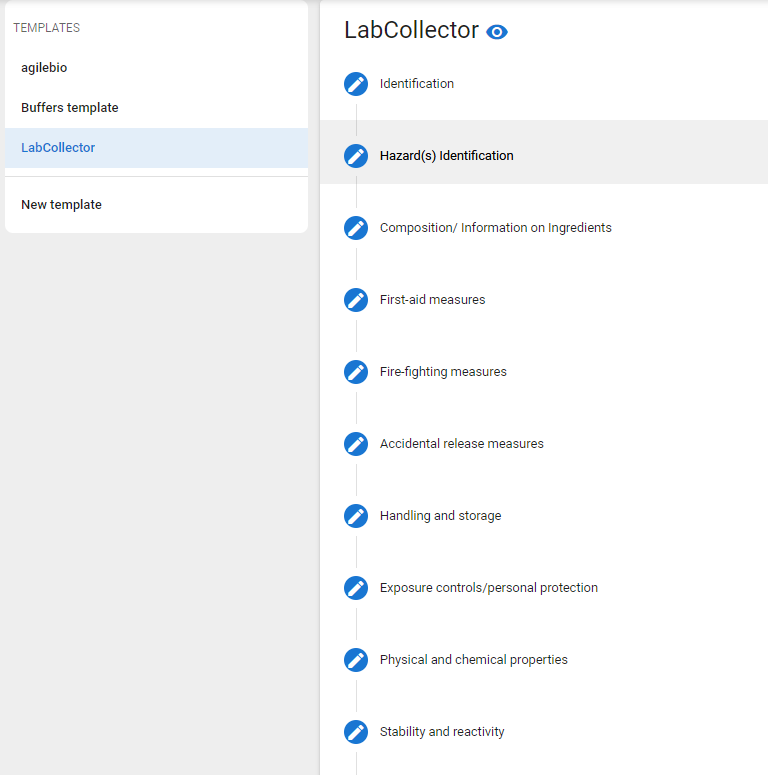
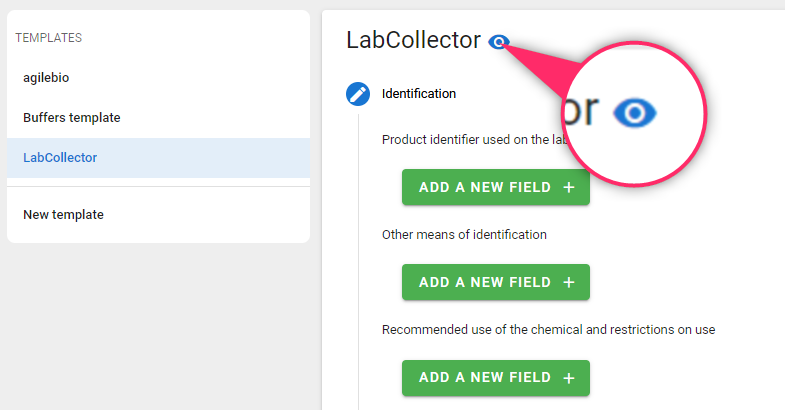
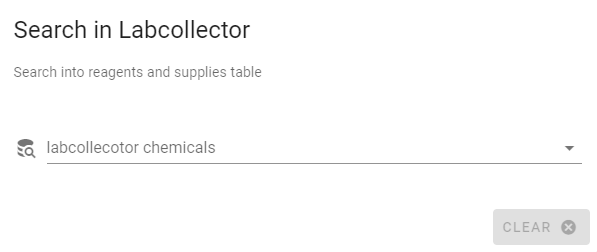
Now that your template is prepared, you can preview it by clicking on the blue eye icon located next to the template's name. You will then need to select one of your records from the Reagents & Supplies module.