7.3.2. Create parameters
The parameter list pools all parameters that can be used during lab service activities. Within the LSM navigate to Admin 🡪 Preferences 🡪 Parameters. Click on the Add button to create all needed variables (temperatures, volumes, concentrations, measurements…) that are relevant to perform assays/tests in the lab and define results.
Parameters can be INPUT or OUTPUT/RESULT values depending on whether they are needed when starting a job or to record results of an assay or test.
|
|
|
As of version 3.2063 it is possible to add test parameters while editing a test. |

You can create parameters at Job, Sample or Test level. LSM gives possibilities to create different types of parameters.
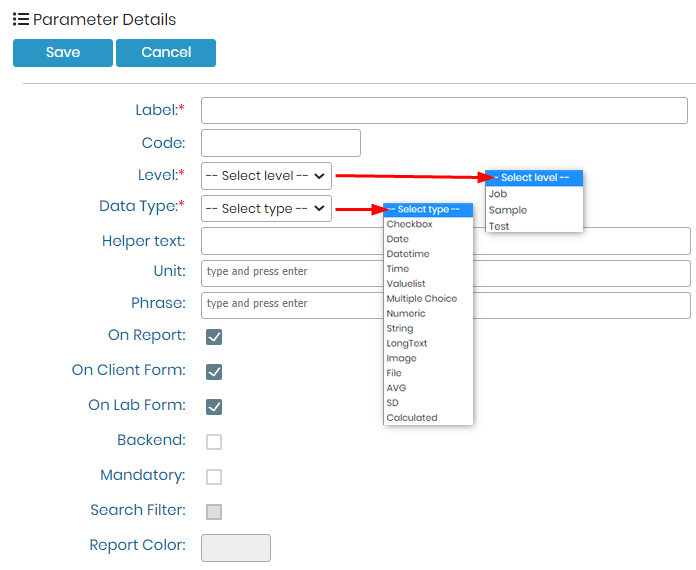
- Label: This the name of the parameter.
- Code: You can give a code to the parameter. Sometimes, there are certain codes that are defined for certain test and parameters related to them by the governing bodies; you can add such codes here. For example, the LOINC codes.
- Level: You can define the level where you want to create the parameter for. Refer to
 section 3.4.2.1
 - Data Type: You can define what type of parameter you would like to create. Refer to section 3.4.2.2
- Helper Text: This allows you to give a little more information about the parameter.

- Unit: You can define Unit for your parameter.

|
|
|
Don't forget to press ENTER key, after you type the values for Unit, Phrase and options in Value list or multiple checkbox. |
- Phrase: For each parameter, you can define an associated phrase (or phrases) that will be used in result reports. Phrases are added in the same manner as values for a value list. Type in the box and click enter. This confirms the phrase indicated by a bubble around the text. Clicking the ‘x’ in the bubble will remove the phrase. A phrase has the option to be linked to a min-max range if the parameter has the data type numeric and is an assay level output. Note that multiple ranges are possible. For more information on ranges refer to the chapters describing tests/assays.

- On Report: If you don’t want to have this parameter of the final test report, unchecked the box “On Report”.
- On Client Form: If you want to add this parameter to the remote portal of LSM, then you need to check this box. Please read the knowledge-base
 KB: New fields in LSMRemote.
 - On Lab Form: If you don’t want to add this parameter under the job level, and keep it hidden, you can unchecked the checkbox. If you want it to be visible under Job, then you can check the box.

- Back-end: If you check this box, this means that the parameter will be not be visible in LSM but ONMY visible/editable by API for example for I-Collector integration , etc.
- Mandatory: If you want your option to be filled for the job, sample, test to be created, then you can make the parameter mandatory. Without filling the value for this parameter, the user cannot move forward or save the job.
- Search filter: Currently, in LSM you can use parameters as search filters to filters jobs. If you want to add your parameter as a search filter you can check this box.
|
|
|
For now only parameter of type "Value list", "Multiple Choice" or "String" can be checked as Search Filter. |
- Report Color: You can only add color for the values, to test level parameters.
|
|
|
For : |