7.3.2.2. Data field types
The lab can choose between several types of variables (Data Types) to create parameters:
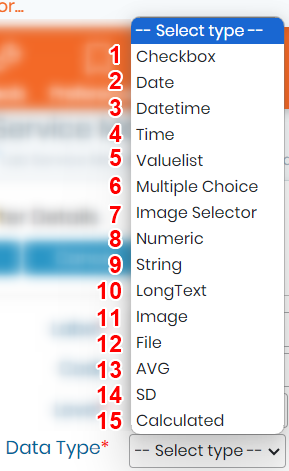
- Checkbox: Binary answers Yes/No, True/False as a checkbox.
NEW! Now you can choose if the checkbox option needs to halt a job at a specific stage like job started, completed & approved.
If the box is not checked the job will not be able to proceed to the next status.

- Date: Reported as yyyy-mm-dd, entered using a calendar.
|
|
|
The date format when you edit the job will be set by the LSM system to look like yyyy-mm-dd , however, if you want the date to appear in specific format or time zone on your test result report (For more details, go to |


- Date-time: Reported as yyyy-mm-dd hh:mm:ss, entered using a calendar
- Time: Reported as hh:mm:ss
- Value list: Provide values for a drop down menu for a single choice. For the value list at test level, you can add the colors for each value. For example, if the result is detected you can add a red color to the "detected" text that will appear on your result report. See an example image below.

|
|
|
You can also set a default value, which will automatically get displayed in your job form.
|

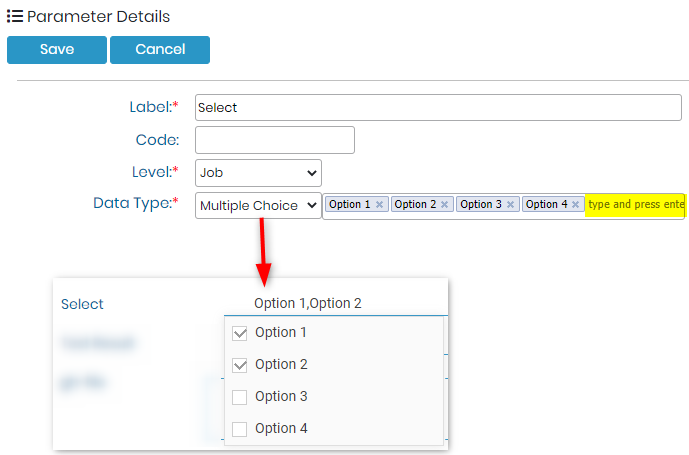
- Multiple choice: You can several values that can be selected together in parameter.
- Image Selector: It allows you to add a range of images, that you can then select from.
- Numeric: Numeric user typed input. A range may be assigned to Numeric parameters when defining assay details. You can even define the decimals values.
- String: Alphanumeric ONLY user typed input, no special characters are allowed.
- Long text: Field text (size = 1000 characters). At job and sample level, this data type can allow up to 1000 alphanumeric characters. However, at the test type, you can have possibility to edit it with html editor and even add templates for your parameters, for example like below.
Please see more details in our Knowledge Base  KB: How to use html editor.
|
|
|
You can copy paste the table or templates from word file as well. |


- Image: Field to upload images.
- File: Field to upload files.
- AVG: This field allows you to get the average/mean value from a list of parameters. There is also the option to show the standard deviation (Include SD).
- SD: Allows you to have standard Deviation of the values you use in result parameters.
- Calculated: This field allows you to add formulas that can be calculated. The parameters that you create at the test level ONLY will be used to calculate the formula.
|
|
|
In the calculated formula you can only use +, -, *, /, ^ functions only. |

NEW! Now you can add color to the calculated values above and below of a specific range at the test level. When you define the colors, they will be visible in the result report. See Chapter (refer to  section 3.4.9)
