9.3.3 Manage PO templates
LabCollector uses templates in order to generate a dedicated PO that follows your company or institute guidelines. They can either be HTML or Excel files.
Simply navigate to: Tools 🡪 Purchase Orders Management 🡪 Manage PO Templates
The table below lists all pointers recognized by LabCollector:
|
TAG |
Replacement action in template |
|
##date## |
Inserts date (yyyy-mm-dd) |
|
##date_dd-mm-yyyy## |
Inserts date (dd-mm-yyyy) |
|
##date_mm-dd-yyyy## |
Inserts date (mm-dd-yyyy) |
|
##items## |
Inserts ordered items list (table with name, seller reference, quantity and unit price) |
|
##itemsandrequesters## |
Inserts ordered items list (table with name, seller reference, quantity and unit price) + indication of users who ordered/requested |
|
##total_order## |
Total amount of the order (sum of the item prices x quantity) |
|
##quote_number## |
Inserts QUOTE number |
|
##po_number## |
Inserts PO number |
|
##order_by## |
Inserts name, email and tel of the person who ordered (place it on each item line) XLS* |
|
##po_number_barcode## |
Inserts PO number as barcode |
|
##comment## |
Inserts comment |
|
##internal_comments## |
Inserts supplier comments XLS* |
|
##supplier_comments## |
Inserts supplier comments XLS* |
|
##budget## |
Budget account reference (global) |
|
##budget_line## |
Budget account reference (for each item line) XLS* |
|
##chem_name## |
Item Name XLS* (name or ref are mandatory top column) |
|
##chem_ref## |
Item reference XLS* (name or ref are mandatory top column) |
|
##cas_number## |
CAS XLS* |
|
##qty## |
Item quantity XLS* |
|
##item_pack_size## |
Item packaging size XLS* |
|
##chem_seller_price_original## |
Unit price XLS* |
|
##chem_seller_price## |
Unit price discounted XLS* |
|
##chem_special_code## |
R&S Code XLS* |
|
##discount## |
Discount rate XLS* |
|
##brand_name## |
Brand name XLS* |
|
##seller_company## |
Seller company name |
|
##seller_address## |
Complete seller mailing address (Name, company, street, post code, city, country) |
|
##seller_email## |
Seller email |
|
##seller_tel## |
Seller telephone number |
|
##seller_fax## |
Seller fax number |
|
##{custom_field}## |
Replace {custom_field} by the database name of custom field of type TEXT XLS* |
*XLS : Applies only to Excel templates.
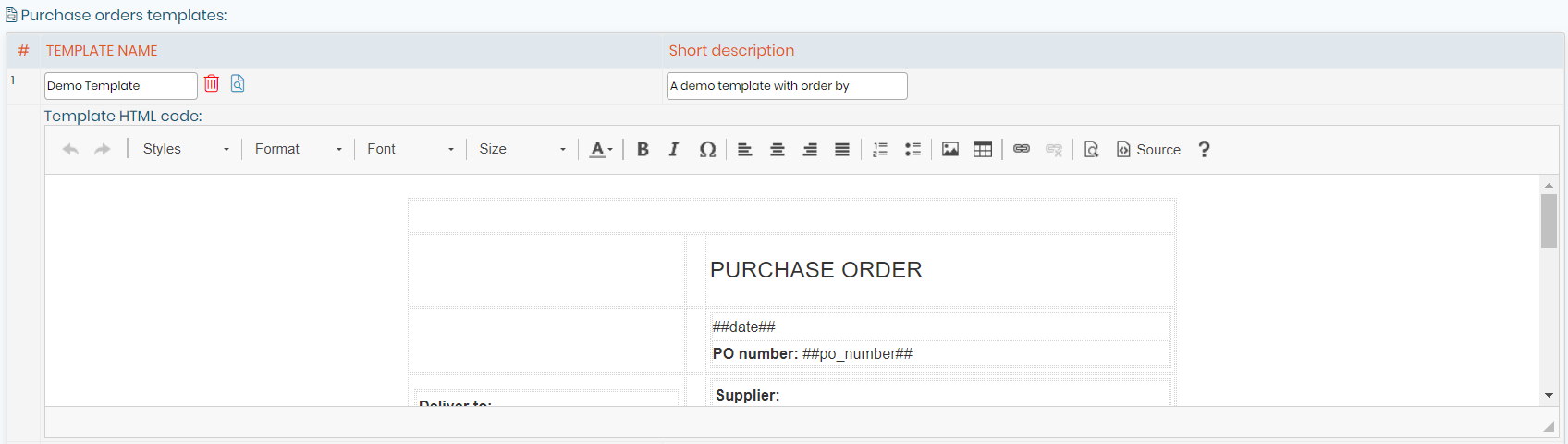
HTML templates:
- Click on
 (located on the top right corner), to see all your HTML templates, you can also create new ones, edit/delete already existing ones.
 - Templates are coded in normal HTML language, specific LabCollector pointers/tags can then be implemented to add dynamic information. Simply place these pointers (listed above) anywhere in the template where you need the corresponding information to appear.
- Click on the red trash bin icon
 to delete a template.
 - Click on the blue magnifying glass icon
 to preview your template.
Excel templates:
- Click on
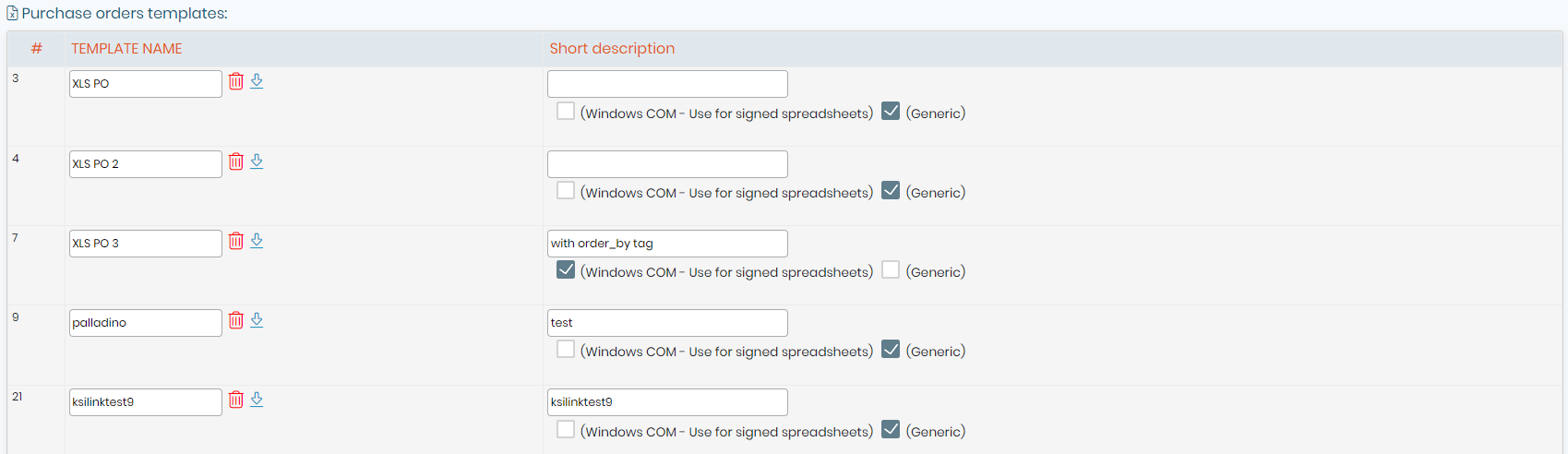
 (located on the top right corner), to see all your Excel templates, you can also create new ones, edit/delete already existing ones.
 - To add a new Excel PO templates, simply fill in the “Template name” and add a “Short description”.
- Click on the red trash bin icon
 to delete a template.
 - Click on the blue arrow icon
 to download a template.
|
|
|

|
|
|
Item Name (##chem_name##) and item Reference (##chem_ref##) tags need to be inserted at the top of your XLS PO templates. |

Warning
Name the excel sheet as: LabCollector
Pay attention to the uppercase of the L and C, since is case sensitive.
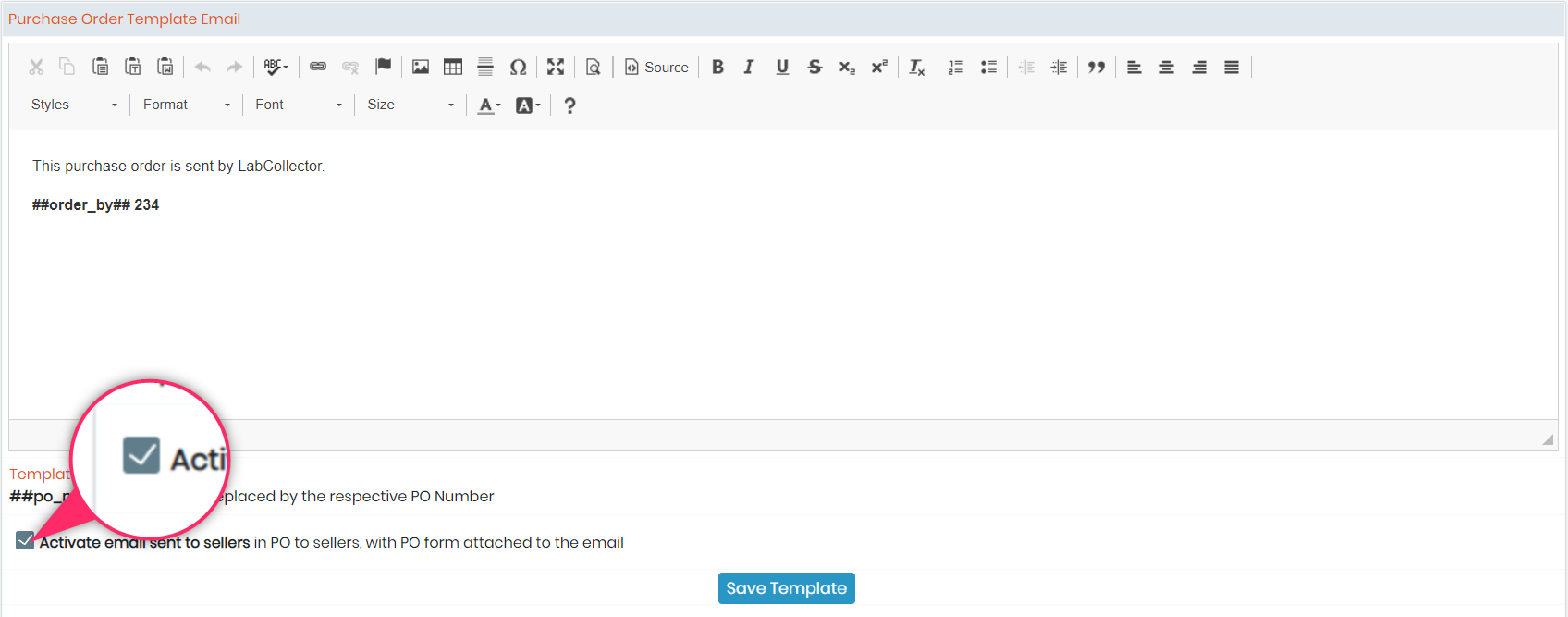
You can also find an option to activate automatic emails that will be sent directly to sellers (located at the bottom of the page). Plus, you can configure your own PO template email as you require.