7.11 Audit trail
LabCollector allows you to have audit trail log for all the changes in the LabCollector. To view it go to Admin 🡪 Other 🡪 Audit trail.
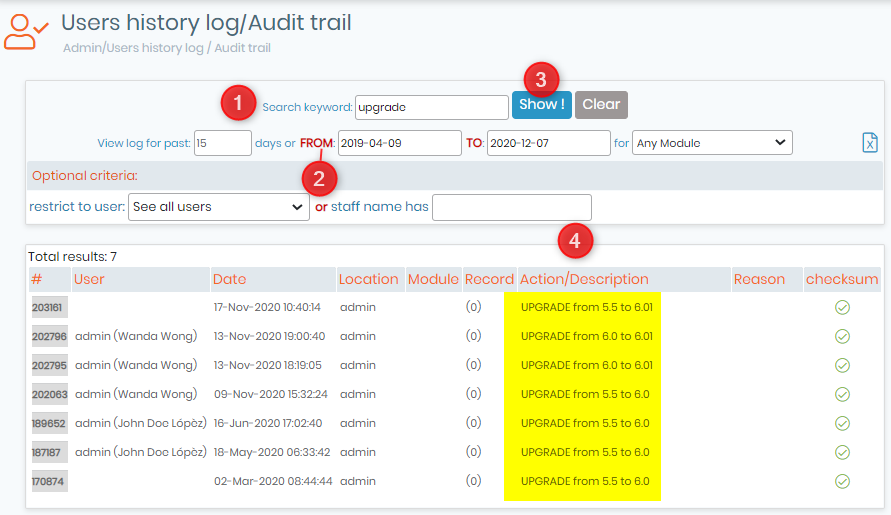
- You can search the trail according to a specific keyword.
NEW!: The audit trail log now includes the upgrades to LabCollector versions as well. As seen in the above image.
- You can chose the date you want to see the audit trail for or the specific module or days.
- Once you are done you can click on "Show" and you will see all the log related to your search.
- For example, you can see under the actions or description of each audit trail.
|
|
|
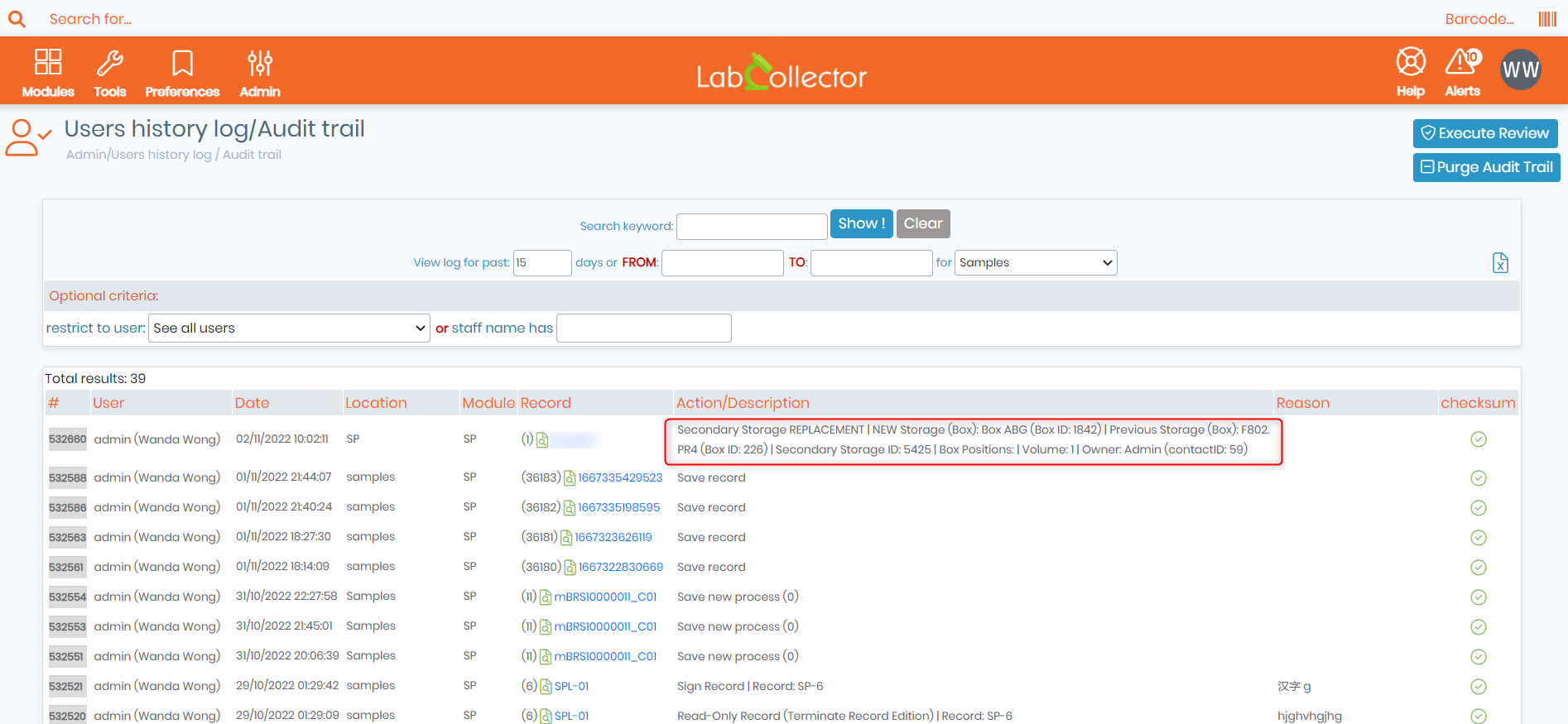
When moving a record into another storage location, the action will get registered on the audit trail with a full description on who did the action, when, and to exactly which new location the record was moved. |

NEW! You can review your audit trails. This will guarantee that the audit trail logs were visualized and approved at this date. Reviewing is allowed only after an audit trail log visualization.
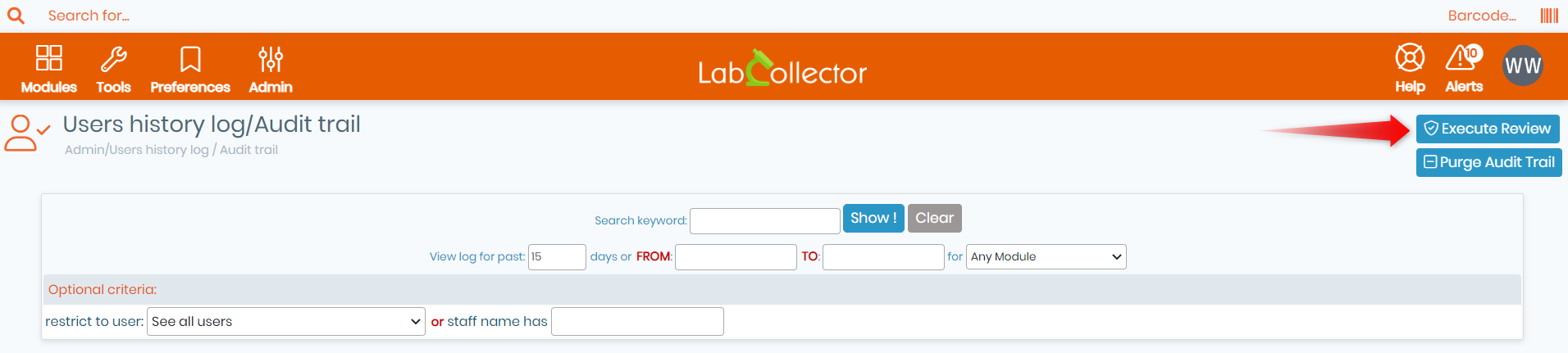
Once you click on Execute Review, a new tab appears (as shown in the screenshot below).
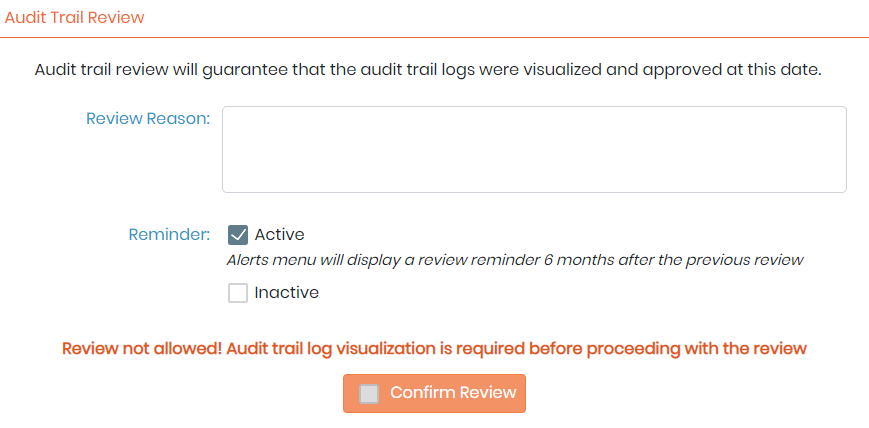
- First, write the reason you want to review the audit trail.
- You can then select two reminder options, either Active, which mean that the Alerts menu will display a review reminder 6 months after the previous review, or Inactive, which means that the Alerts menu won't display any reminder.
- Finally, click on Confirm Review.
|
|
|

NEW! You can purge audit trail logs, this will help reduce database table's size and increase performance. But purging is only allowed after an audit trail review and audit trail export. Also, keep in mind that this action is irreversible, so please be aware of your compliance obligations and ensure your retention period is covered.
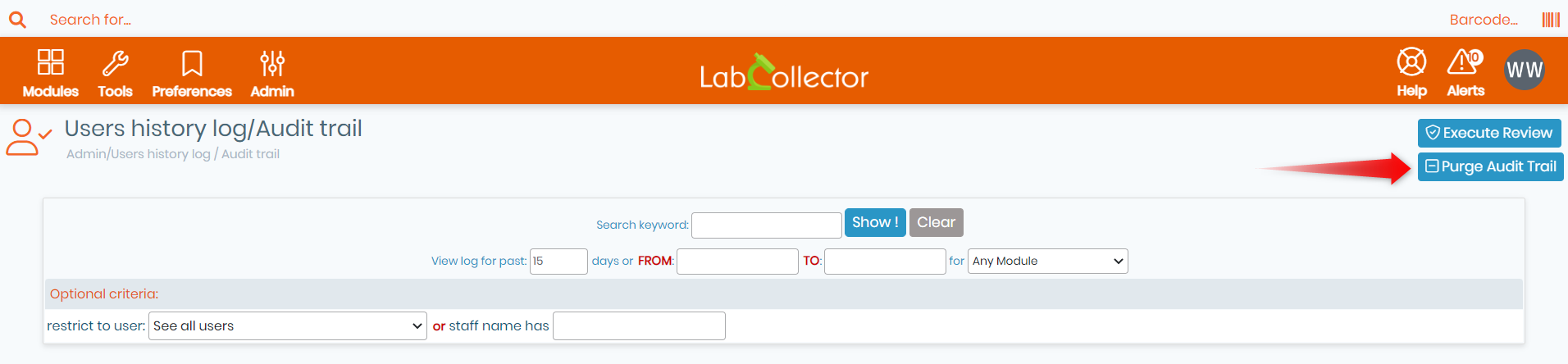
Once you click on Purge Audit trail, a new tab appears (as shown in the screenshot below).
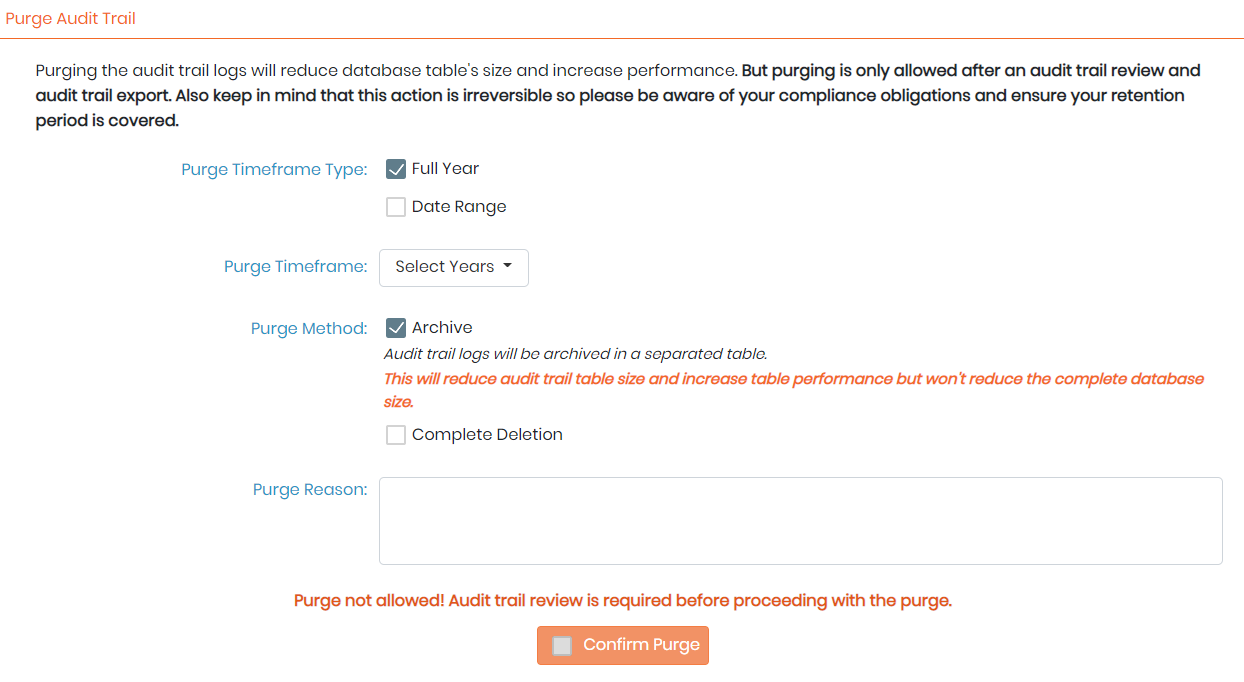
- You can select the purge timeframe type to be either Full Year or during a certain time frame (Date Range).
- You also have the option to select the preferred purging method:
- whether by Archiving : In this case, the audit trail logs will be archived in a separate table, which will help reduce the audit trail table size and increase performance but won't reduce the complete database size.
- Or by complete deletion : In this case, the audit trail logs will be completely and irreversibly deleted, so please make sure to keep the exported logs.
- Finally, write the reason why you want to purge the audit trail and click on Confirm Purge.
|
|
|
First, you will have to perform an audit trail review before being able to proceed with the purge. |
