5.4 Custom fields
LabCollector enables you to add custom fields to all modules in a very easy way.
Go to Admin 🡪 Data 🡪 Custom Fields.
- Select the module where you want to add or edit custom fields in the list to the left.
- If possible (module dependent), choose if you want a custom field in the main form or the Analysis tab (see
 section 5.3.2)/Maintenance tab (Equipment)/Risk tab and Lots tab (Reagent & Supplies)/Registry book tab (in all modules with storage option).
 - Click + New Field to create a new custom field.
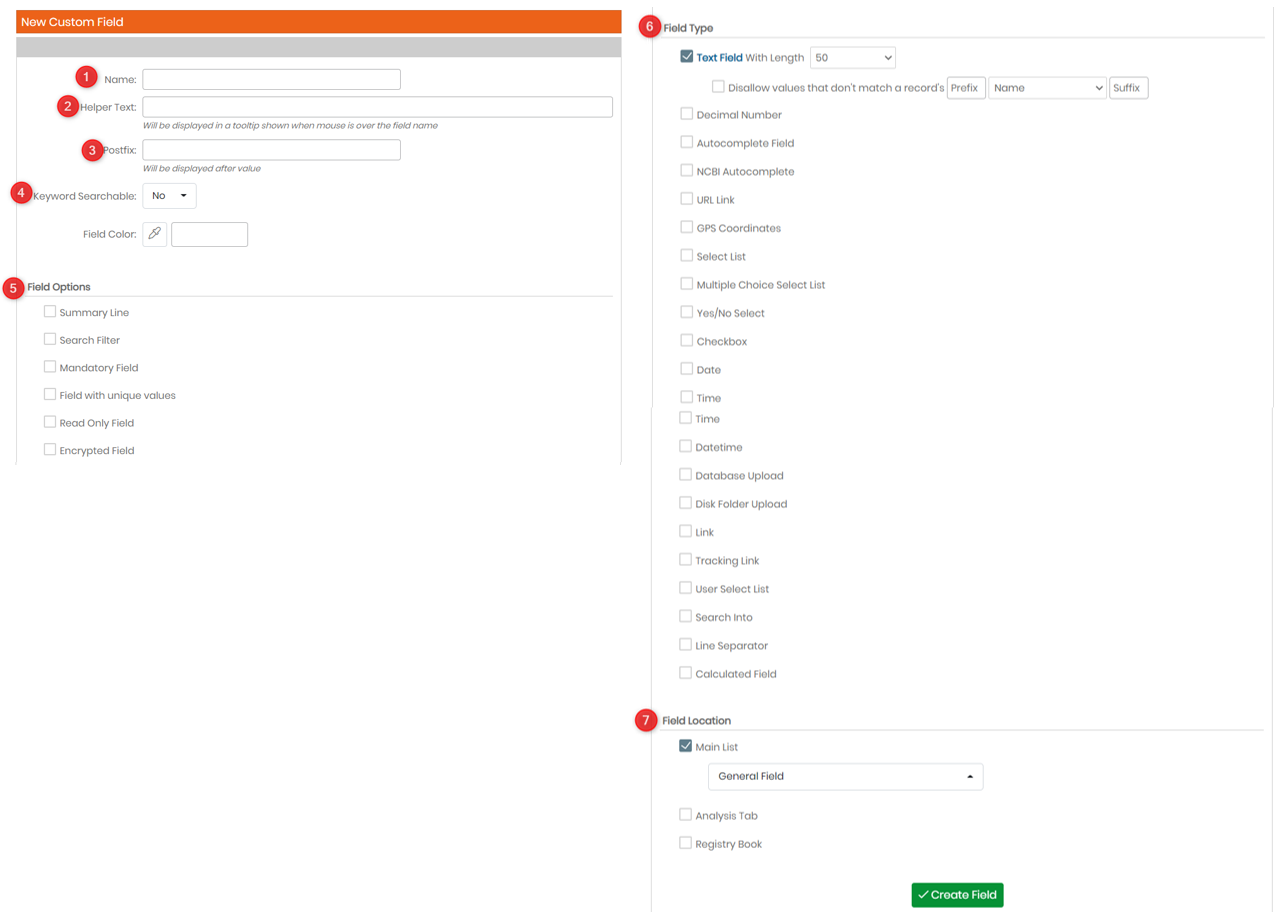
When you add a new custom field, a form opens:
- Specify the field name.
- You can add helper text which is visible in modification mode (appears when hovering the mouse on the field and below the field name). For example, see below image:

- You can add post-fix text as units visible in modification/view mode and on export and print reports. For example, see below image:

- Keyword Searchable allows you to be able to search the field name. You can also change the color of the field using "Field Color".
- Choose the custom field type. You can also see the Knowledge Base on
 KB: different custom field types.
 - Choose the category of your fields if needed. For more information, please refer to the chapter below. You can also define here the location of the field ( Analysis tab or Registry book tab). See
 section 5.4.1 and
  section 5.4.2
|
|
|
You will get an error when maximum length of field is exceeded.
|


* If you want to include the field value in the Module Summary line. The following field types can be selected for the Module Summary Line: Textbox, checkbox, drop down select lists, and date types.
- Field location helps you set the location of the field. You can set it in the main list or analysis or registry book.
To have all the information on custom fields, please refer to  KB: how to create custom field.
If you encounter an issue after creating/deleting or editing the name of a custom field (e.g. the module doesn't work anymore), you can check the field's integrity with the link of the same name. Use with caution. This action cannot be undone.

The three following fields now support Read Only attribute: Date, Time and Datetime. (See screenshot below).

There's now a new field option that you can select, which allows you to have a non editable field that only allows modification upon creation.

|
|
|
When activating the name modification (which is disabled by default) in the module form, it will now display a warning if the name is currently used in an auto-complete custom field. (See screenshot below). |


Calculated fields can now be rebuilt within admin area, just go to Admin -> Custom fields and click on the gear icon  located next to the calculated field of your choice, then click on Rebuild Formula (as shown in the screenshot below).
