3.1.3 Printers & Labels
LabCollector is capable of printing barcode labels easily (  Section 7.6).
Please read our Knowledgebase for  KB: how to install &
  KB: how to use Dymo printer.
You can read about  KB: LabCollector general setup- 3. Printers
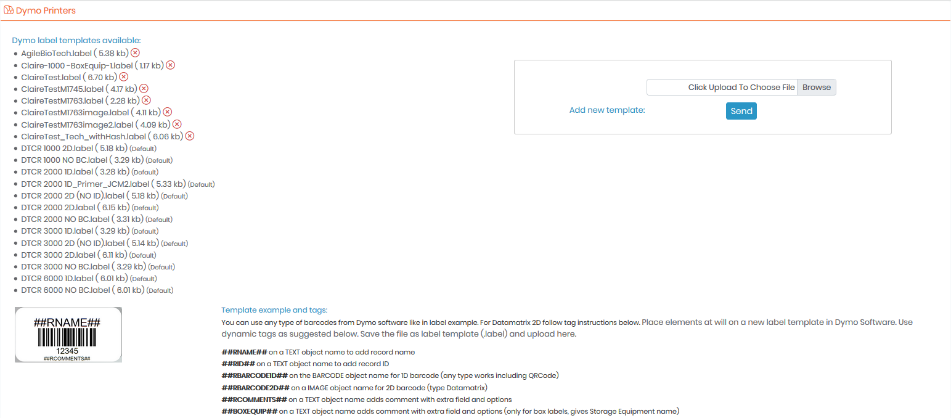
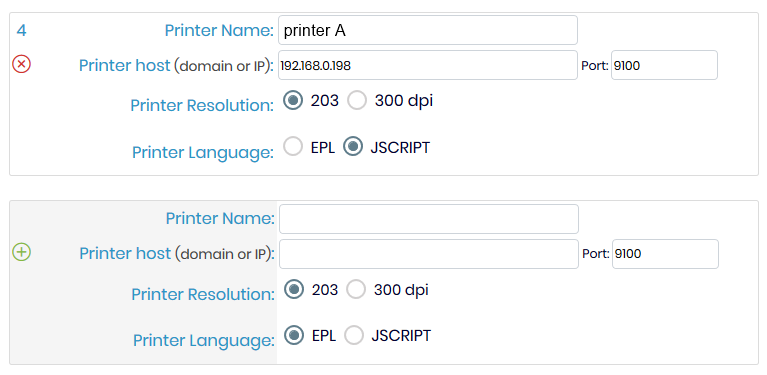
Define printers with EPL and JSCRIPT languages like Zebra, Brady, or CAB and label roll types.
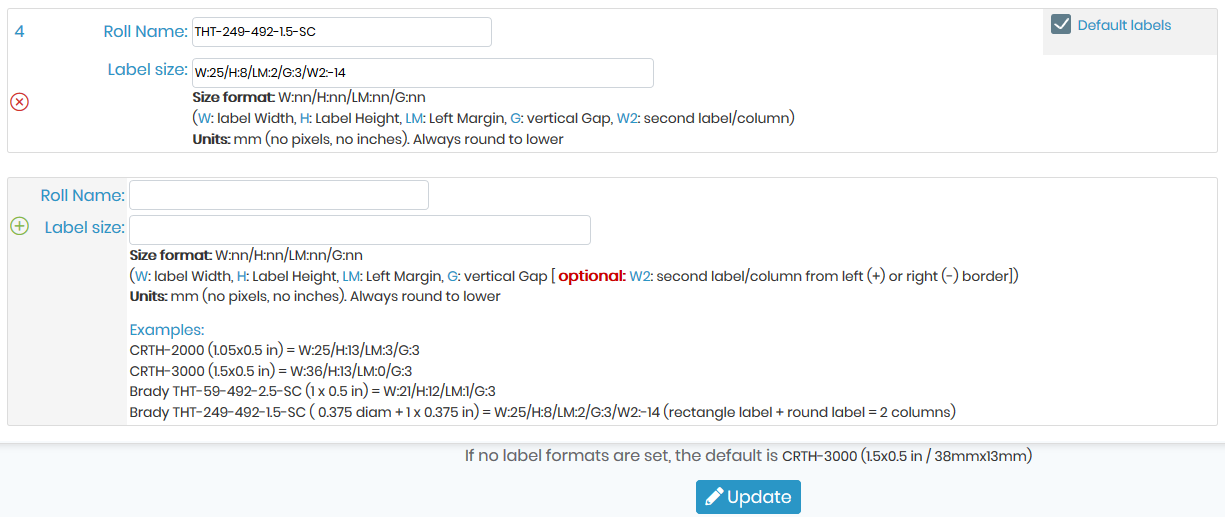
To add a label roll type, you have to fill in the form with the required information: roll name and label size (use the size format indicated). If you want to define this roll type as a default you need to check the default box.
You can indicate that a label roll has 2 columns with the W2 parameter (width 2). The positive size will be considered as the left position and negative as the right position. W2 size will add to the W-width of the main label.
You can read more about  KB: label network printers and roll types.
Labels parameters:
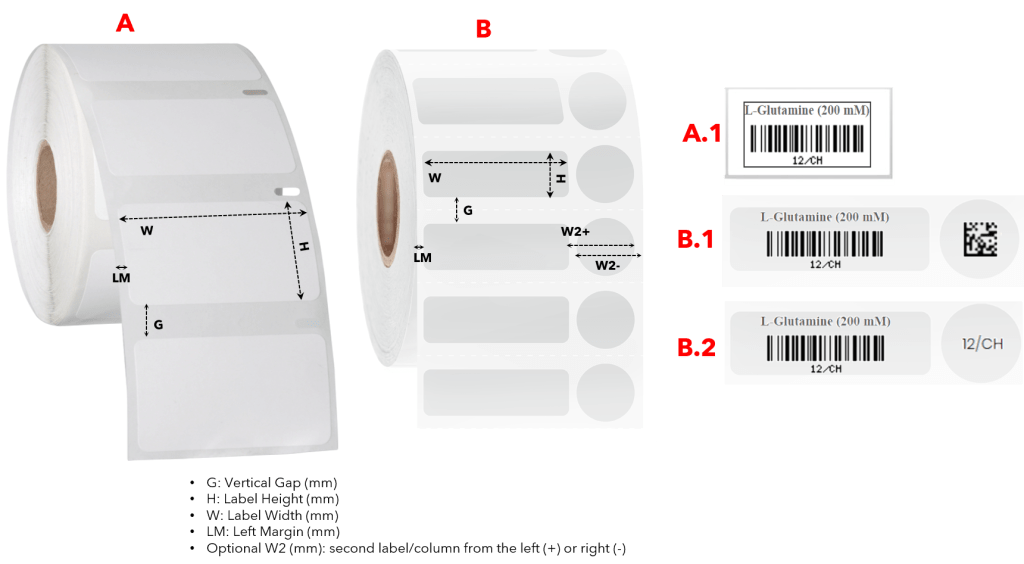
- W: width of the label
- H: height of the label
- LM: left margin on roll
- G: gap separating each label
- W2: width of the second label is for labels is for cryo labels where you can either print the barcode or the code to stick on the tube, as shown below (B – B.1 and B.2).
Tips/Hints
You can set a default label template for your automatic printing, just simply check the box located on the top right corner (as shown in the screenshot above).
You can learn more in our  KB: printing in our Category "Printing".