10.4.4 Process rack import
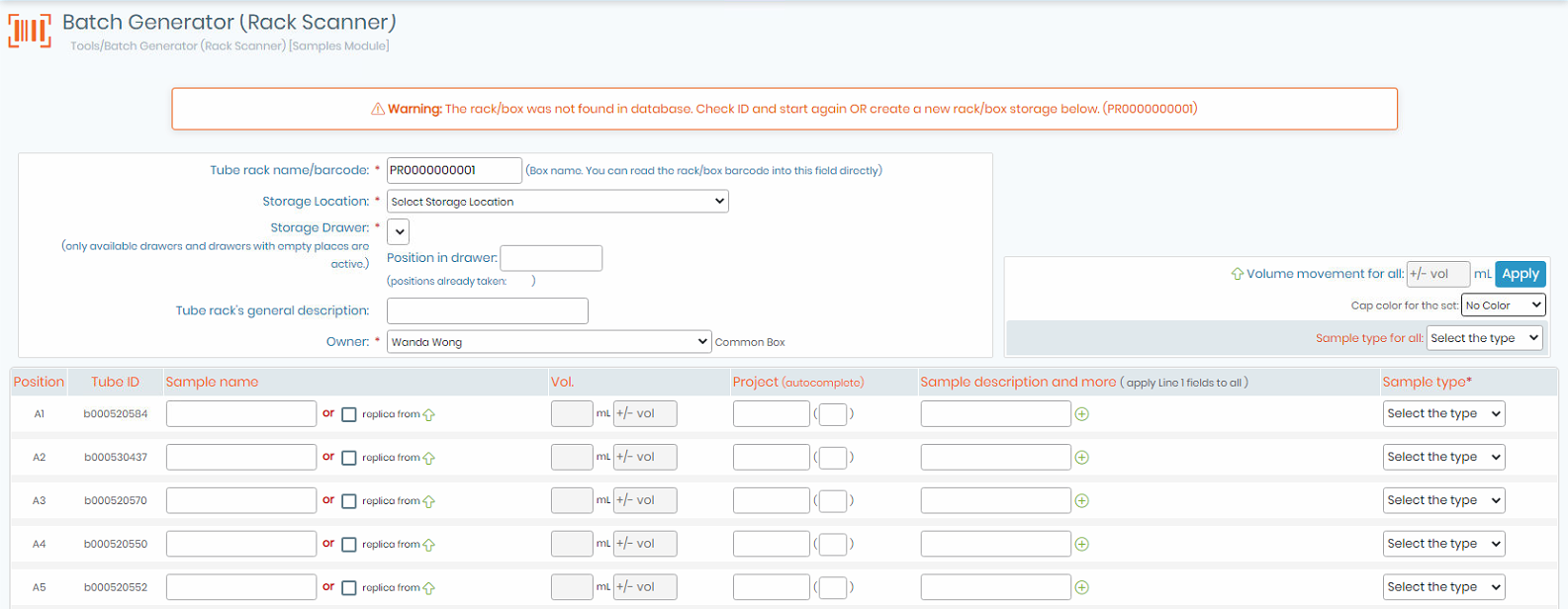
* Red asterisks represent fields that must be filled.
- Give a rack name / box name / plate name or ID.
- Choose a storage location for the rack / tray /plate.
- Identify the drawer where the rack is stored.
- Define box owner. Check “Common box” if you want to share your data.
- A cap insert color could be chosen.
Fill in sample name, sample type, sample volume and project name/number (can be selected individually or can be chosen for all). Mouse drag can be used to multiple checks.
A sample description can be added, click on green icon  to display more fields.

- Go to the bottom of the page to validate the data import.

- “Click to submit form” to finish.
- The rack/box layout is displayed.
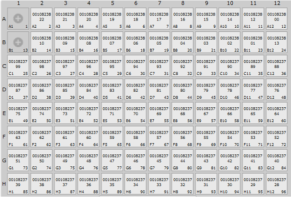
- Click on the name of a sample to display details.
|
|
|
Check the color code on the rows. Unique 2D codes are checked and therefore should not be replicated. If existing codes are found the row color will be RED, ORANGE, GREEN or BLUE as described. Overlapping tubes on taken positions will be indicated by a blinking attention mark. |
