10.12.2 Using Recipes
Part 2: Using Recipes
After recipes have been created, the recipe tool may be used. First, navigate to Tools 🡪 Recipes/Production.
The production Manager/Recipes main screen is a simple search tool. This provides an option to search for a recipe by categories from the list (created in part 1). The page also allows you to navigate to the log of recipes that have been used (see log section).

The recipe selection search bar is both an autocomplete and dropdown menu. Type in the search bar to see autocomplete results or click to view all recipes. After selecting a recipe the following screen will appear.
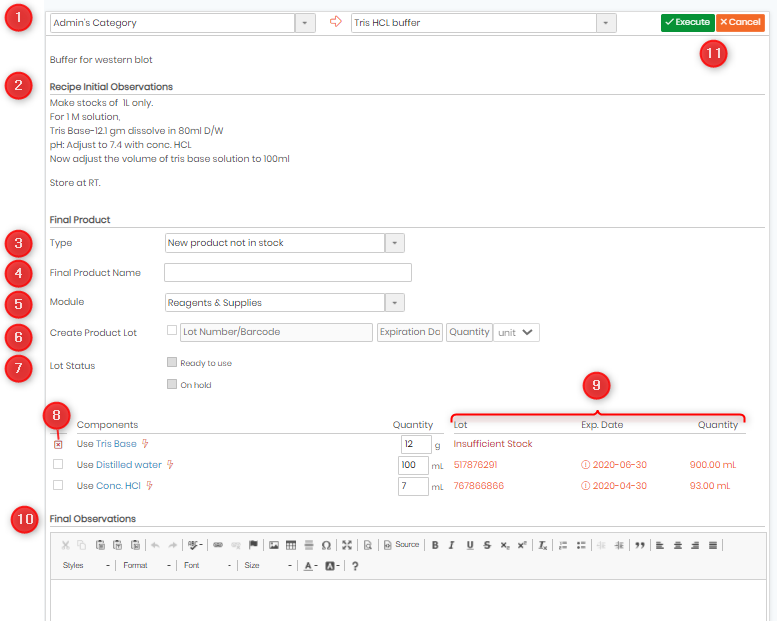
The screen shows the following:
- The recipe category and name .
- The recipe initial observations.
|
|
|
In case of free choice, there are 3 options to choose from New product not in stock, Lot on existing product and Only lot consumption and no final product. |


- To select the type of new product.
- Place to enter the name of the final product.
- Module selector for where the recipe product record will be created
- Fields to add new product lot information: number, expiration date, quantity. Depending f the options, but expiration can be not editable.
- Choose the status of the lot – Ready to use or On hold.
- Users must check the box to confirm use of each component
- Details of lot, validity and initial and needed quantities of each component. Depending of the options, the quantity can be modified. The entries are color coded to make it clear if quantities and validity are appropriate for the recipe.


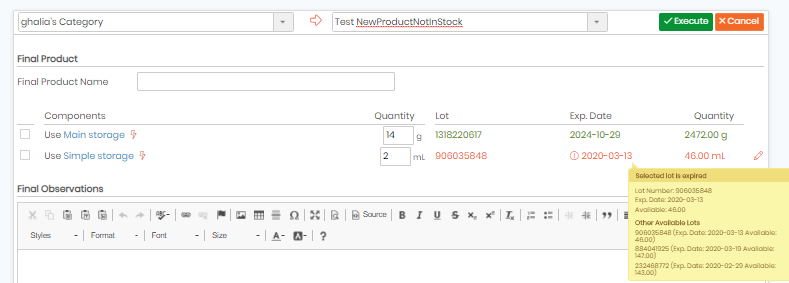
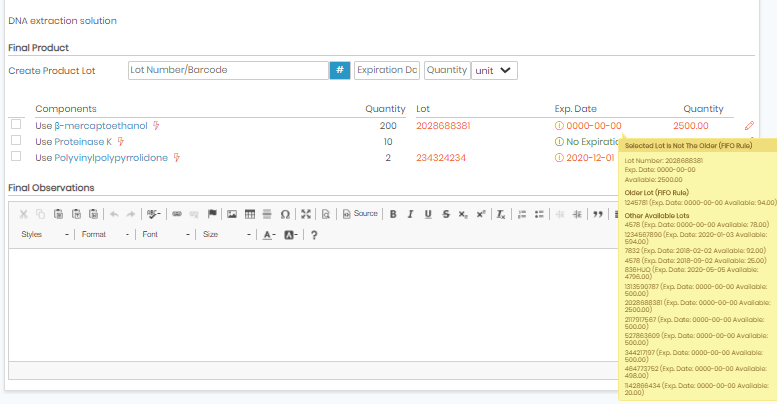
Hovering the mouse over the lot or validity information will provide information about the current lot and other available lots. If present, clicking on the icon  for a component will allow a selection of a different lot to use.
- You can also include any final observations for the recipe if you have.
- Clicking the “
 ” button will confirm the recipe. Using “
 ” button will cancel your action. A new record will be created with links connecting to each component. A log entry will be created. Quantities will be deduced from the indicated lots.
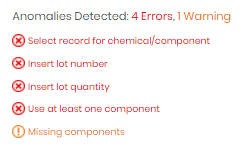
If you attempt to  a recipe with a lot that has a warning of some kind you will be blocked or forced to confirm despite the warning with a screen such as this:
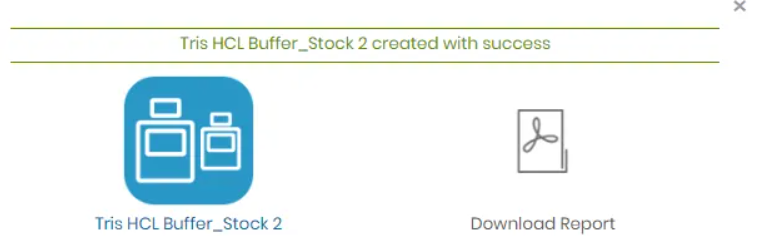
After completing a recipe the following screen will appear to indicate the record was created and provide two links. One link will take you to the newly created record the other is a direct link to download a recipe report.
You may search the history of recipes that have been used by selecting log from the home screen of the Recipes.
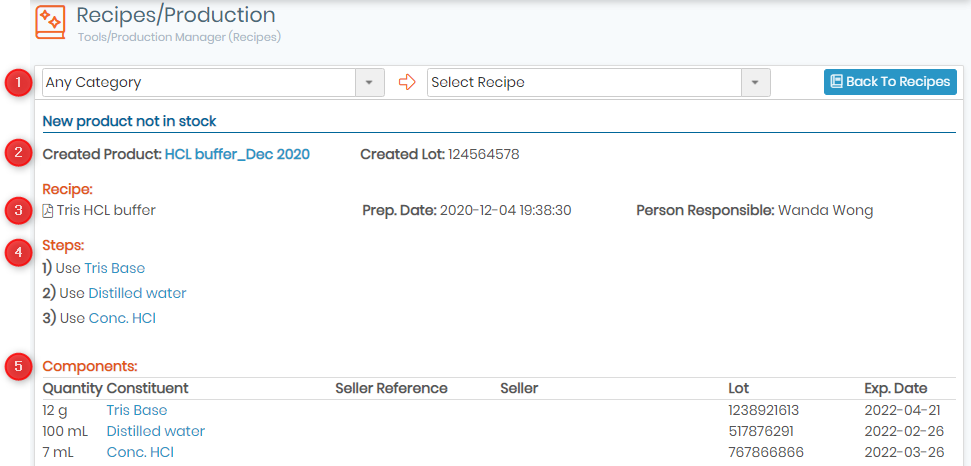
The log may be searched and will show which components were used as well as lots and quantity information. Each component and product may be clicked to go directly to the relevant record.
- Search for the category and recipe.
- Indication of the Final Product type - New Product not in stock/ Lot on existing product/ Only lot consumption and no final product. Created Lot and Product. Clicking on the hyperlink will navigate to the product record.
- You can download the recipe pdf file. You can also see the prep date and person responsible.
- Different steps performed to make the recipe.
- List of components with lot number, quantity and expiry date. Clicking will navigate to each component.
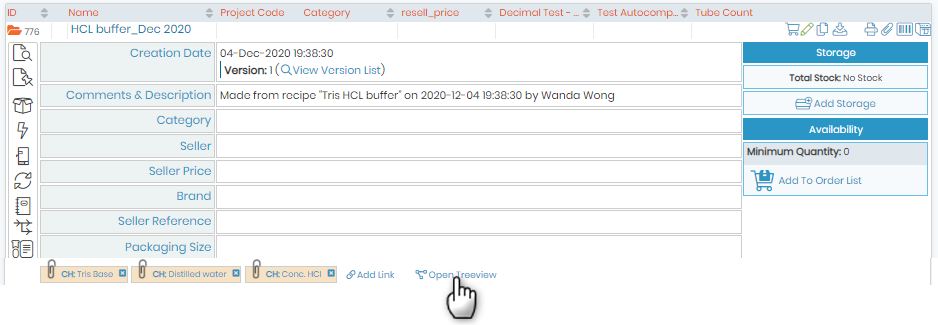
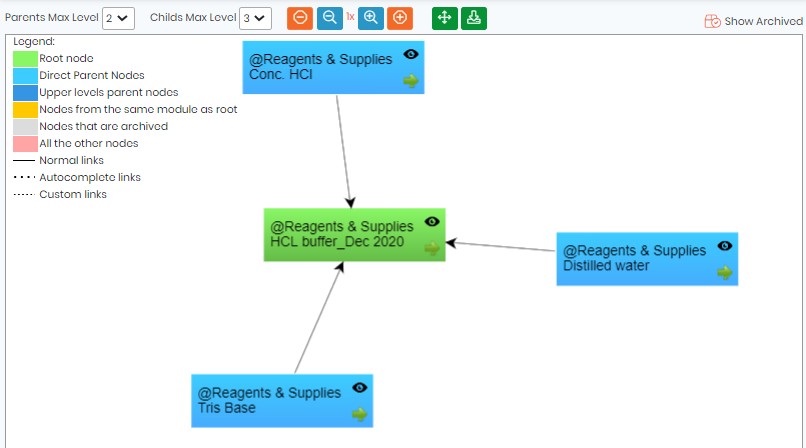
An example of a record for a product with links and the tree view showing the connection of the components to the product.
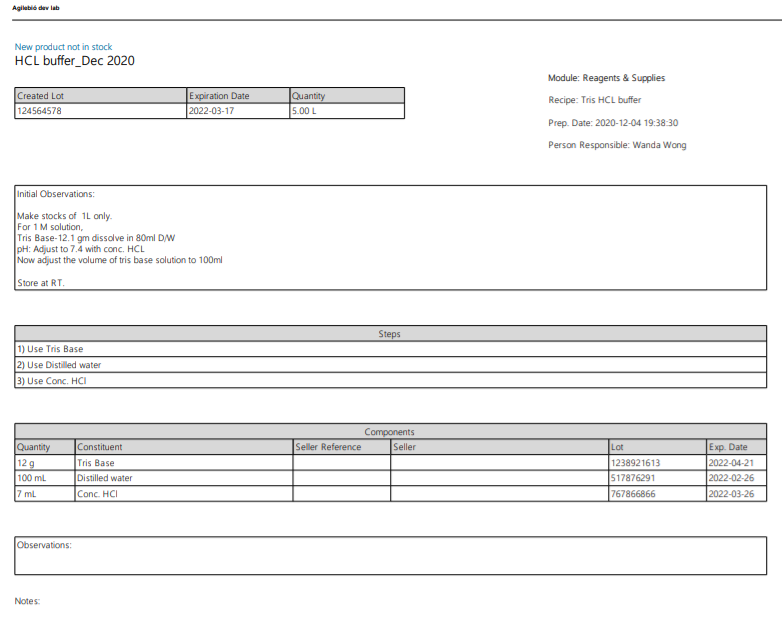
An example of the PDF report: