10.12.1 Managing Recipes
Part 1: Managing Recipes
With admin or super-admin access navigate to Admin 🡪 Data 🡪 Manage Recipes. You will be presented with this screen:
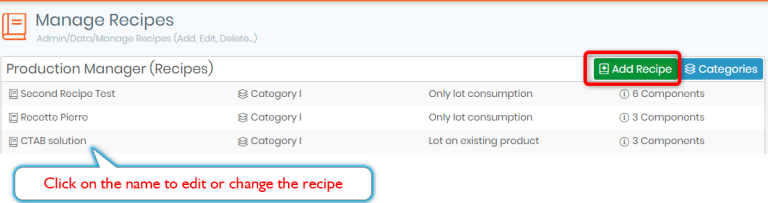
On the first use, you will only have the option to add a new recipe. Clicking 'Add New' will provide a screen to define a new recipe:
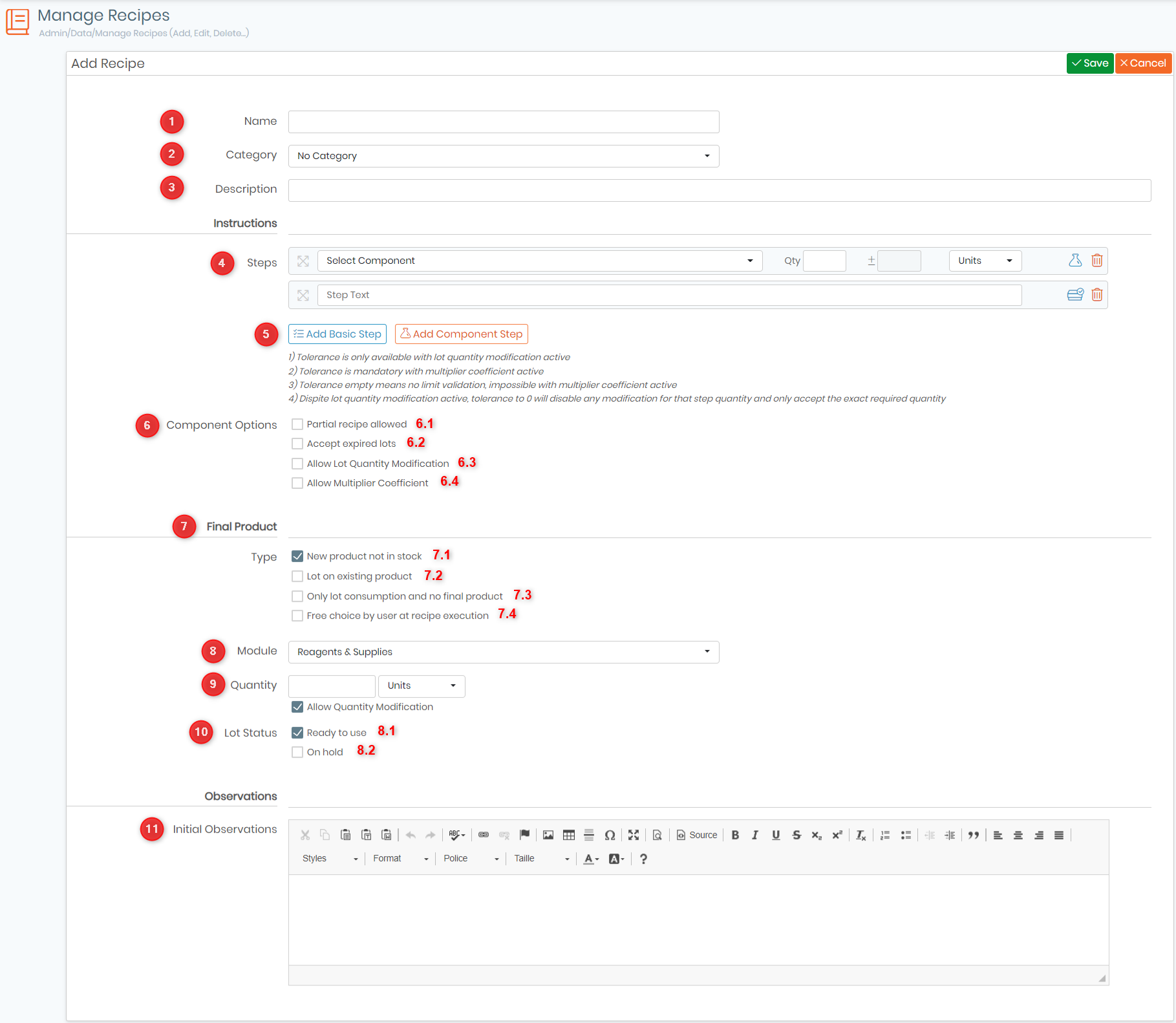
All the steps are explained in the  KB: recipe manager.
1. A name of the recipe.
2. The category for the recipe.
3. Description of the recipe must be provided.
4. Here you can see all the steps, whether they are basic or component steps, you can also select the quantity, tolerance and the unit you are working with.
5. You can select to add a basic step or a component step (compound can be from the Reagents & Supplies and Plasmid modules).

After a component is selected, options must be selected for the recipe. The quantity (Qt) and unit (if one is given in the reagent lot) must be specified.
6. Component options: You can also decide if:
- Partial recipes are allowed
- Only lots within their expiration dates may be used
- Quantities modification are allowed.
- Allow Multiplier Coefficient: by activating this options, the quantities of your recipe components will get multiplied by the factor you have defined.
- Allows multiple lots and takes into consecration lots status i.e. on hold (quarantine), on production and reserved.
Click on the icon  to add and define additional components.
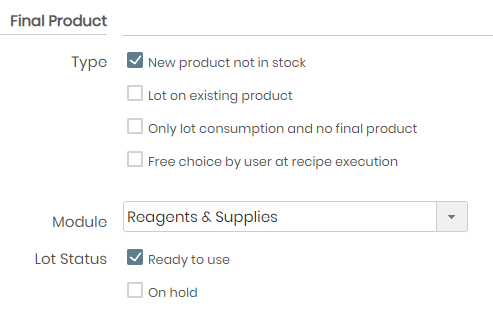
7. Final Product type - choose from four options.
- New products not in stock: this allows the user to add a new record in the module specified in Module dropdown and add a new lot in that record. Only the Reagents & Supplies module will have the Final Product Lot Status option. Putting the lot on hold will automatically assign the lot a quarantine status. You can indicate an expiration interval in days (from the recipe production date) to automatically set up the expiration date.
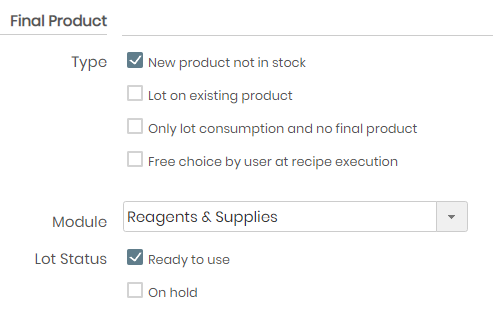
- Lot on existing products: this allows the user to add a new lot to an existing record in the module chosen in the Module dropdown. Again, only the Reagents & Supplies module will have the Final Product Lot Status option. Putting the lot on hold will automatically assign the lot a quarantine status.
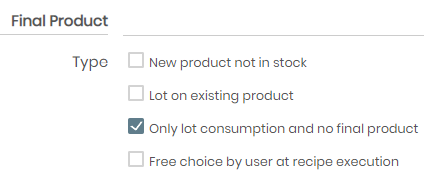
- Only lot consumption and no final product: as stated, there is no final product.
- Free choice by user at recipe execution: the user gets to choose whether to add a new record or add it to an existing one if the Final product module is Reagents & Supplies. The module can be left as a choice as well or it can be designated here.
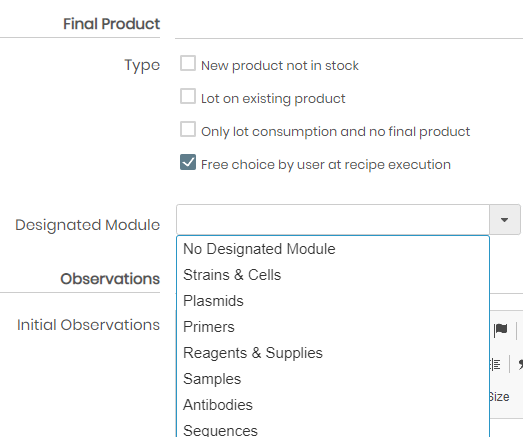
8. You can choose the module you want to assign the recipe to.
- When making a new product record in Chemical Structures module you can combine all risk icons, pictos and phrases from each component into the new record!
9. You can select the quantity of your final product, and choose whether you want to allow quantity modification or not.
10. This option allows you to change the lot status.
- This allows you to use the recipe directly that you have created.
- This option allows you to hold the recipe and not allow it to be used. This can be done for example when you want to save the lot for a specific experiment.
11.Observations: this section allows the user to add instructions on the method of the recipe or any other information needed.
After all components and options have been entered click "Save" to save the recipe.
After saving, the recipe will appear in a list when navigating to Admin 🡪 Data 🡪 Manage Recipes. The recipe will also be available for other users who can find it by navigating to Tools 🡪 Recipes/Production. The recipe manager provides the option to select a recipe to edit and to view the list of recipes.

- List of recipe names. Clicking the recipe name will navigate to the full recipe details where you will have the option to edit the recipe.
- Recipe description.
- Final Product option.
- Recipes now have an option to calculate the recipe cost!
- Number of components. Hovering the mouse over the number of components will reveal the record names of the reagents and supplies required for the recipe.
- Button to add a new recipe.
- To view categories.
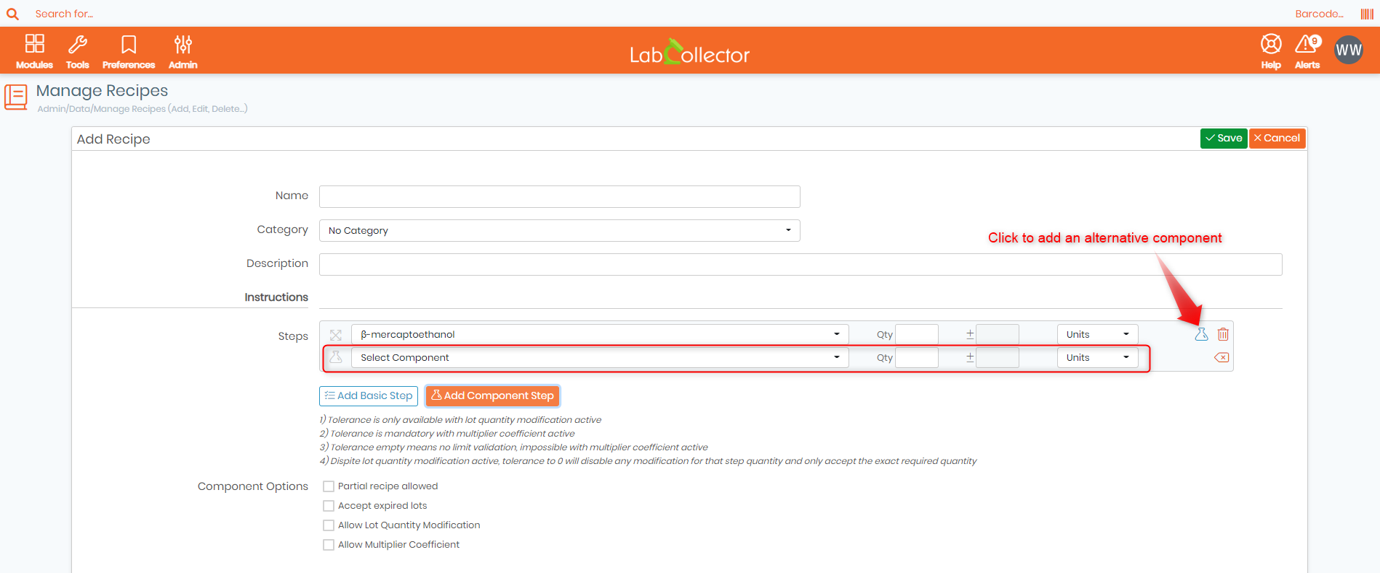
When there are multiple products coming from different suppliers for the same component, you may choose to add an alternative one inside your recipe step by clicking on this icon  located to the right of the component step (See screenshot below).
You can now use generic quantities, by clicking on  located to the right of the basic step, you can then input the quantity and the corresponding unit.
Tips/Hints
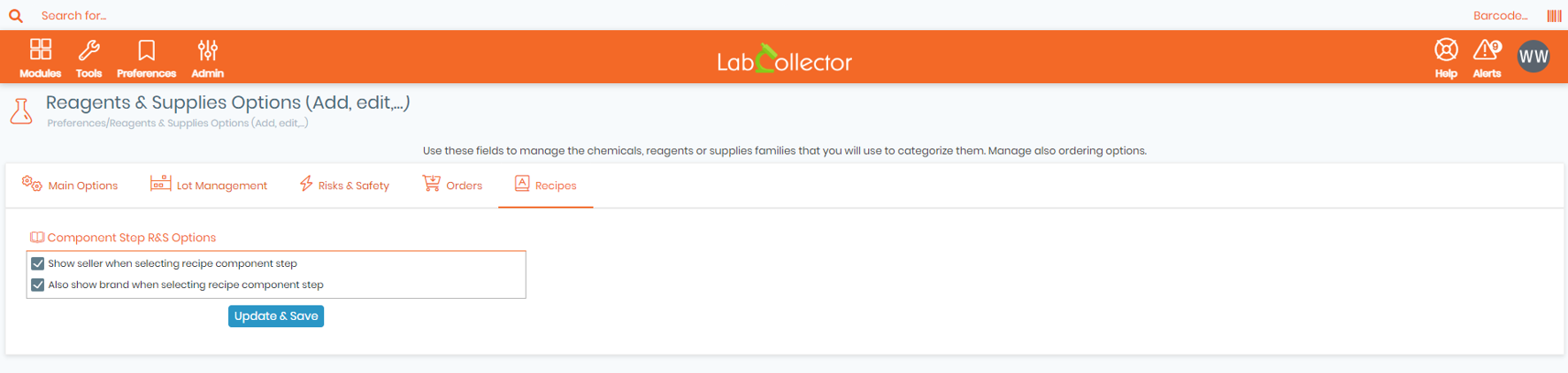
You now have the possibility to show the seller and/or brand when adding a component step, by going to Preferences -> Reagents & Supplies -> Recipes. (See screenshot below).
New!
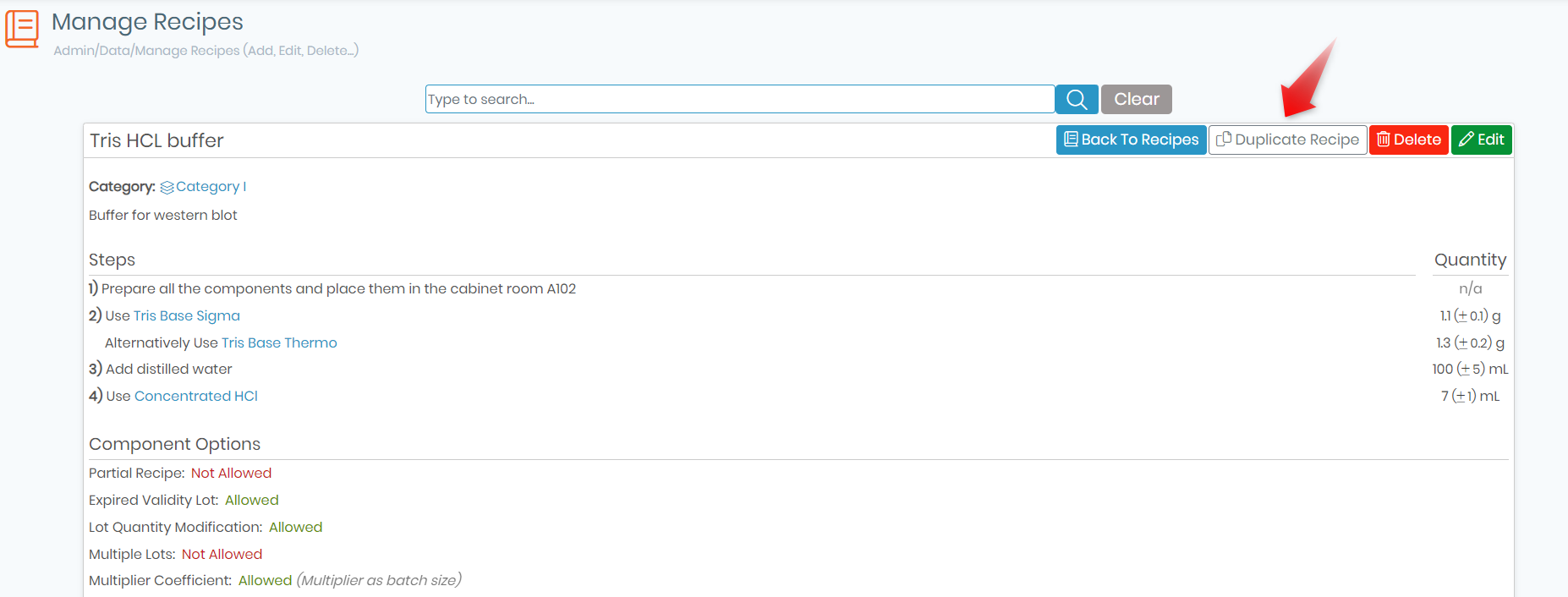
Bottom that allows you to duplicate a recipe from an existing one.