6.5.2. Zoho spreadsheet
Zoho spreadsheet is an Excel-friendly interface that uses Zoho Sheet to display the content.
To use Zoho Spreadsheet you have to comply with Zoho terms of service and privacy.
Zoho Spreadsheet has a free mode that allows the use of this tool with 300 user documents per month (one user account is linked to your LabCollector ELN). To know more about Zoho pricing check here.
|
|
|
Zoho Sheet API Requirements:
|

 If you are using LabCollector ELN from a domain accessible to the internet (cloud hosted or other) Zoho Docs is just used to display the information but no data is saved on Zoho platform, all your spreadsheet data is saved locally on your LabCollector ELN server.
 If you are using LabCollector ELN from a local server not accessible to the internet (with at least outbound access), you should first save in Zoho Docs and then save on the LabCollector database, once you save on the database the document is erased from Zoho Docs. A few seconds between both actions are necessary.
To enable Zoho Spreadsheet, see chapter 4-3.
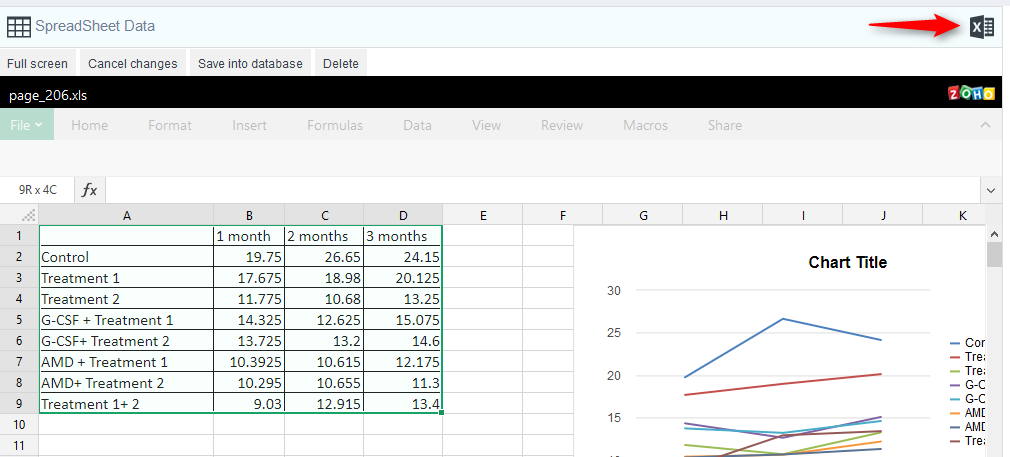
On your page you will see the section Spreadsheet Data:

From this panel, you can:
- Import a file: supported files are: .xls - Microsoft Excel Spreadsheet , .xlsx - Microsoft Excel Spreadsheet 2010,.ods - OpenOffice Open Document Spreadsheet, .csv - Comma Separated Values, .tsv - Tab Separated Value
- Add a new one: Use a blank spreadsheet editor to create your tables.
- Add a new one with a template: Load a spreadsheet template.
- Add a new template: Create a spreadsheet template to be used in a routine.
Spreadsheet Templates can be edited and modified from the Admin Menu (see section 7-1-4).
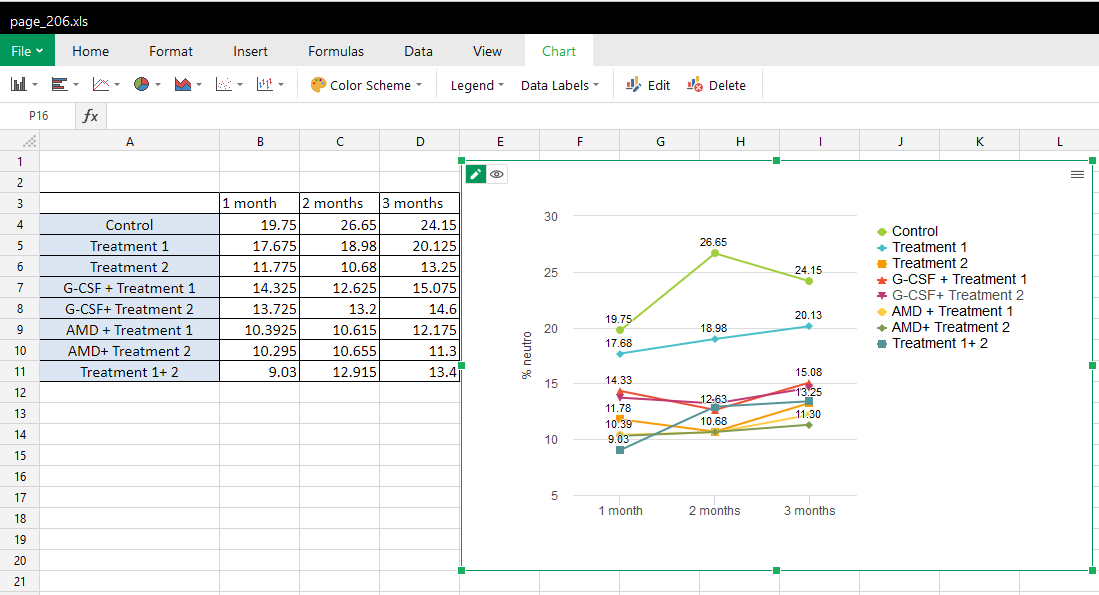
When the spreadsheet is opened, you can edit, modify tables and graphics to store your results. You can also open your spreadsheet on a full screen.
Users must save tables into the database, otherwise, the information will be lost:
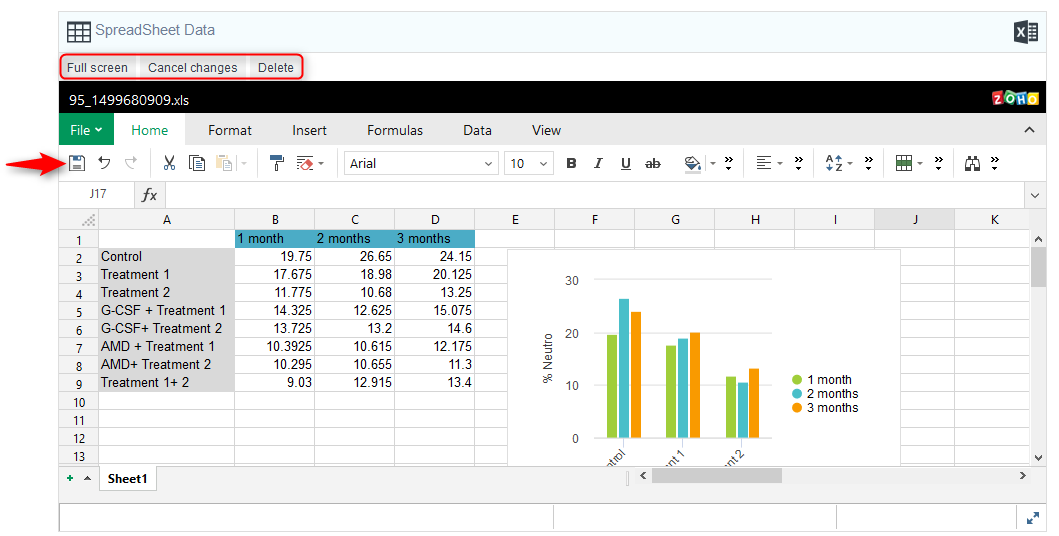
- If you are using Zoho in an instance accessible by internet (configuration with API key only) save in LabCollector ELN database just by clicking on the disk button
 Using this method, no data is saved in Zoho Docs
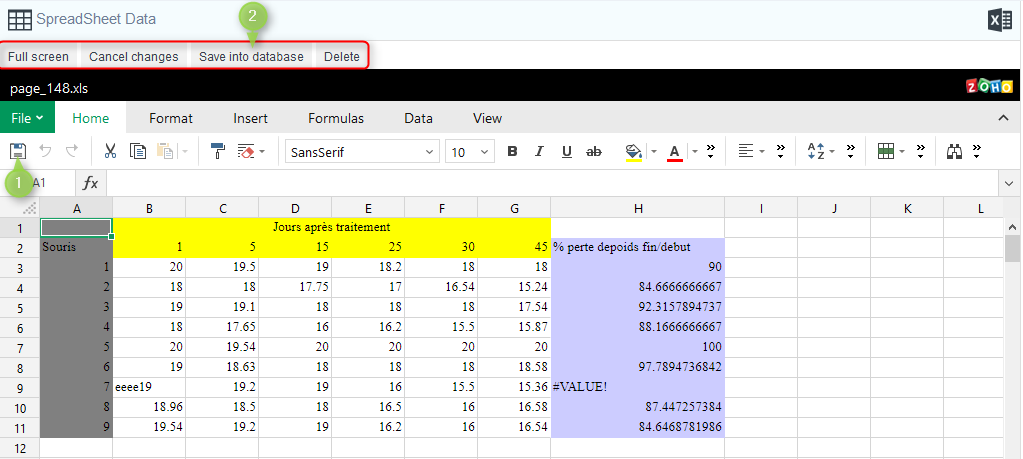
- If you are using Zoho in a local instance (APIkey with a token) to save in LabCollector database, you need to first save on Zoho Docs by clicking on the disk button and then click on the button “Save into database”. When data is saved the files will be erased from Zoho Docs.
 Note that there may be a delay in saving to the database, so wait until the first step is completed.
You can download your spreadsheet even if a page is closed by clicking on the Excel icon in the top right corner: