7.2. Manage equipment
This section allows appropriate equipment selection to perform assays. Similar to the LSM management of Reagents & Supplies, equipment management is linked to LabCollector LIMS. This feature uses information from your configuration of the LabCollector modules. It is recommended that the fields preset in the list for the LSM are set to mandatory (in LabCollector Admin 🡪 Default Fields 🡪 Reagents & Supplies.).
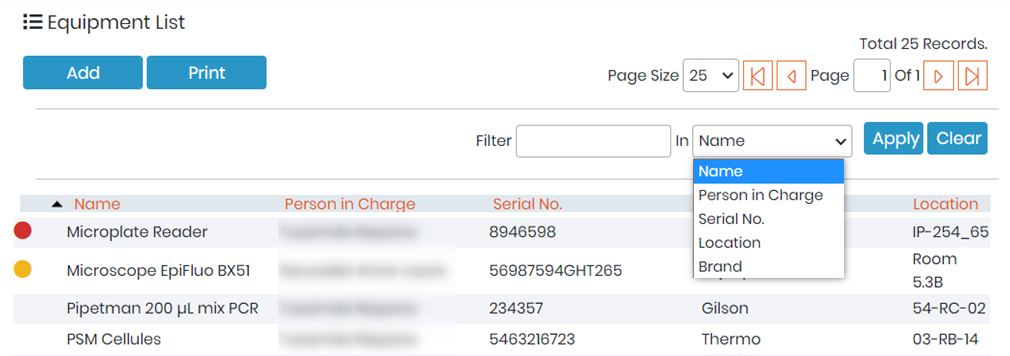
The equipment list has a sorting and filtering function to help locating equipment records. Type in the filter and select the field to filter, then click apply. To sort a list, simply click the column header and an arrow will appear to indicate sorting in ascending or descending order. Sorting and filtering may be combined.
Select the Equipment tab in the Admin menu, click on the Add button and edit the new entry in the Equipment Module. The new equipment will be displayed in the list.
Double-clicking on an equipment record in the list opens the detailed LabCollector record.
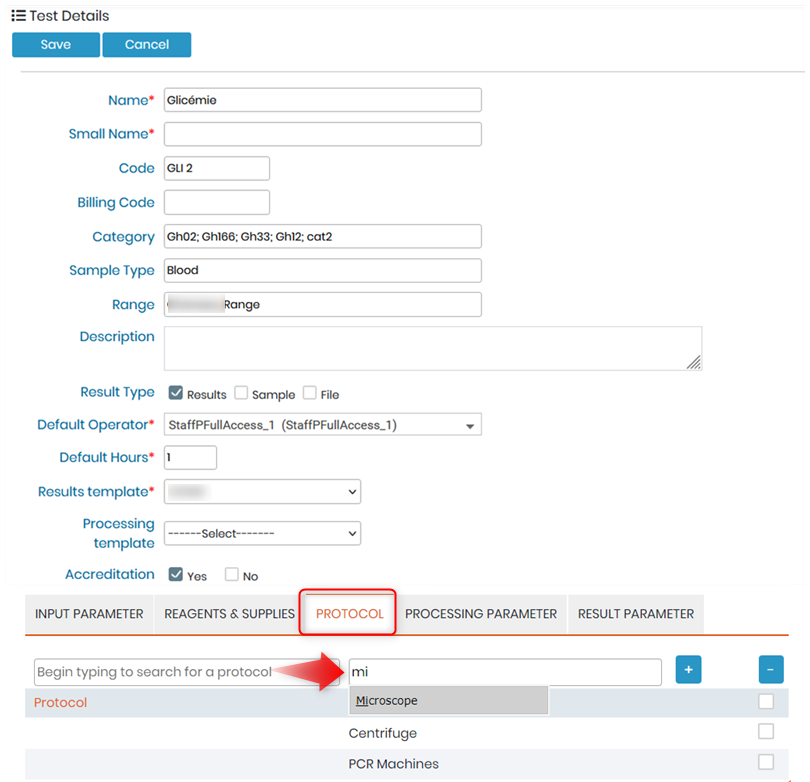
When you create a test you can add equipment categories.
Please see more details in our Knowledge Base  KB:Creating equipment in LSM
|
|
|
Equipment categories can be added ONLY in reagents and supplies module. These categories are then visible in the test when you add them. |

When you execute the test, you will see a red pop-up if some equipment are in maintenance and you can add an equipment under the equipment category.

|
|
|
To add new equipment, you need a LabCollector user account with an appropriate permission level (login and password). Refer to your LabCollector administrator. |
Color indicators give information on equipment status:

|
|
|
The equipment status is based on the status from the LabCollector Equipment module. Only equipment with no color indicators can be selected when running a job. |