5.2.2.9 Report
Generating reports is an essential feature that enables you to access and share information on your lab tests and projects quickly and easily. With LSM's comprehensive reporting tools, you can generate custom reports that provide insights into various aspects of your lab's workflow.
To generate a report in LSM, first, navigate to the job list and locate the job for which you want to generate the report. Click on the gear icon next to the job  , and from the drop-down menu, select the "Report" option. A new tab will open up, displaying various options for generating the report.
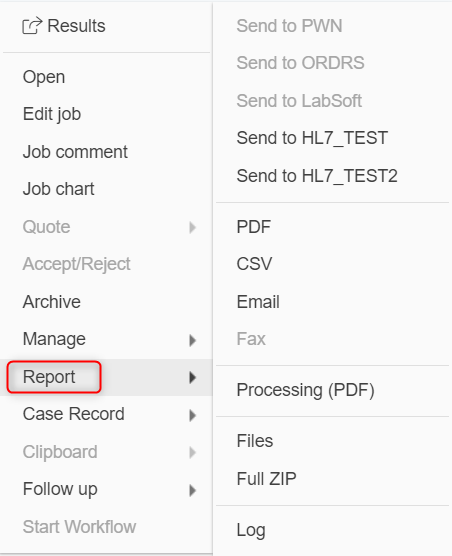
One of the options available is generating a PDF file, which provides a printable report that can be shared with colleagues or clients. LSM also offers the option to generate a CSV file, which allows you to download the report data in a spreadsheet format. You can also send the report directly via email, which sends the report to the requester of the job automatically.
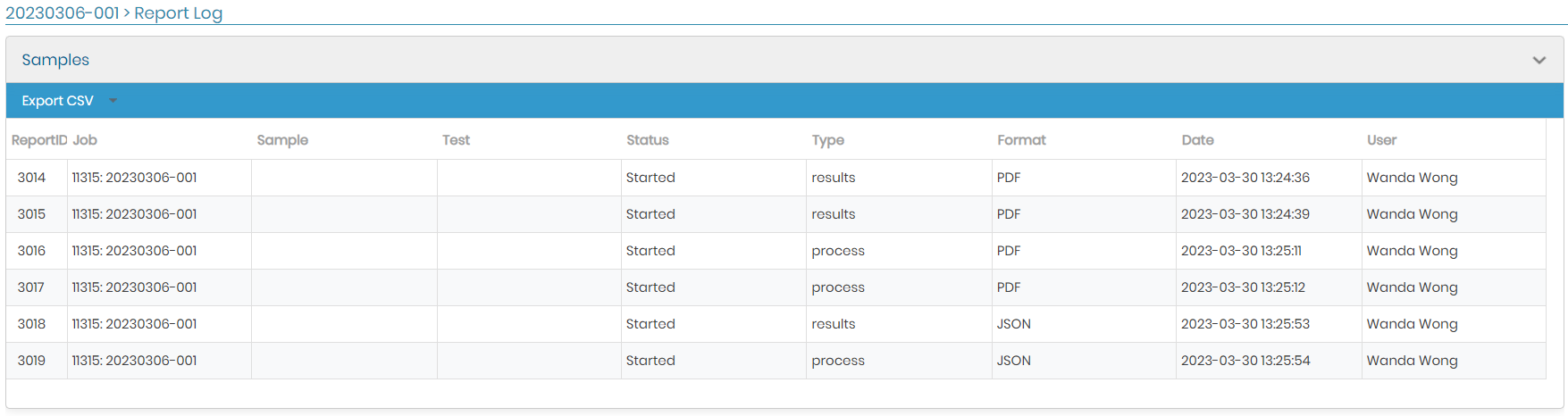
Another option available is generating a ZIP format, which compresses the report files into a single downloadable file. This is a useful feature for generating reports for multiple jobs at once. Additionally, LSM provides a report log where you can view all the generated reports for your jobs. The report log displays the status of the generated reports, the date in which they were generated, and the user who generated them, which helps to keep track of your lab's report history, ensuring that you can access previous reports quickly and efficiently.