7.9.1 Quick destock
Access this tool from Admin 🡪 Storage 🡪 Batch Lots Inventory.
A. You can export, all lot information or export value report excel.
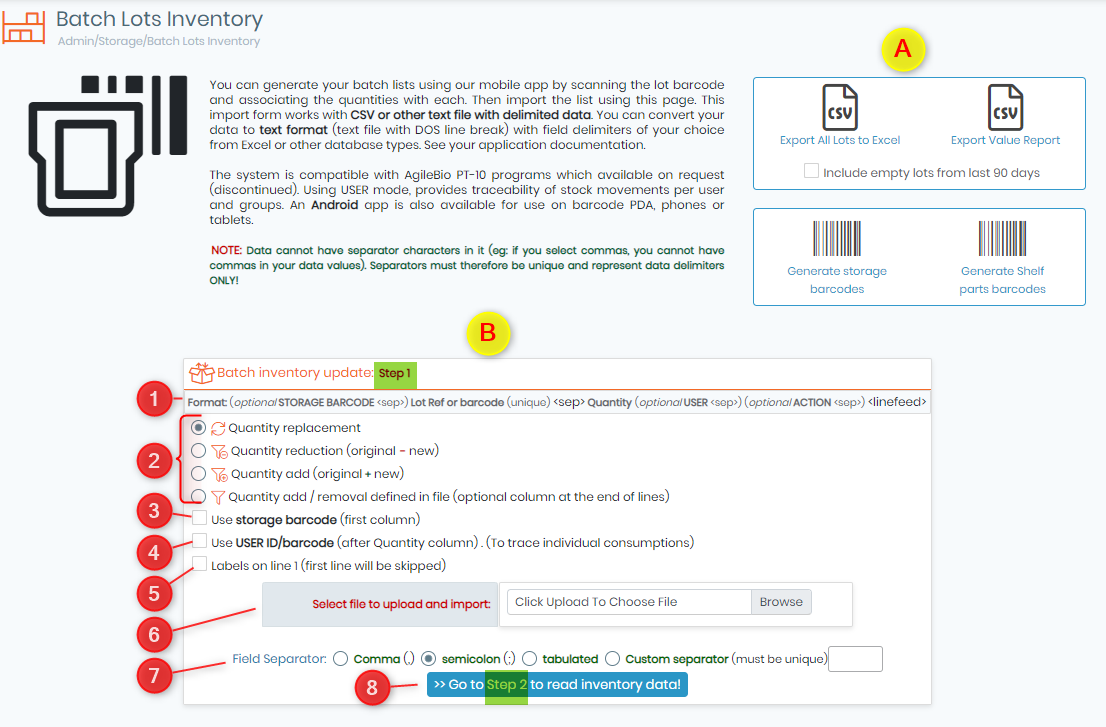
B. Here you can import the lot data.
Step 1: Here you can import batch inventory.
- Here you will find the options to import, which you can make while creating your CSV file. Data file has two columns. First column is for LabCollector internal Lot ID or Lot unique reference or barcode. Second column stores the real stock quantity. You can now also import the storage location by adding the storage box ID which is the barcode too.
- Choose between 3 options: quantity replacement, quantity deduction or add quantity.
- If you are adding the storage location, you can add the barcode (Box ID) in the first column of CSV.
- After the quantity column you can add the User ID/barcode to track individual consumption.
- If you have labels on first line (the name of the column) then the first row will be skipped.
- Here you can select the CSV file to upload.
- You can specify the field separator used in the CSV.
- After you are done you can proceed to step 2.
|
|
|
You can choose ADD mode and have a list of mixed positive and negative values. This will do subtractions and additions in a single step to lot values in the database. |

Step2: You will see the data imported and if all values are good, you will be asked to proceed to step 3.
Step3: Confirm stock update
You are presented with a table with the full inventory list parsed from the list. You are notified of errors (if a product is not found in LabCollector or if there is a redundant ID). Current quantity and new quantity are presented and there is a check box to confirm or reject the update for each item.