7.6.2 Single barcode label printing
Printing varies slightly depending on your printer. The printer may need to be set up by the super-admin and/or local IT staff depending on the model. According to your printer system, to edit and print a single barcode label you can:
|
Click on |
Click on |
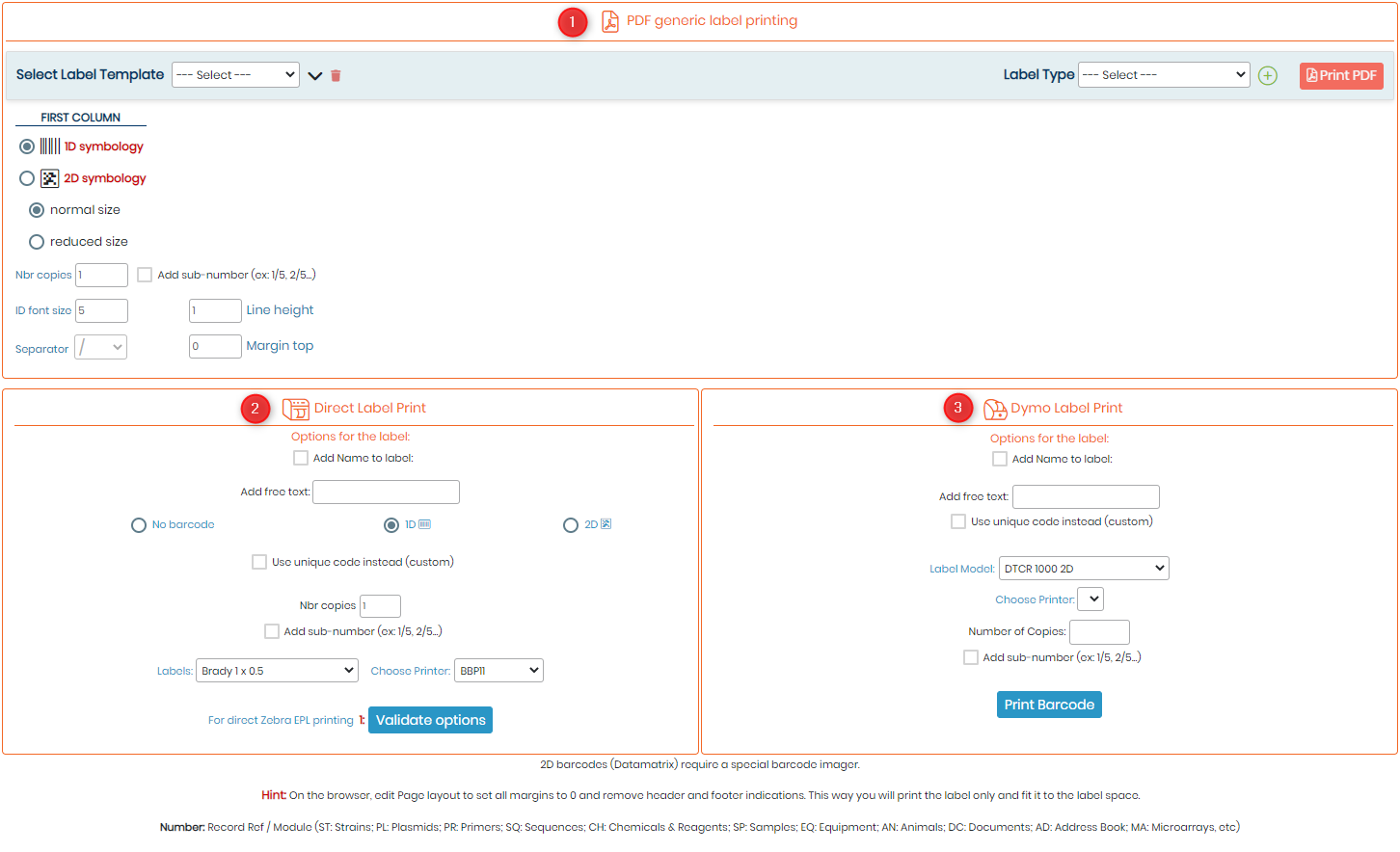
1: You can generate a PDF for your label, by using the "PDF generic label printing" option, you can select your label type and template, choose whether you want a 1D or 2D symbology, select the line height and margin top you require, the number of copies you want to print, then click on the button "Print PDF" located in the top right corner. 2: Direct label printing option. 3: Dymo label printing option. You can generate labels with barcode only or check “Add name to label” to have the record name and/or add free text on the field beneath. You also can print labels with no barcode. You can choose your labels and your label printer. To print, click on “Open in a new window”. |
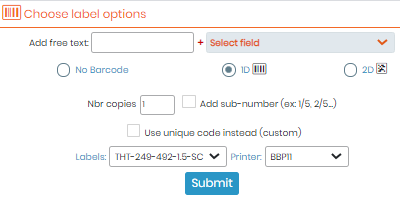
A pop-up opens for the direct print mode application on EPL or JSCRIPT capable printers. To install it: Admin → Setup → Label network printers. A new window is opened.
Here you can add free text, add the text of a select field and choose your barcode and labels roll types (defined in Admin → Setup → Label network printers). You can print labels with no barcode. You can change the barcode size for a better output. |


|
|
|
LabCollector offers the possibility to print several barcode labels at once. For more information, refer to |

