7.3.1 Define storage at data entry time
You can assign storage tubes or vials when creating a new record. (Storage may also be defined or updated for existing records.) On the new record form, in the Storage Data tab, you can select the location with the drop-down menus. Then indicate vial coordinates on the storage selector by clicking the box to the right of ‘Position in Box’.
Below example image is from the Plasmid module 🡪 New/edit Record 🡪 Storage Data
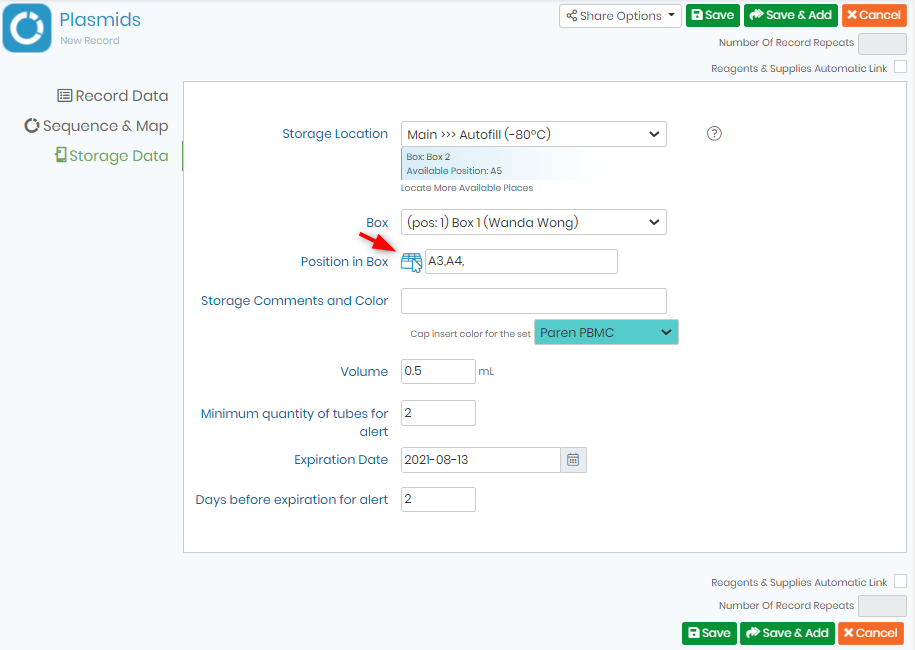
Generic steps for assigning tubes/vials:
- Select the location.
- Select a box from the resulting list.
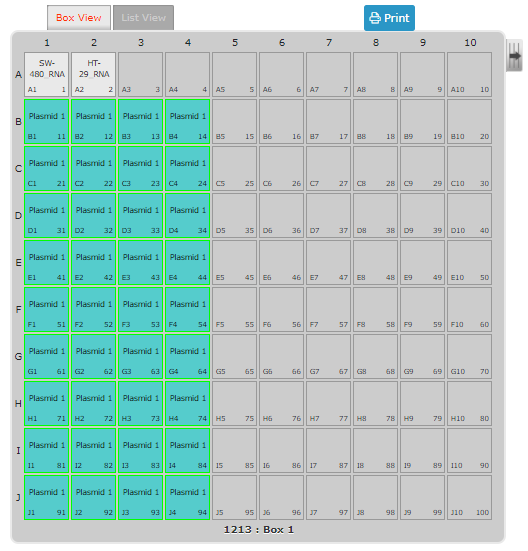
- Fill the box grid or visotube on the interactive map (open the map by clicking the grid icon). Newly selected positions appear green. Slots already taken will have the record name indicated.
- Close the interactive pop-up map window by clicking on the Accept button. Click Close this window or click the X in the top corner to avoid adding the storage.
- Indicate an optional commentary on this particular storage.
- Define a cap insert color for the tube (before using this function you need to define cap insert colors through Admin 🡪 Storage 🡪 Manage storage 🡪 Options).
- Indicate a volume. Only in mL for the moment.
- Save the record or the storage by clicking update/save.
|
|
|
You can have a general view of empty and available box spaces with the storage browser. A direct link is available by clicking "Locate Available Places". |

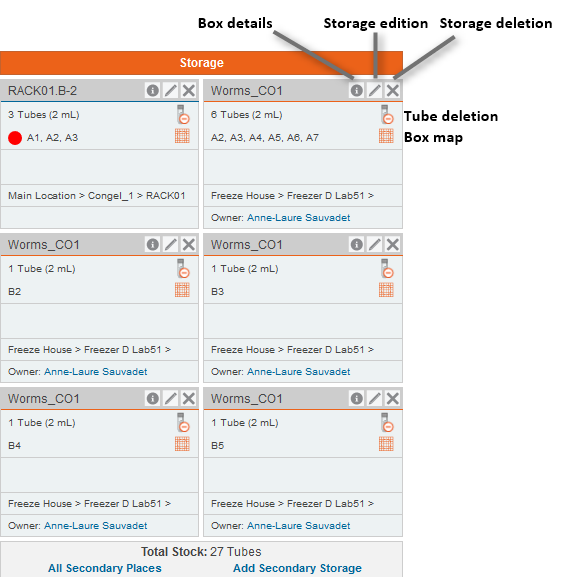
The total stock corresponds to tubes in main and secondary storage.