
6.4.4. LabCollector data link
This section allows you to search for or add a new record directly in your LabCollector data. You can also have access to this part when editing your text by clicking on the button  , or in the table “LabCollector Data” that is found below the text editor.
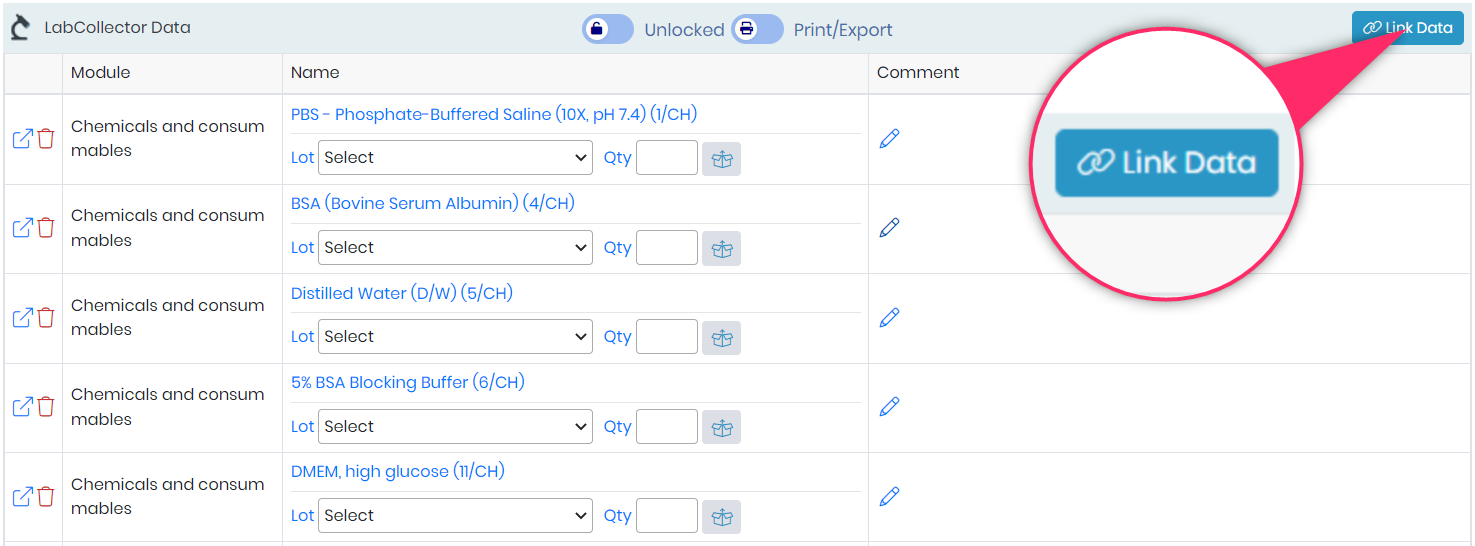
By using the button directly on your text editor you can also insert the link directly into the text as in the example above using the plate insert, all the records added will also be found in this table.
To insert a LabCollector link first select a module (1), then:
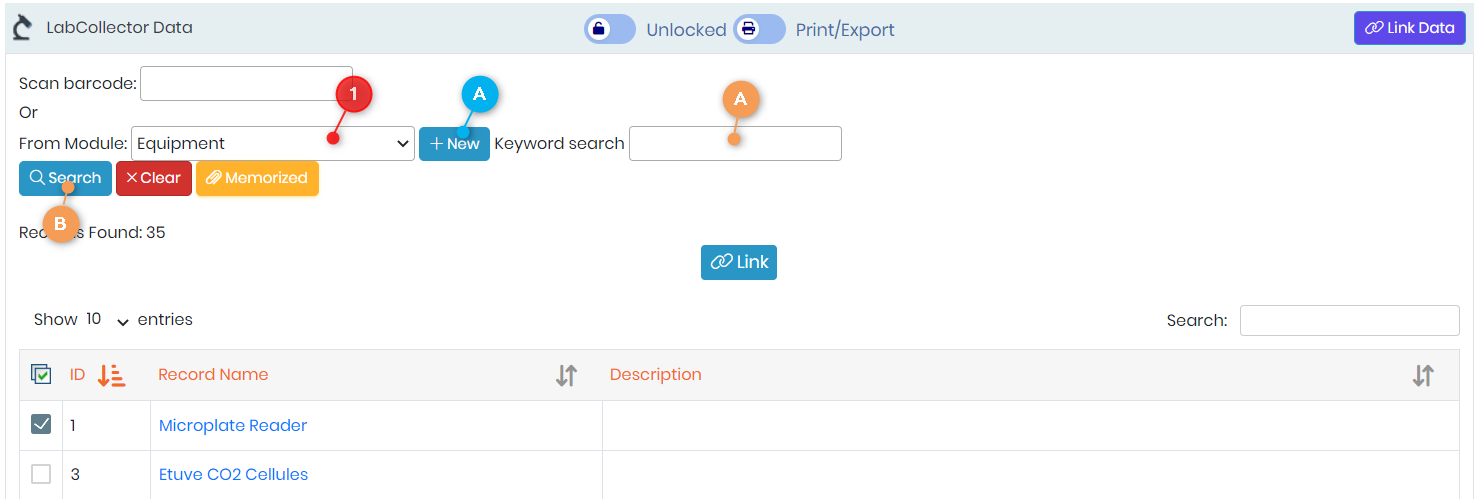
- If it is an existing record, you can use the keyword search and press the search button and check from the select list the record you want to link to the experiment (A-B orange).
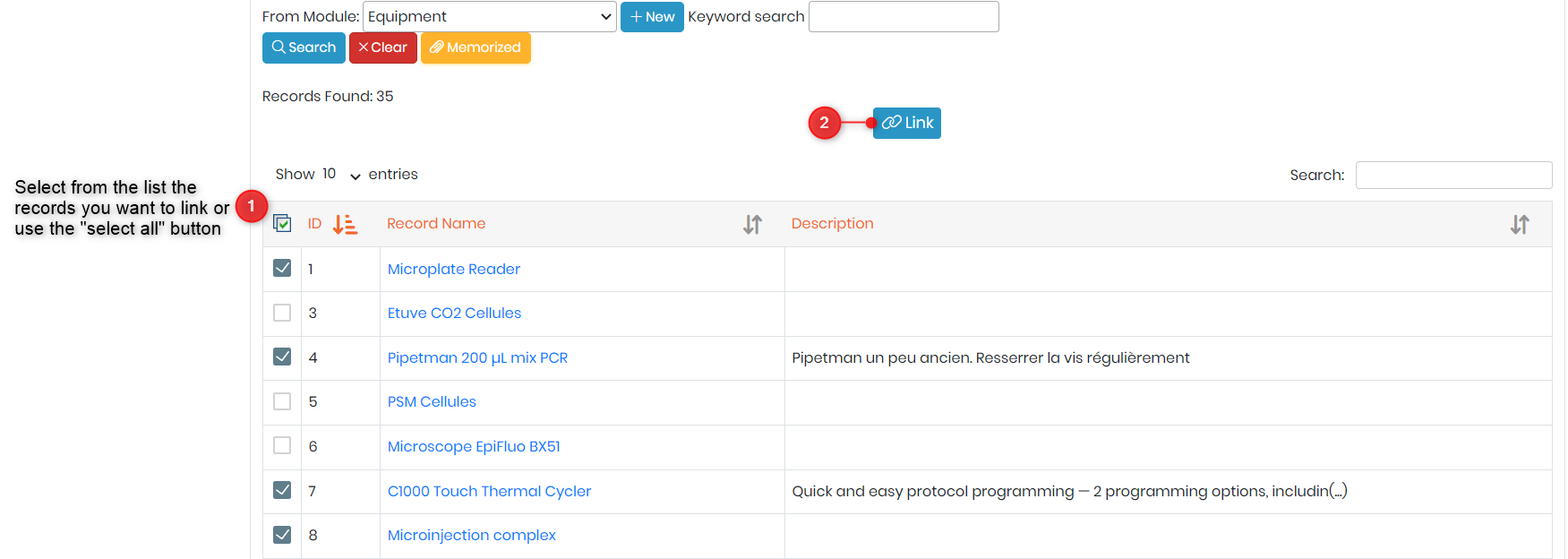
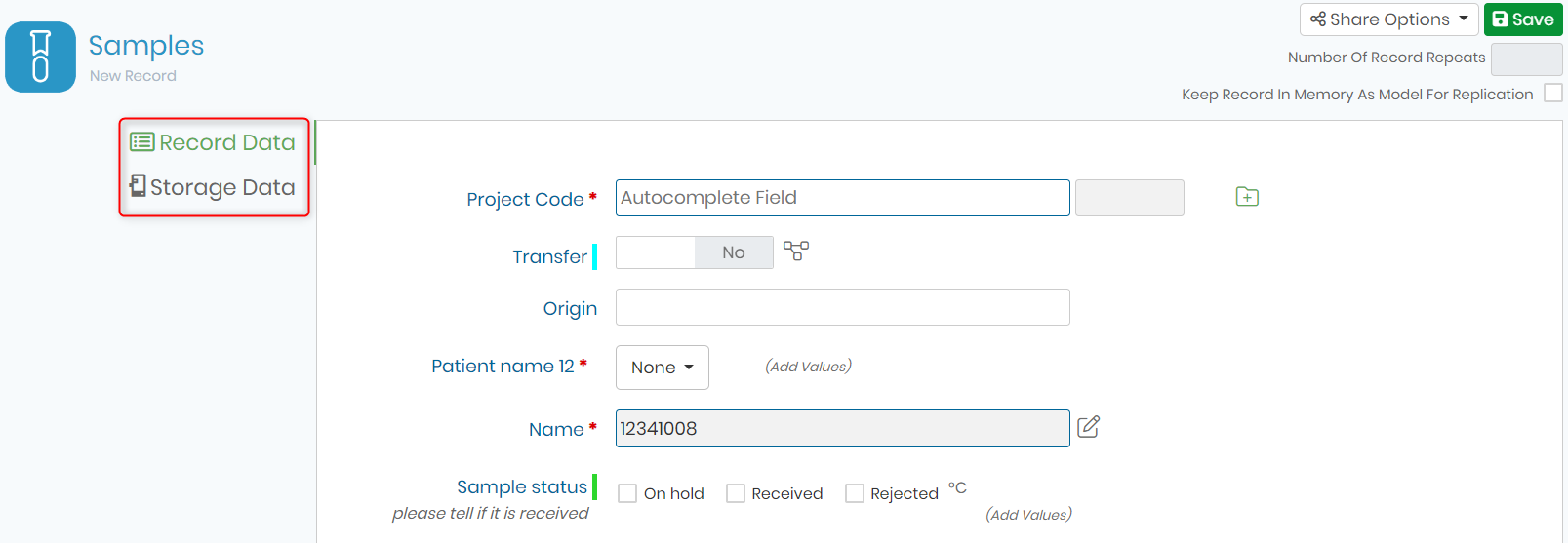
- If it is a new record, after choosing the module click on new (A in blue)
 , a window will open up for you to fill in the Record and Storage Data (shown below).
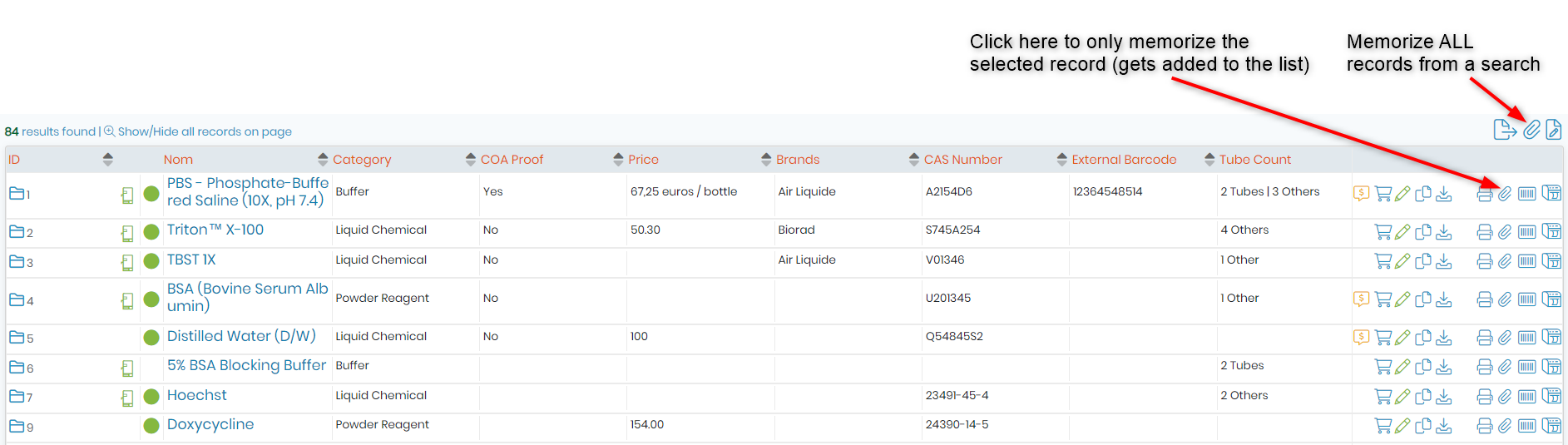
- You can also import the records from a memorized list:
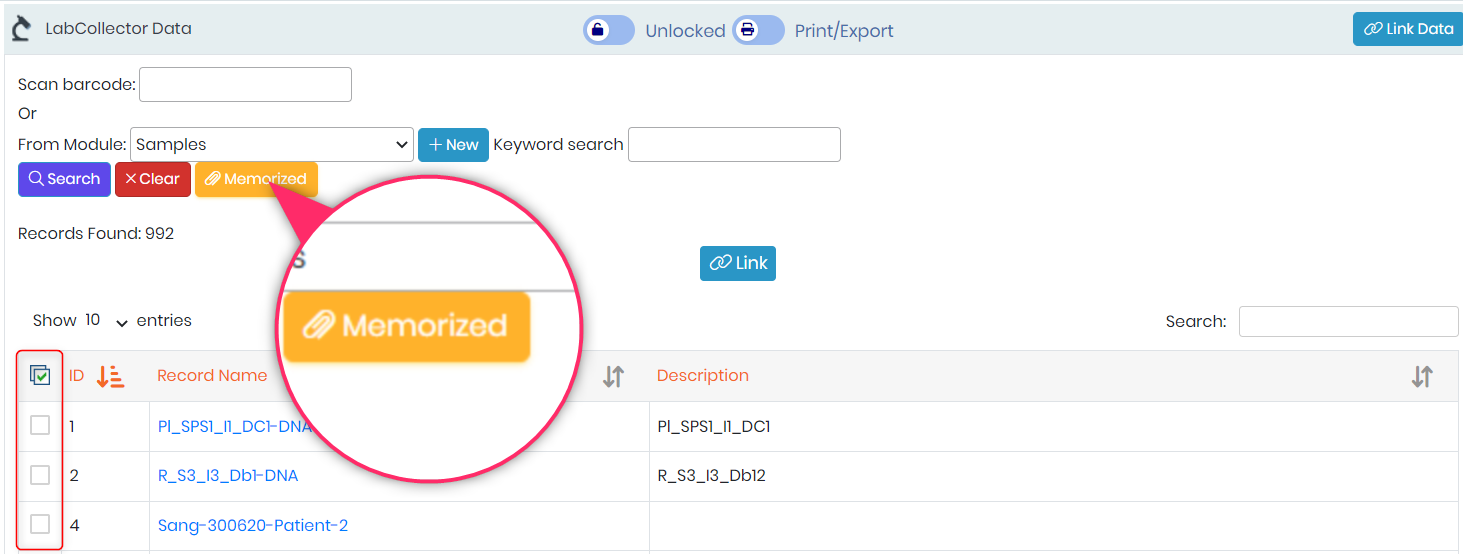
- Then on your LabCollector Data button in the ELN select “Memorized” and confirm the selection by checking the records:
On the linked records in the LabCollector Data, you can add a comment (which will be visualized only from the ELN), “insert link” in your text (only available when you use button on your text editor), access the data in reading mode
  or open them quickly in another tab using the icon
  . You can delete the association by using the icon
 .
.
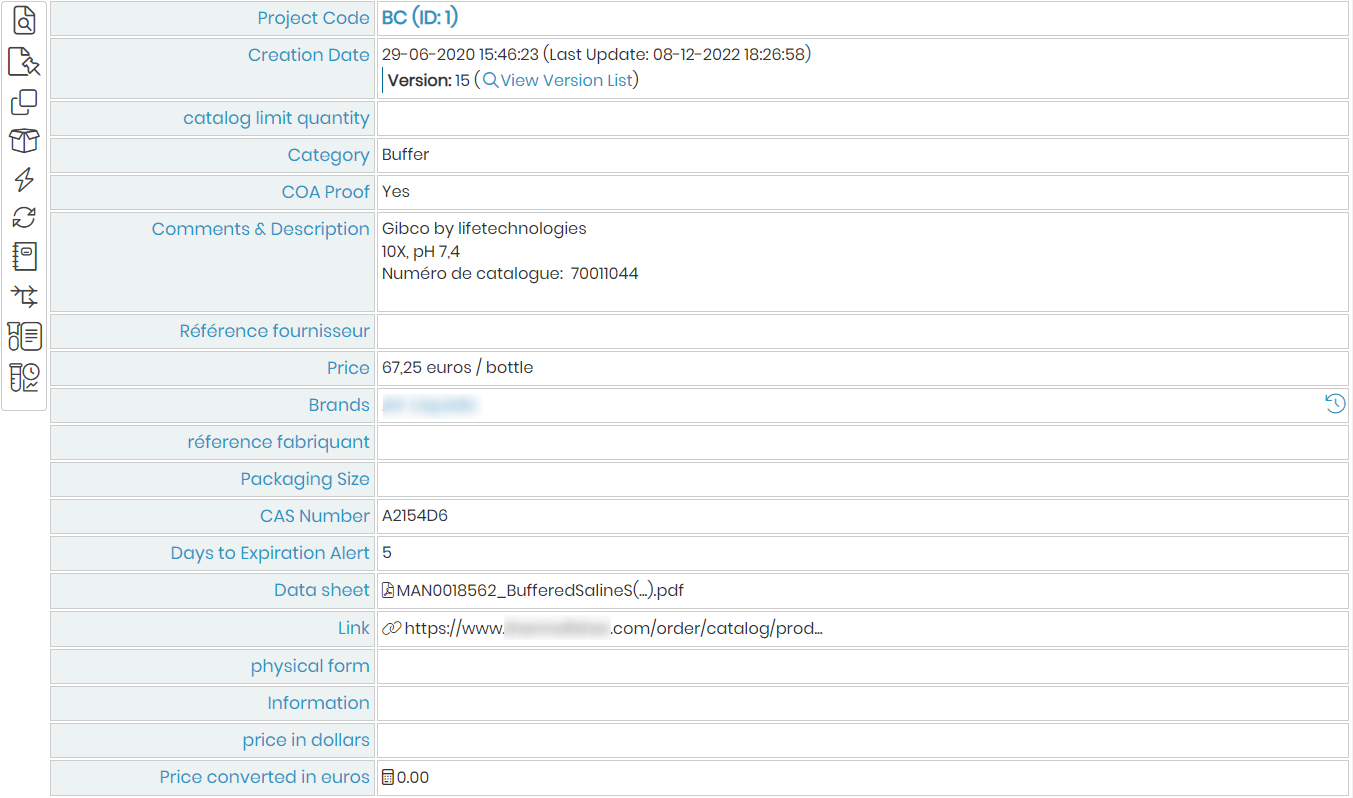
You can retrieve these LabCollector Data links, from your LabCollector inventory modules, under a LabCollector record you will find the ELN icon, under this section you can find all experiments and/or pages containing experiments in which this record (samples, equipment, cell lines, etc.) has been used.
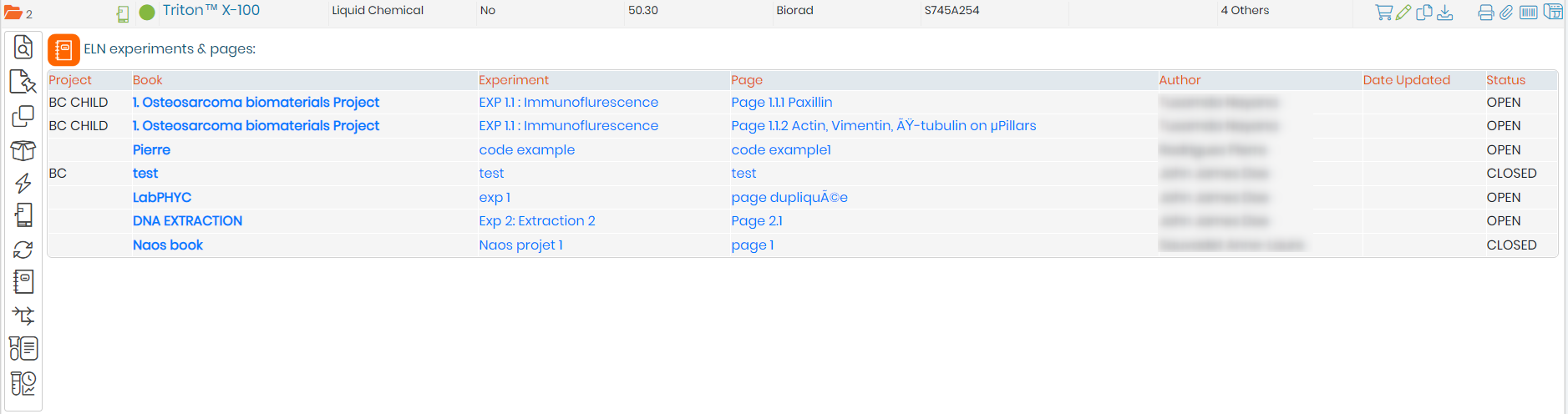
By clicking on the link, you can directly open the experiment or page. Note that to view the page you must have the right to see this book, if the book is archived, be sure to check “Show archived projects” under the Tree View (see Chapter 5).