2.5 Homepage customization NEW!
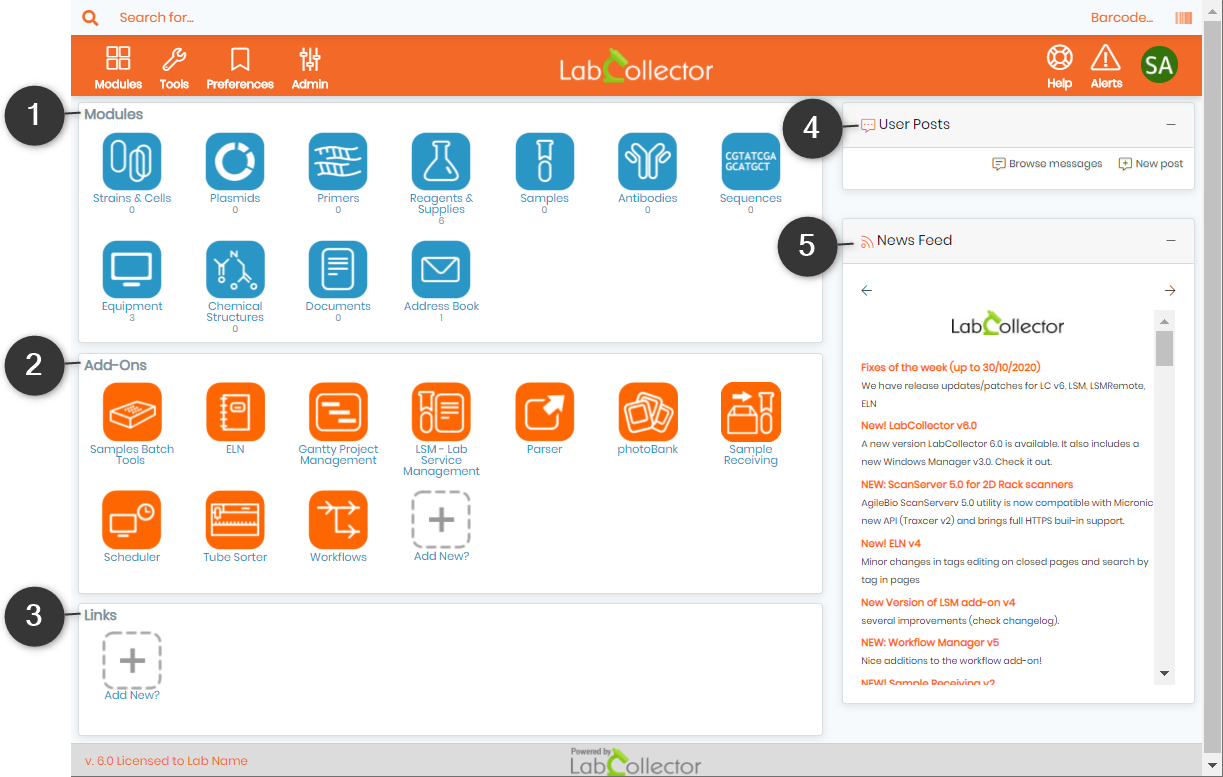
By default, the homepage of LabCollector is like the previous version composed of five sections:
- Modules
- Add-ons
- Links
- Posts
- RSS feed
|
|
|
Now, each user can customize his homepage with panels. |

You can also read the Knowledge Base  KB: how to configure panel or read below.
On the top right of the screen, click on the avatar icon. In this menu, you can select a new language, log out from your session and access your profile.
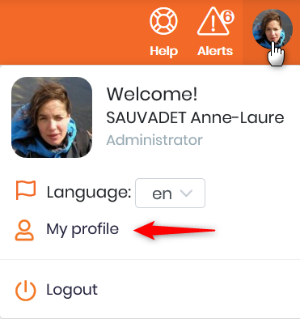
New! Lock-screen option added.
In your profile, you can modify your lab member information as you can do through Admin→Users & Staff→Manage Lab Members.
You can also modify your avatar, and if you have a Gravatar, it will automatically be used through your email address; your default language and go to the customization page.
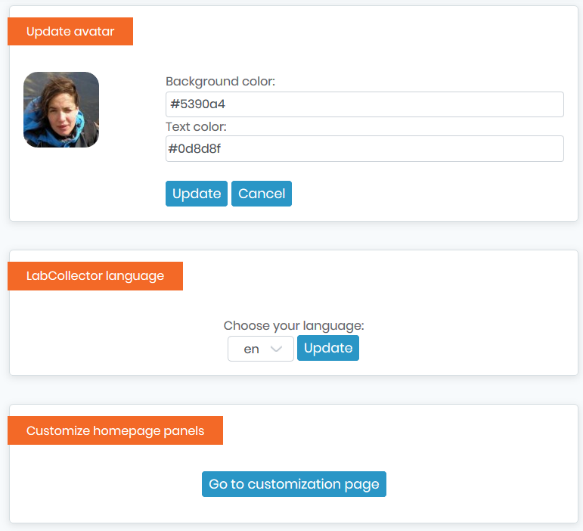
On this page, you will create panels to organize your homepage. You can create as many panels as you want. In this panel, you can insert links to modules and custom modules, add-ons, link items (see  section 3.1.9), and tools (see
  section 10).
- Click on Add a new panel
- Give it a name
- Navigate between tabs and click on the items of interest.

- If you do a mistake, click on the minus icon to remove an item.
- Save (or cancel all).
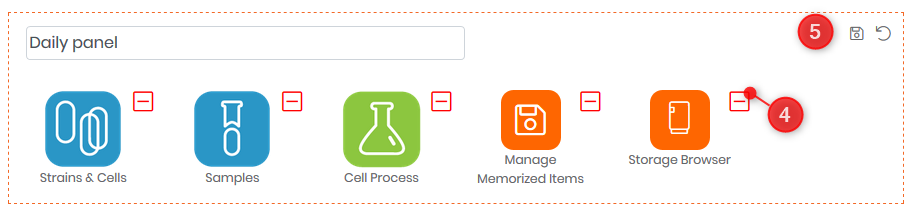
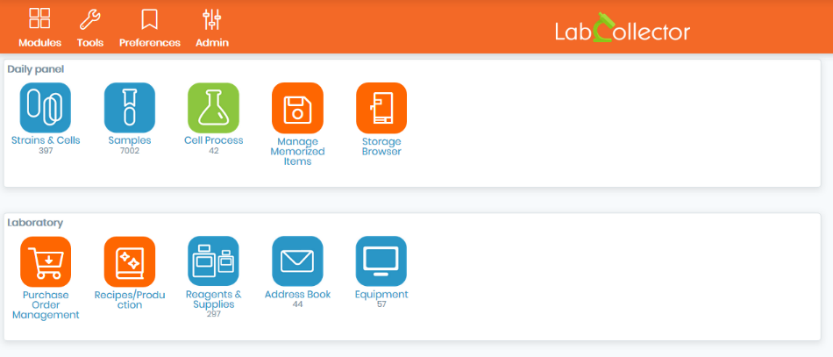
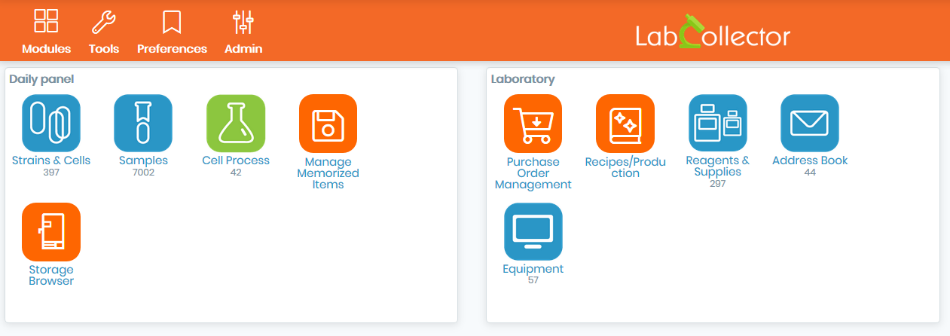
Once the panel is created, you can choose the display to:
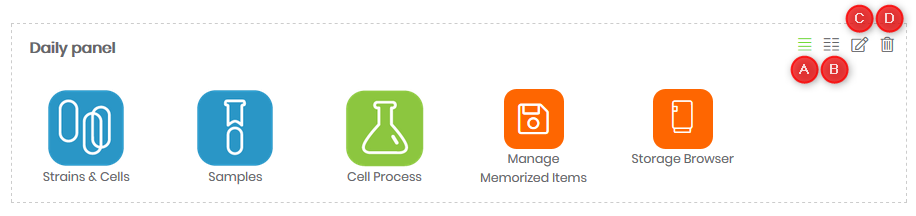
- A. One column display
- B. Two column display
The other two options are used to:
- C. Edit
- D. Delete
As in the previous versions, the Super-Administrator can modify more items for the homepage of all users through Admin→Other→Setup.
Please see the next section and more precisely sections 3-1-6, 3-1-9, and 3-1-10.
|
|
|
At any time, click on the LabCollector logo or your logo to return on the homepage. |


The general search is available on the top left. Click on the magnifying glass to search.
The barcode search is available on the top right corner.